Onboarding Wizard
When you open the app for the first time, the Onboarding Wizard launches automatically. It guides you from choosing a pain point to publishing your first rule in under one minute — no blank form to figure out on your own.
How it works
Step 1: Choose your pain point
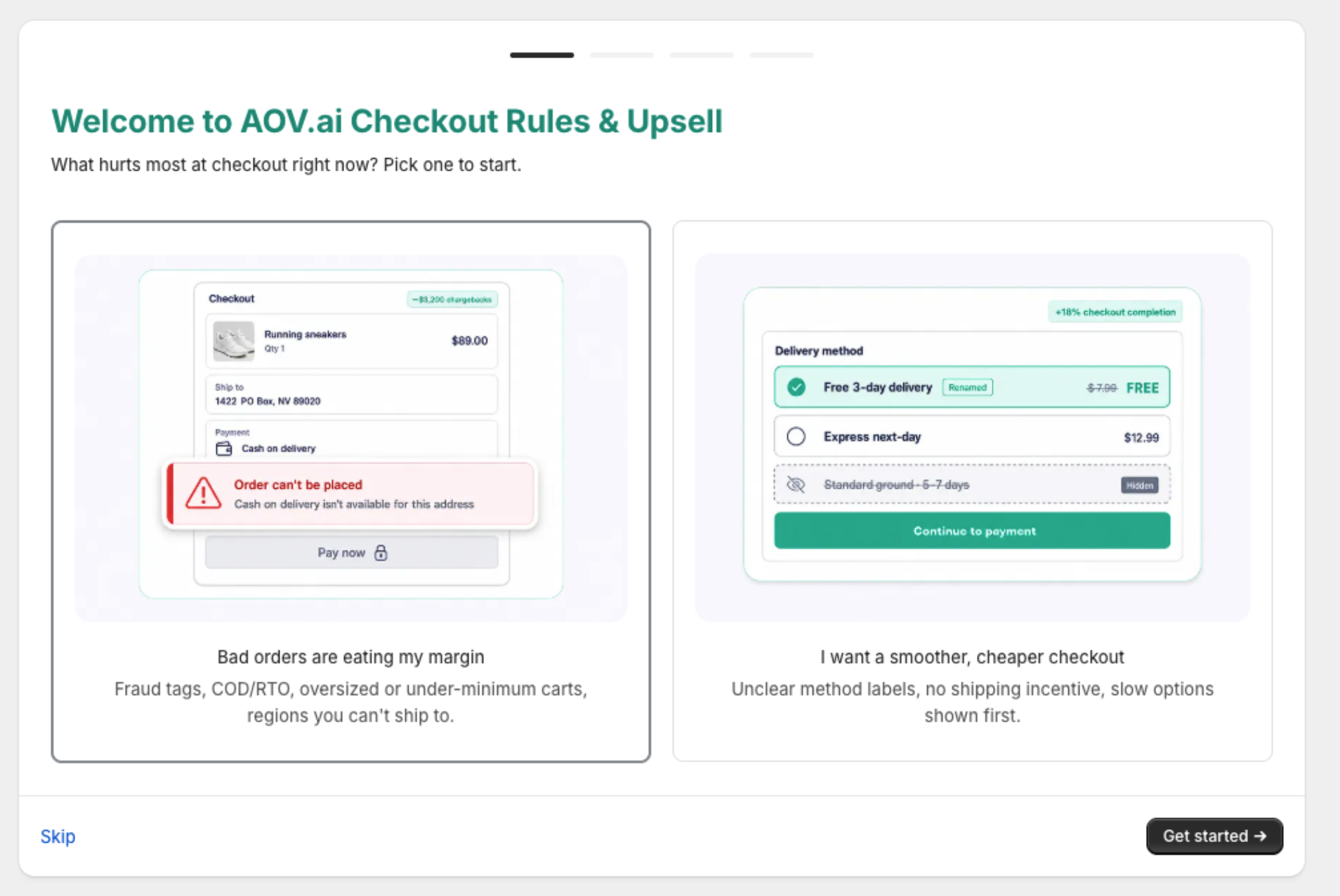
The wizard reads your Shopify plan and shows the pain points that are most relevant to your store type.
Non-Plus stores (2 options)
- Bad orders are eating my margin — covers fraud, COD/RTO, oversized or undersized orders, and shipping to unsupported regions.
- I want a smoother, cheaper checkout — covers confusing payment or delivery labels, missing shipping incentives, and slow methods ranked too high.
Shopify Plus stores (3 options, includes the two above plus one more)
- Grow average order value — cross-sell at checkout, tiered pricing, free-shipping threshold.
- Build trust and lift conversion — review widgets, trust badges, promotional images to reduce buyer hesitation.
- Stop costly bad orders at scale — block fraud, cap order value, hide risky payment methods by rule.
Step 2: Select a template
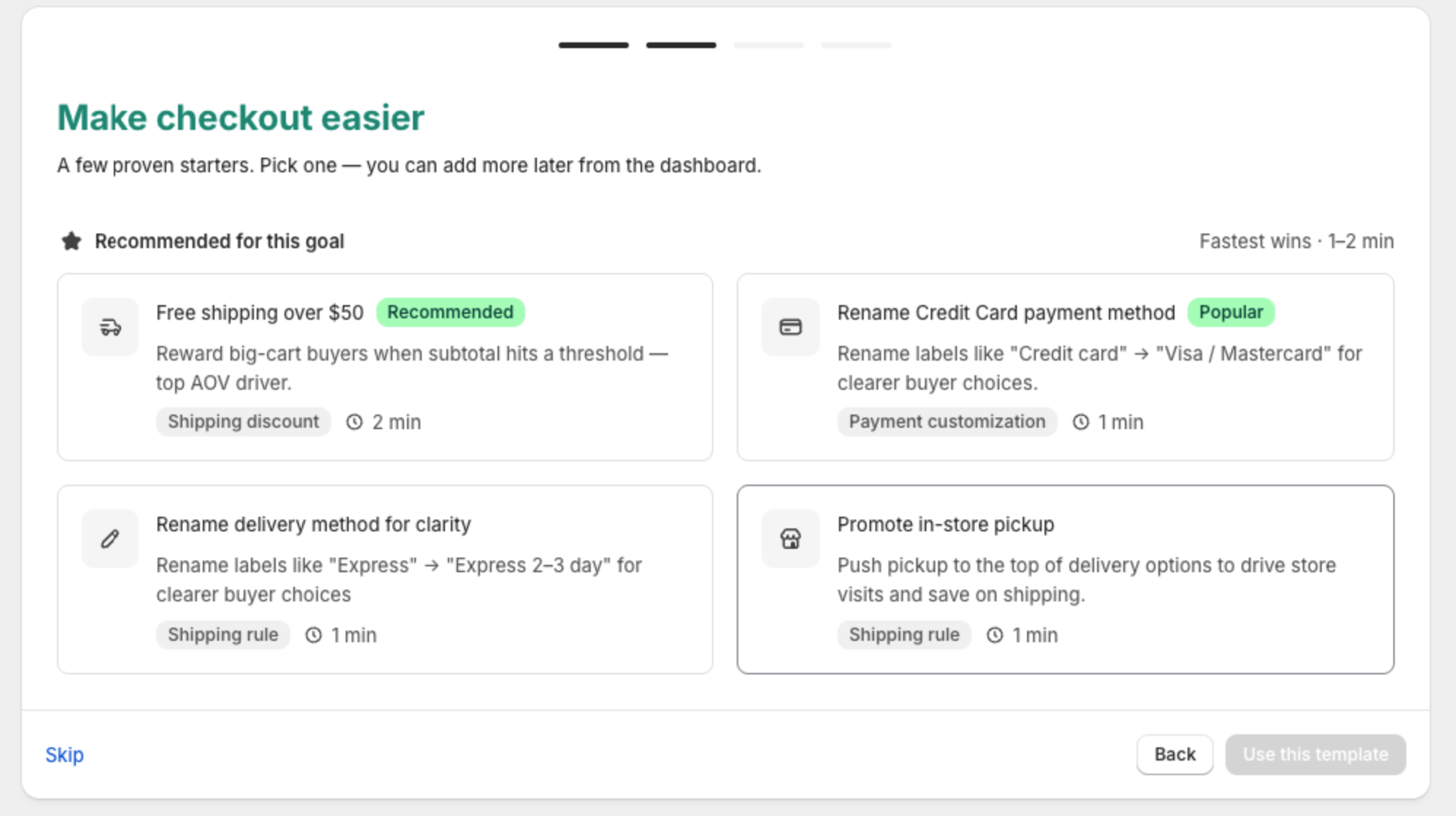
The wizard filters its template library by both your pain point and your Shopify plan. Each card shows an icon, title, a two-line description, and a Recommended or Popular badge so you can scan quickly.
| Non-Plus templates (examples) | Shopify Plus templates (additional) |
|---|---|
| Block fraudulent orders | Cross-sell at checkout |
| Hide COD for high-value orders | Volume savings offer |
| Hide delivery by country | Show reviews at checkout |
| Rename credit card label | Promotion images at checkout |
| Free shipping over $50 | Shipping discount for SEA |
Step 3: Review and publish
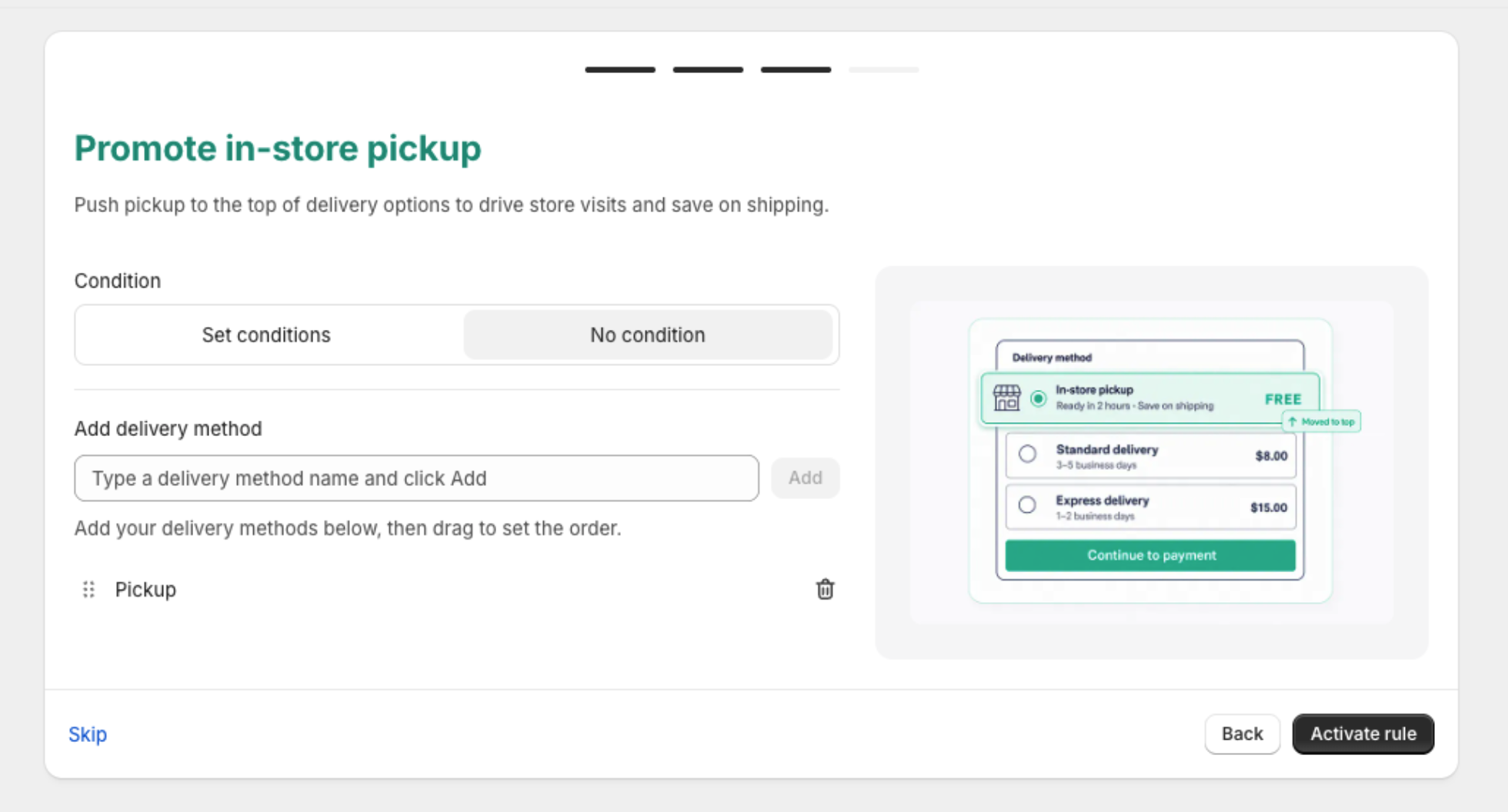
The app fetches your real products and pre-fills the entire rule with sensible defaults. Review the settings, adjust anything you want to change, then click Publish. The rule goes live immediately — no additional setup needed.
Notes
- The wizard only appears on your first visit. To create more rules after onboarding, use Create rule in any customization section (Payment, Shipping, Validation).
- Templates are starting points, not locked configurations. You can edit any pre-filled rule after publishing.
- If you close the wizard before finishing, you can restart it from the app Dashboard.