How to set up
Control which shipping options appear at checkout, how they're named, and in what order. Create rules to hide irrelevant methods, rename them for clarity, or reorder them to promote your preferred option.
Available on all plans. Delivery Customization uses Shopify Functions — no Shopify Plus required.
What it does
Delivery Customization lets you create rules that modify shipping options at checkout:
- Hide — Remove delivery methods that don't apply (e.g., hide express shipping for digital products)
- Rename — Change how a method is labeled (e.g., "Standard" → "Free Shipping (3–5 days)")
- Reorder — Control the display order (e.g., move free shipping to the top)
Each rule can optionally use trigger conditions so it only applies when specific criteria are met (product in cart, cart value, customer tag).
Step 1: Go to Shipping rules
In the app sidebar, click Shipping rules. This page lists all your delivery-method rules.
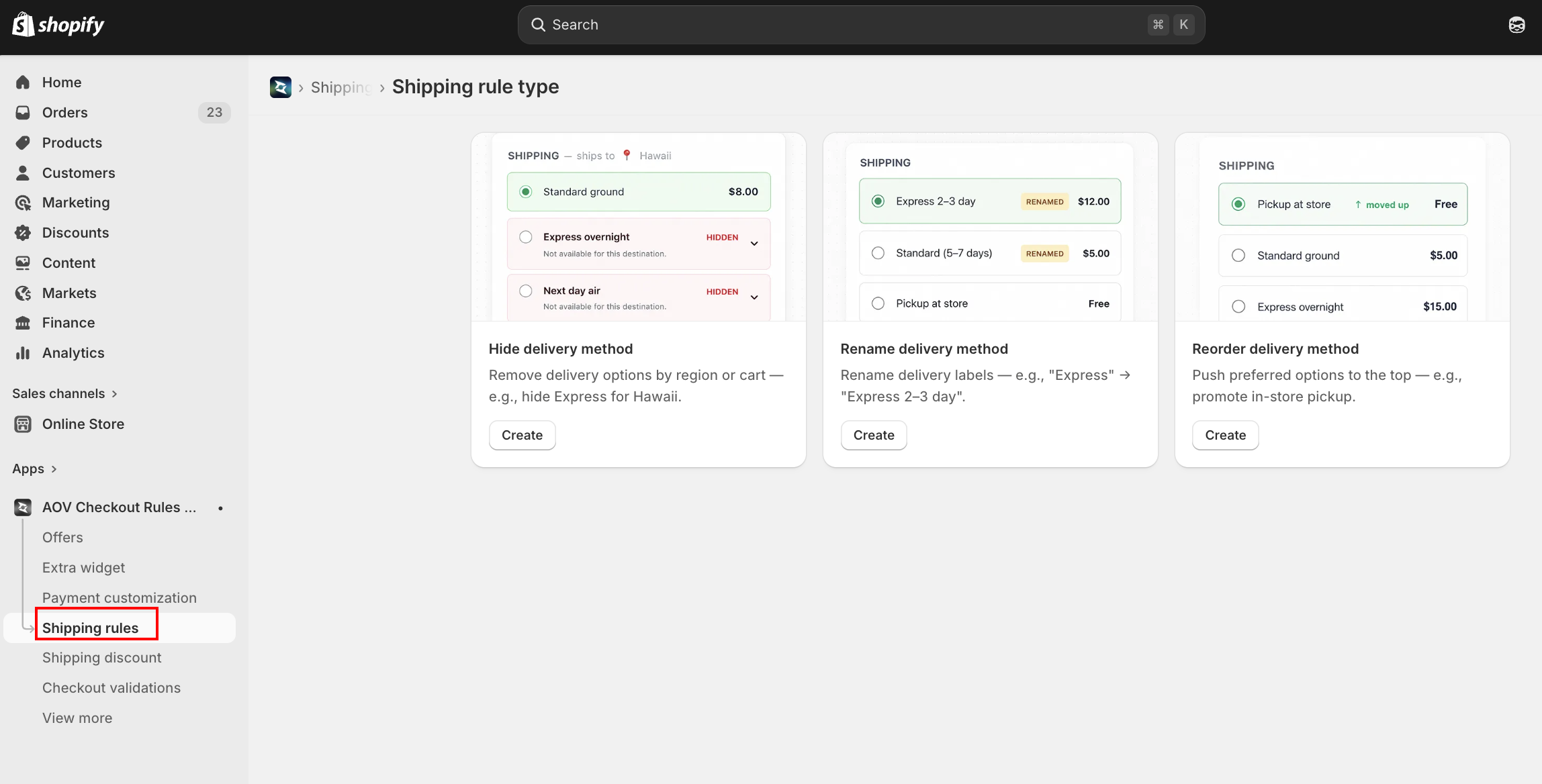
Delivery-method customization lives under "Shipping rules" in the sidebar — a separate item from Payment customization and Shipping discount. This page only shows delivery (shipping-method) rules.
List page overview
The page heading is Shipping rules.
| Feature | Description |
|---|---|
| Tabs | Filter by sub-type: All, Hide delivery, Rename delivery, Reorder delivery |
| Table columns | Name, Status, Type, Details, Actions |
| Status filter | Active, Expired, Test mode |
| Sort | By Date Created (Oldest / Newest) |
| Actions | Activate/Deactivate, Edit, Delete |
Step 2: Choose rule type
Click Create rule (top right) to open the Shipping rule type page. It shows three cards. Pick one and click Create.
| Rule type | What it does |
|---|---|
| Hide delivery method | Remove delivery options by region or cart — e.g., hide Express for Hawaii |
| Rename delivery method | Rename delivery labels — e.g., "Express" → "Express 2–3 day" |
| Reorder delivery method | Push preferred options to the top — e.g., promote in-store pickup |
Step 3: Configure general settings and trigger conditions
All three rule types share the same editor layout:
- Left column — Section labels and descriptions
- Right column — Form fields and settings
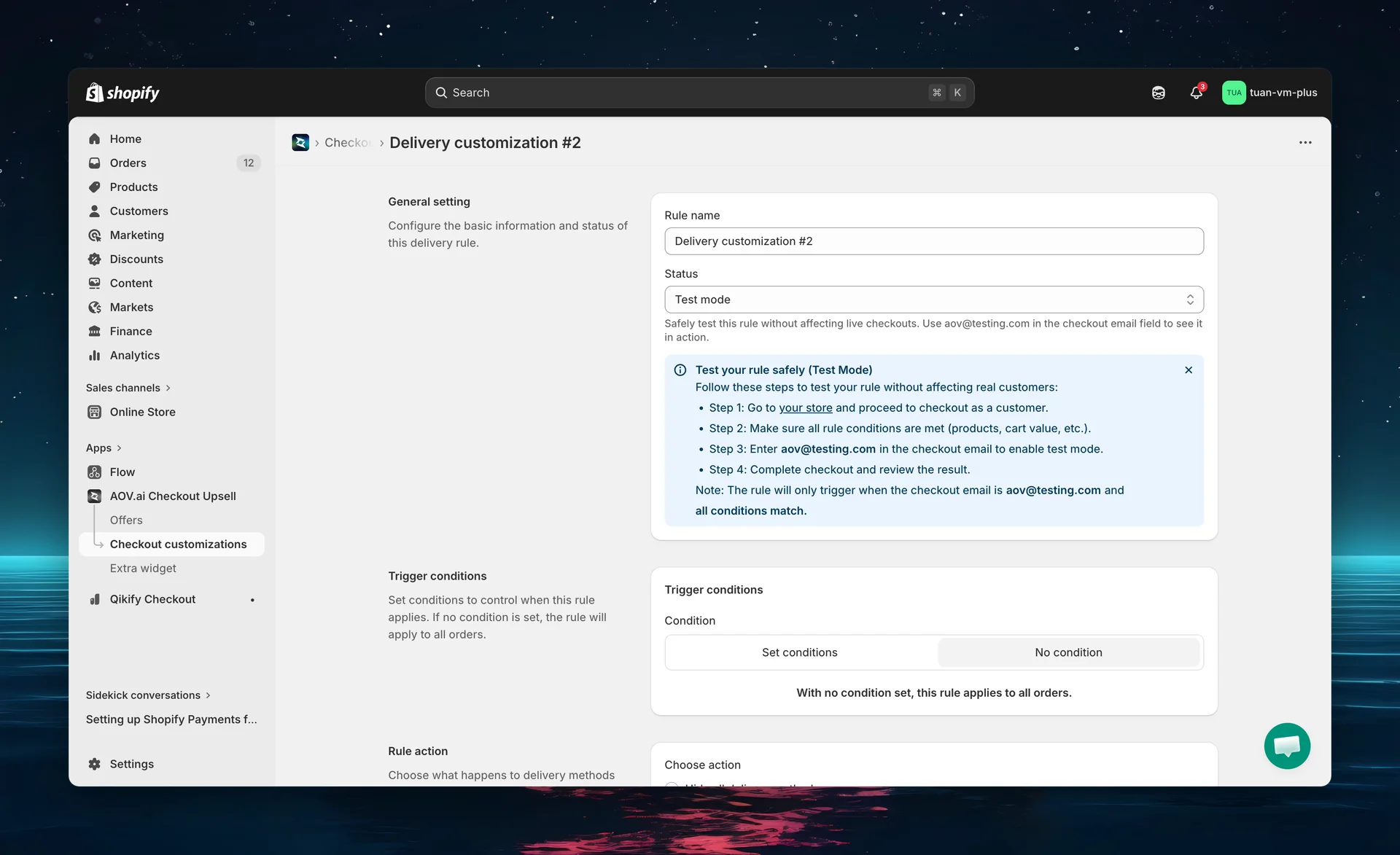
General setting
| Setting | Description |
|---|---|
| Rule name | A name for your reference (e.g., "Hide express for digital products"). A default like "Hide delivery method #1" is pre-filled. |
| Status | Active — rule applies at checkout. Test mode — only triggers when checkout email is [email protected]. Expired — rule is off. |
Test mode lets you safely verify your rule without affecting real customers. Use [email protected] as the checkout email to see the rule in action.
Trigger conditions
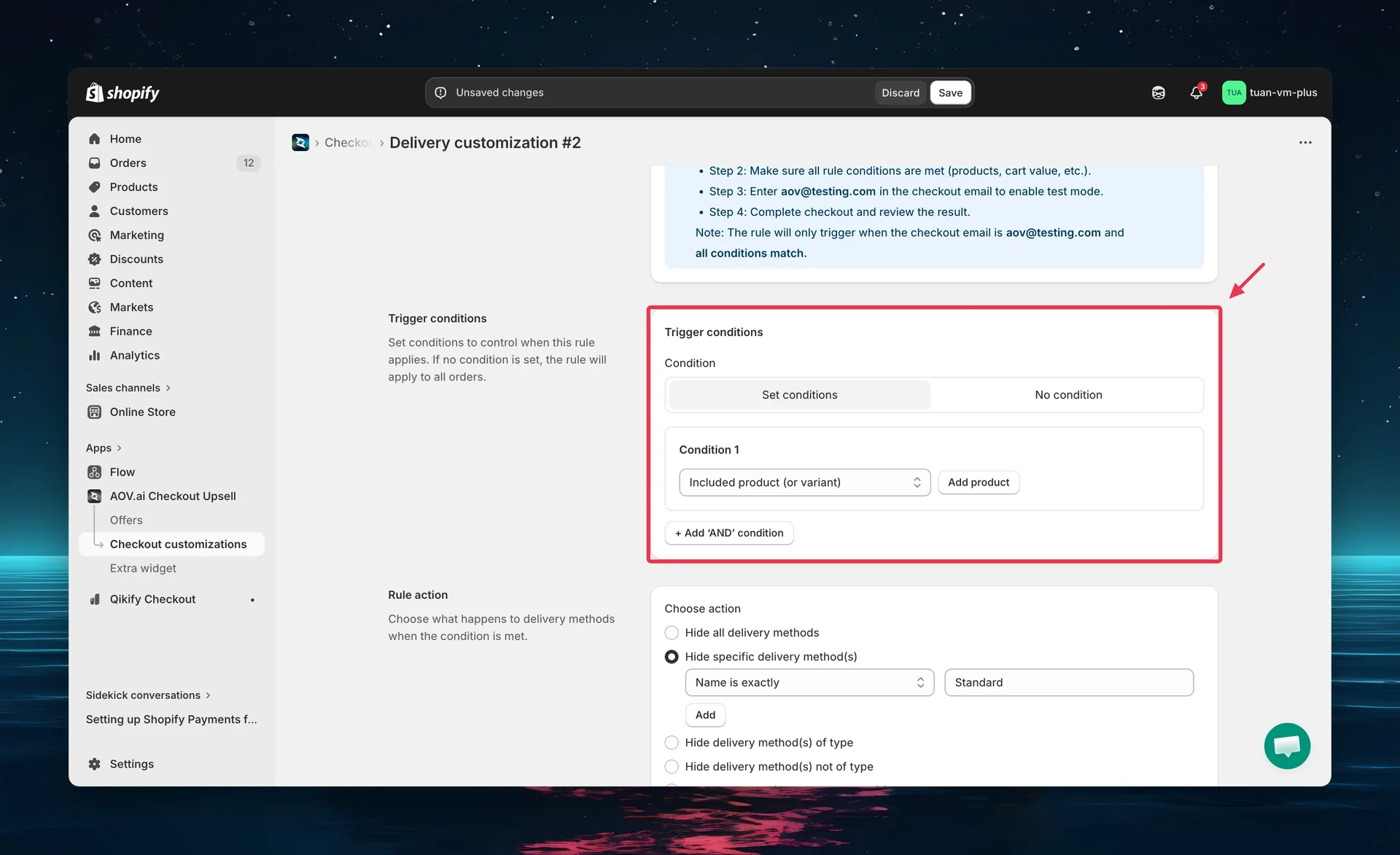
Choose when the rule applies:
| Mode | Behavior |
|---|---|
| No condition | Rule always applies to all orders |
| Set conditions | Rule only applies when all conditions are met (AND logic) |
Available condition types
The condition dropdown is grouped (Product / Order / Customer / Shipping):
| Condition | Operators / controls | Example |
|---|---|---|
| Included product (or variant) | Product picker (cart contains) | Cart contains "Digital Product" → hide express |
| Excluded product (or variant) | Product picker (cart does not contain) | Cart lacks "Gift Card" → hide free shipping |
| Subtotal value | Greater (>), Greater or equal (≥), Less (<), Less or equal (≤), Equal (=); or Use a range (from/to) | Cart > $75 → show free shipping first |
| Customer tag | Include / Exclude + tag picker | Include tag "VIP" → prioritize express |
| Shipping country | Include / Exclude + country picker | Exclude remote regions → hide express |
Click "+ Add 'AND' condition" to combine conditions (one of each type, up to five). All conditions must match (AND logic) for the rule to apply.
Rule type: Hide delivery method
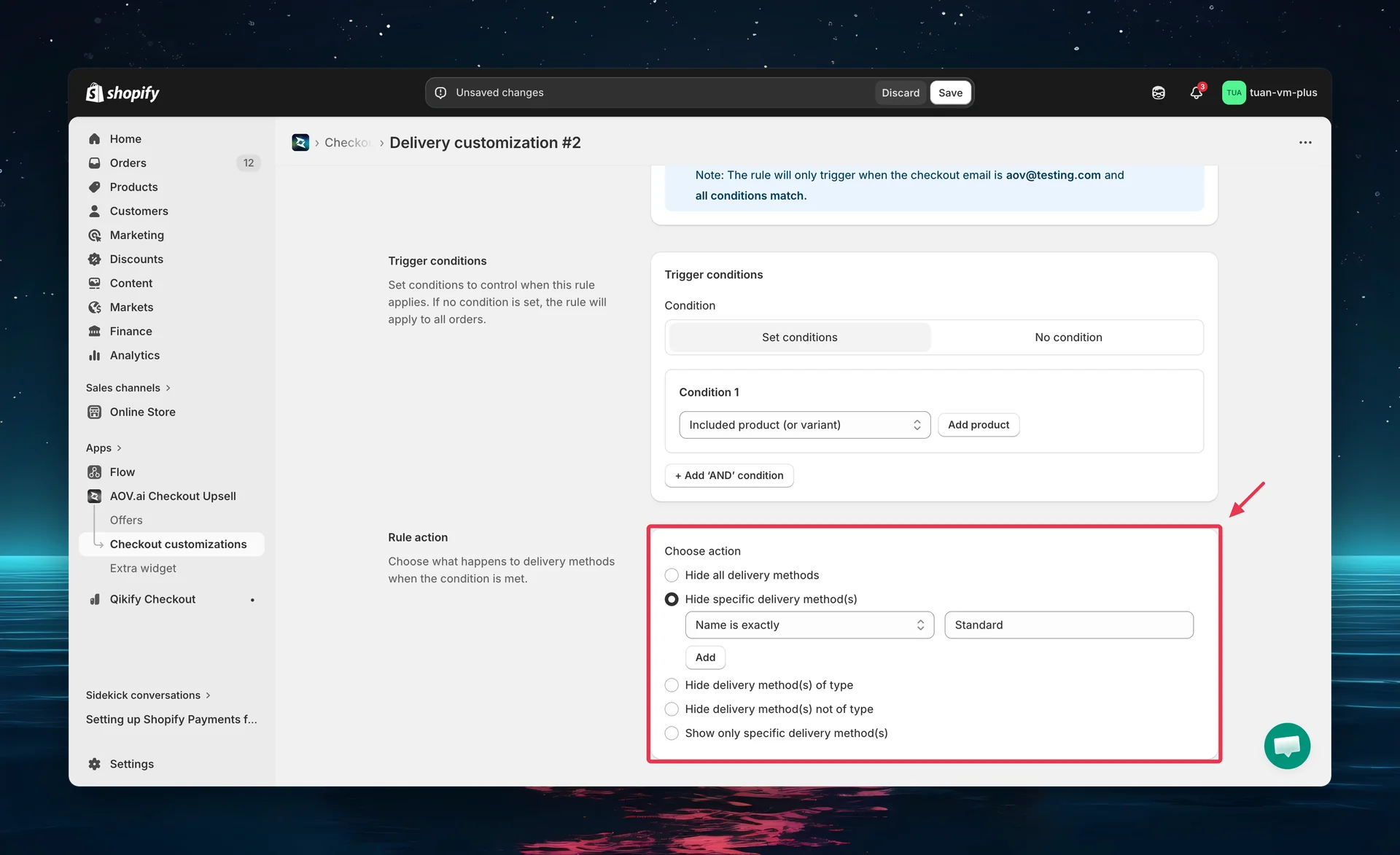
When you select Hide delivery method, the Rule Action section offers five options:
| Option | Behavior |
|---|---|
| Hide all delivery methods | Removes all shipping options |
| Hide specific delivery method(s) | Hide only the methods you specify by name |
| Hide delivery method(s) of type | Hide all methods of one or more categories |
| Hide delivery method(s) not of type | Hide everything except the selected categories |
| Show only specific delivery method(s) | Hide all methods except the ones you specify |
When you choose Hide specific or Show only specific, a name-matching builder appears per row:
- Matching type: dropdown — "Name is exactly" (exact match) or "Name contains" (partial match)
- Delivery method: free-text field — enter the method name as it appears in Shopify
Click Add to add more rows; click the trash icon to remove one.
When you choose of type / not of type, a category picker appears. The available delivery types are: Shipping, Local delivery, Pickup point, Local pickup, and Retail.
Be careful with "Hide all" — if no delivery methods remain visible, buyers cannot complete their purchase. Always test before activating.
Rule type: Rename delivery method
When you select Rename delivery method, the Rule Action section shows a Rename rules table:
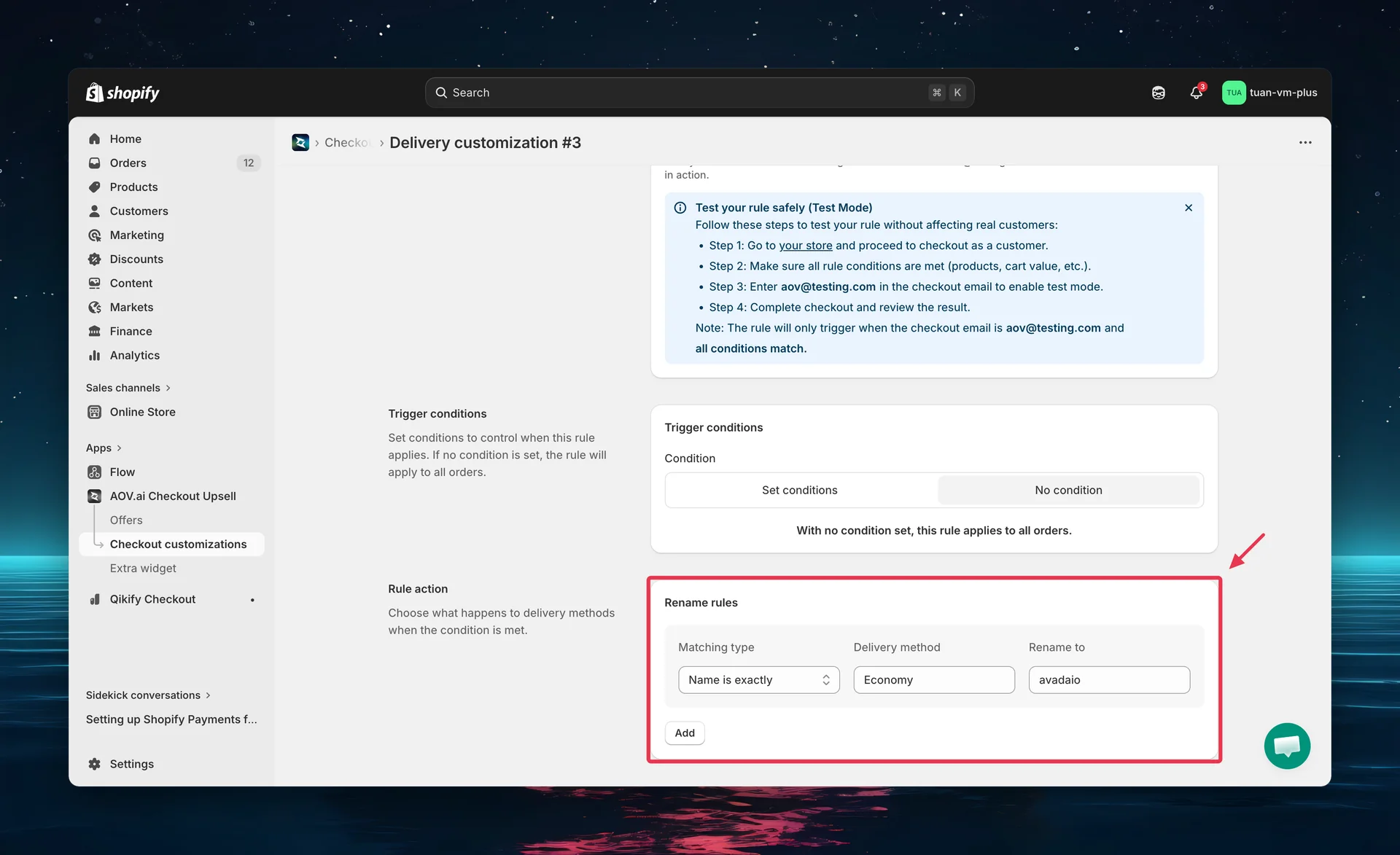
| Column | Description |
|---|---|
| Matching type | Dropdown: "Name is exactly" or "Name contains" |
| Delivery method | Free-text field — the original name as it appears in Shopify |
| Rename to | The new name buyers will see at checkout |
Click Add to create additional rename mappings within the same rule.
Examples:
- "Standard" → "Free Shipping (3–5 business days)"
- "Express" → "Next-Day Delivery — $12.99"
- "Economy" → "Budget Shipping (7–10 days)"
With "Name is exactly", the Delivery method name must match exactly as shown in your Shopify Shipping settings — including spacing and capitalization. Use "Name contains" to match on a partial keyword instead.
Rule type: Reorder delivery method
When you select Reorder delivery method, the Rule Action section lets you set the display order:
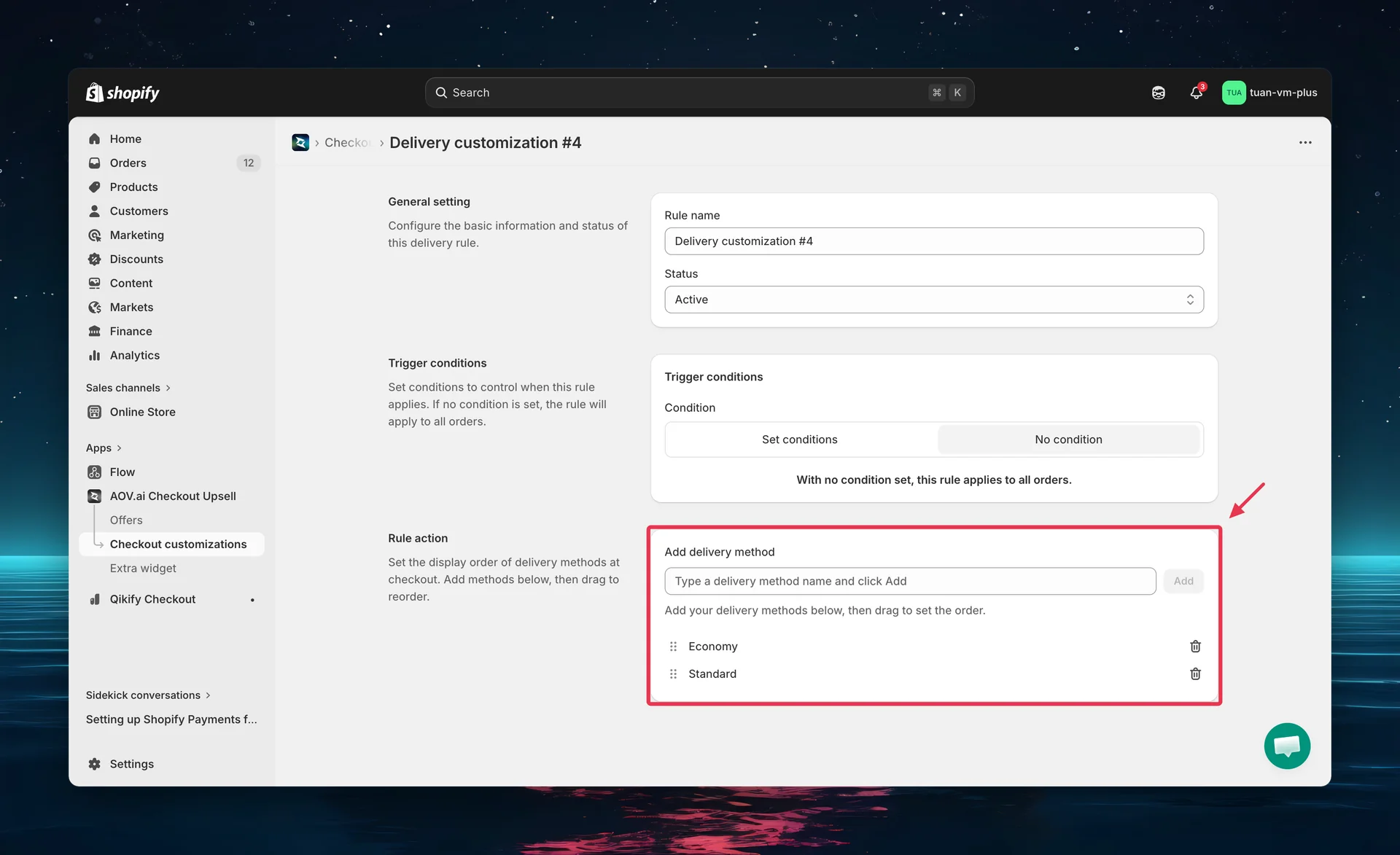
How to reorder
- Under Add delivery method, type a method name (placeholder: "Type a delivery method name and click Add")
- Click Add (or press Enter)
- Repeat for each method you want to prioritize
- Drag and drop with the drag handle to set the desired order — top of list appears first at checkout
- Use the Remove (trash) icon to remove a method from the list
Tip: You don't need to list every delivery method — only the ones you want to prioritize. Unlisted methods will still appear, just after the ones you've explicitly ordered.
Shipping Method Summary: preview before you save
At the bottom of a Hide, Rename, or Reorder rule editor, a Summary section shows two things before you click Save, so you don't have to place a test order to find out whether your rule works:
- How many of your store's shipping methods the rule will actually affect.
- The full list of shipping method names your store currently has, so you can copy the exact spelling into your rule instead of typing it from memory.
On the delivery-method rule editor, Summary replaces the Share app function logs section described below. Payment customization rules are not affected, their editor still shows Share app function logs at the bottom.
Rule impact preview
The Summary section's first part shows a sentence like: "This rule will hide 3 of 32 shipping methods." (the verb changes to rename / reorder / show to match the rule type), followed by the names of the first 5 matching methods. If more than 5 match, click ...and N more to see the rest, or Show less to collapse it again.
| Situation | What you see |
|---|---|
| No method matches your conditions | A warning that the rule won't change anything at checkout, so you can fix your conditions before saving |
| Rule hides by type (e.g. Local delivery, Pickup) | A note that preview isn't available, since type-based rules don't match by method name |
The preview uses the same matching logic as checkout, so the count is real, not an estimate. It is calculated from the shipping methods already loaded on the page, so if a rate changed very recently, reload the page or click Rescan (below) to refresh it.
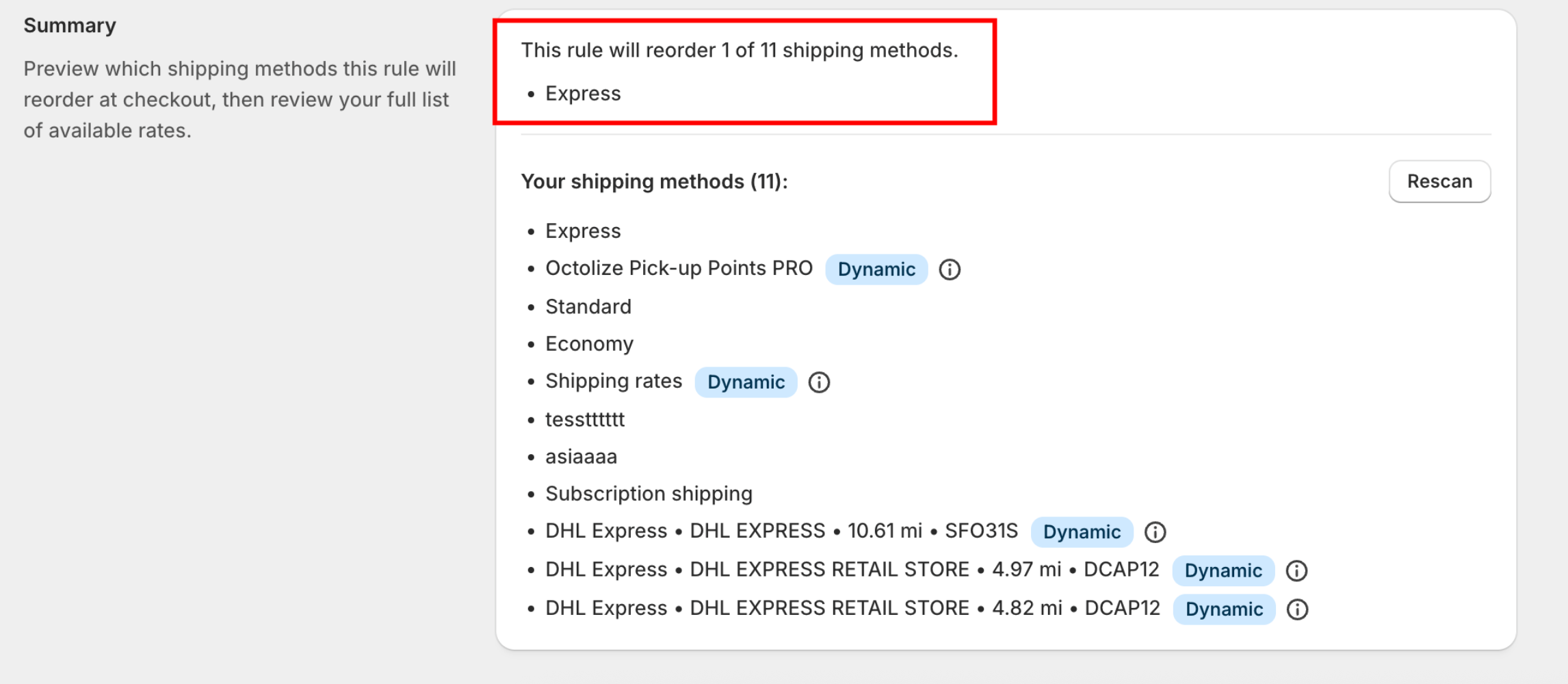
Your shipping methods list
Below the preview, Your shipping methods (N): lists every shipping method name your store currently has. Copy a name straight from this list into your rule to avoid typos.
Methods calculated live by a carrier or a third-party app (USPS, DHL, and similar) show a Dynamic badge. Hover it for a tooltip explaining that checkout may show the carrier's name in front of the method name, and that the rate name itself can vary.
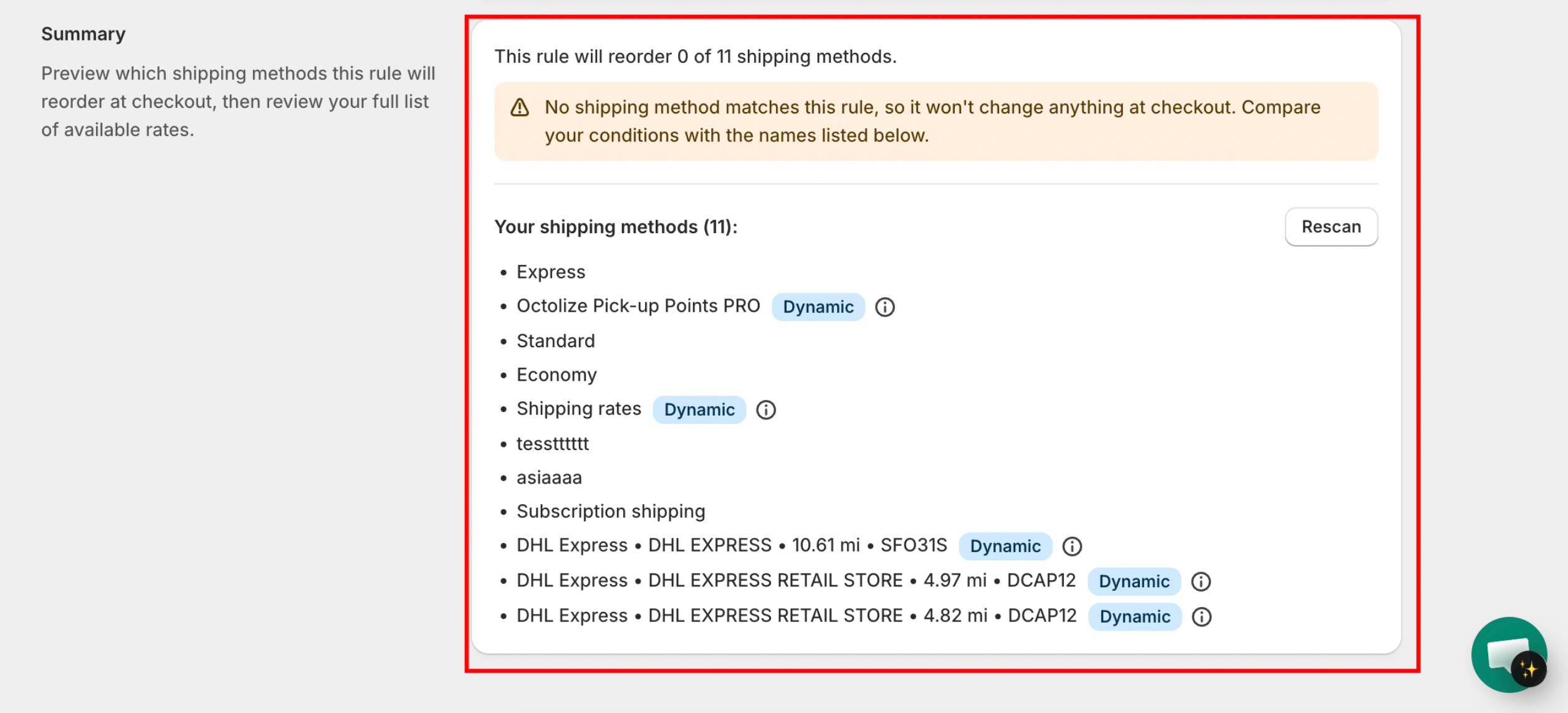
For a method marked Dynamic, use "Name contains" with a keyword (for example "Express") instead of "Name is exactly". Dynamic rate names can change between carts, so an exact match may stop matching without warning.
Click Rescan to check your store's last 30 days of orders for shipping method names that don't show up in your Shopify shipping settings directly, most often rates from a third-party shipping app. Rescan re-checks both your configured methods and recent orders, then refreshes the list.
If the list looks incomplete
If Shopify's response is delayed or errors while loading your shipping methods, the Summary section shows a banner saying the list may be incomplete. This does not mean your store has no shipping rates. Reload the page or click Rescan again after a moment. A third-party app's rate can only appear in this list if that app registers its service correctly with Shopify; if it doesn't, that rate simply won't show up here even though it still works at checkout.
Important notes from Shopify
Activation in Shopify Settings required. After creating a delivery rule in the app, you must also activate it in your Shopify admin. Go to Settings → Shipping and delivery → Delivery customizations, select your customization, and click Activate. If you skip this step, the rule will not take effect at checkout.
Draft order checkouts. Delivery customizations apply to both regular Shopify Checkout and draft order checkouts. However, customizations will not display in the admin while you are creating a draft order — they only appear on the actual checkout page.
Tips
- Use Test mode first — verify your rule works correctly with
[email protected]before setting it to Active. - Match method names carefully — with "Name is exactly", delivery method names are case-sensitive. Check your Shopify Shipping settings for the exact names, or use "Name contains" for partial matches.
- Combine conditions wisely — all conditions use AND logic. The rule only triggers when every condition matches.
- One rule per purpose — create separate rules for different scenarios rather than trying to handle everything in one rule.
Share app function logs
Having trouble with a delivery rule not applying at checkout? The rule editor has a Share app function logs section (heading: "Delivery rule not working on checkout?") that lets you send the function logs to our team. You can find this section at the bottom of every campaign/rule editor page.
On delivery-method rule editors, this section is now replaced by the Summary section described above, so it no longer appears there. It still appears on payment customization rule editors.
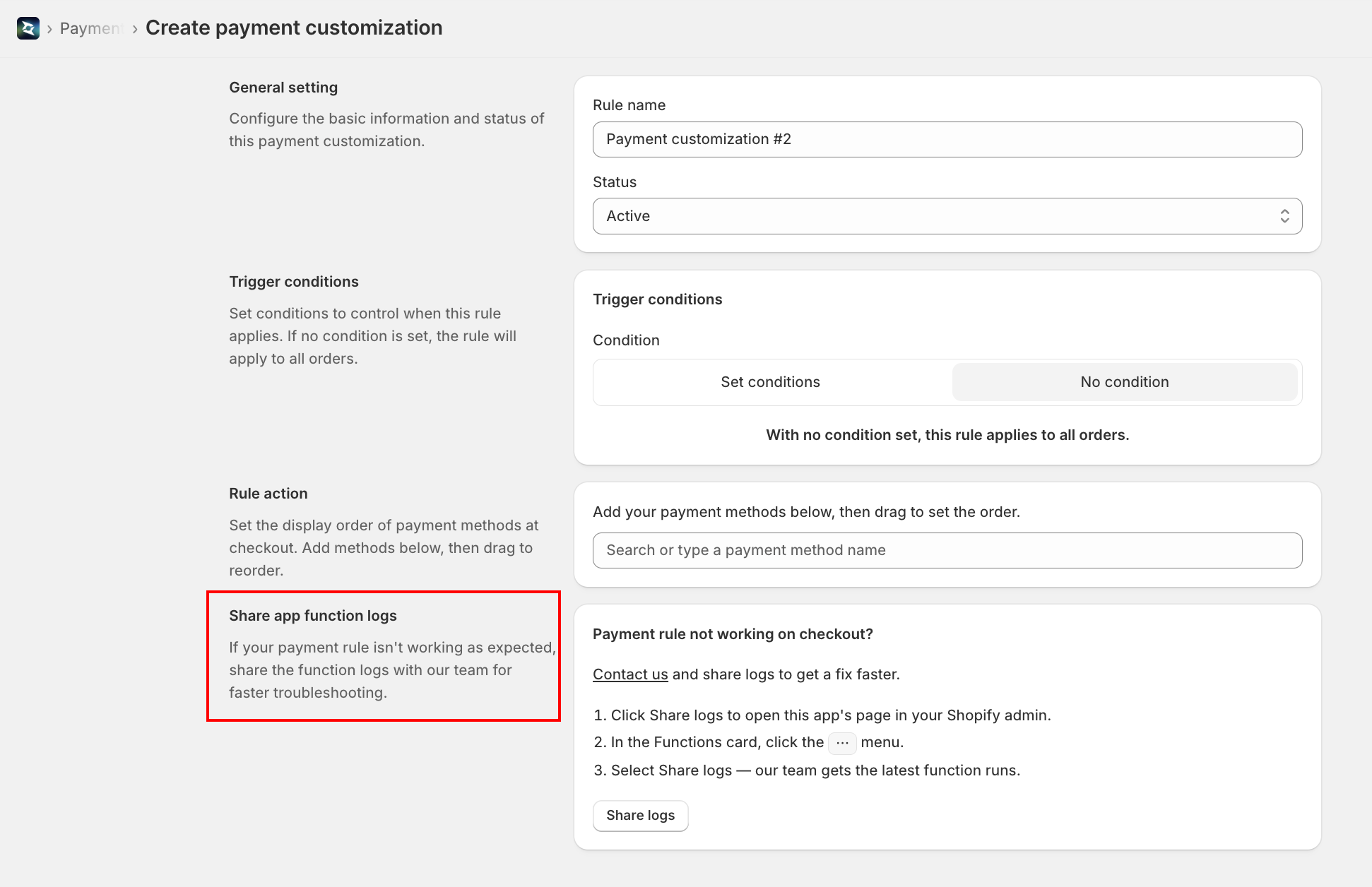
- In the rule editor, find Share app function logs and click Share logs — this opens this app's page in your Shopify admin (Settings → Apps and sales channels → [the app])
- In the Functions card, click the ⋯ (more) menu
- Select Share logs — our team receives the latest function runs
You can also use the Contact us link in that section to message support directly.