Discount List
Display your active discount codes directly at checkout so buyers can find and apply them with one click.
Shopify Plus required. This widget uses Checkout UI Extensions, which require a Shopify Plus plan.
What it does
Discount List shows your active Shopify discount codes to buyers at checkout. Instead of remembering or searching for codes, buyers see available discounts listed right on the checkout page and can apply them instantly.
The widget automatically validates each discount against the buyer's current cart — only showing codes that actually work for their order.
Step 1: Go to Extra Widgets
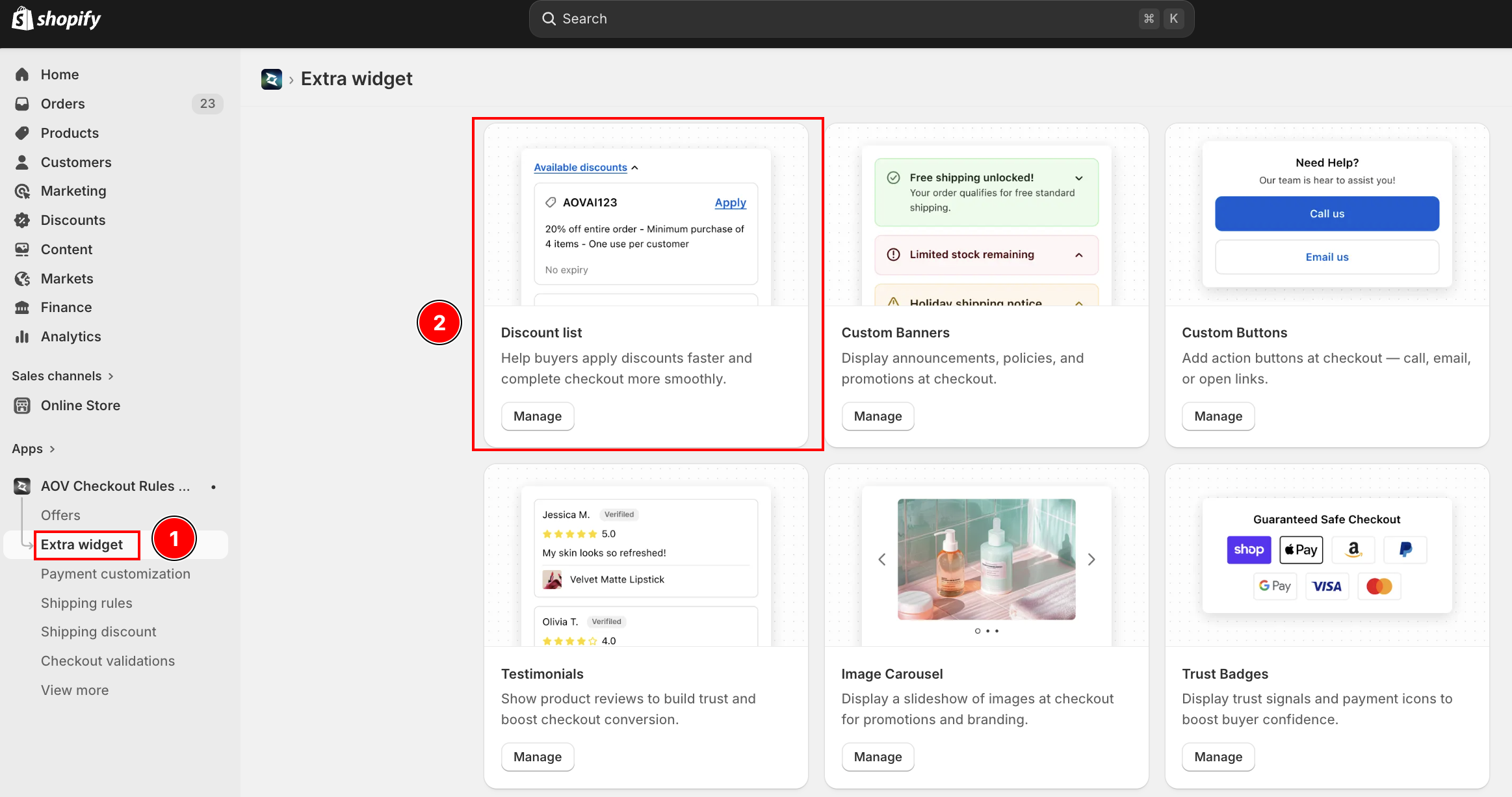
In the app sidebar, click Extra Widgets. Find the Discount List card and click Manage.
Step 2: Create a widget
Click Create widget (top right). The editor opens with two areas:
- Left (main) — Widget layout, Content configuration, Discount list configuration
- Right (sidebar) — Status, Widget name, App block status, Preview
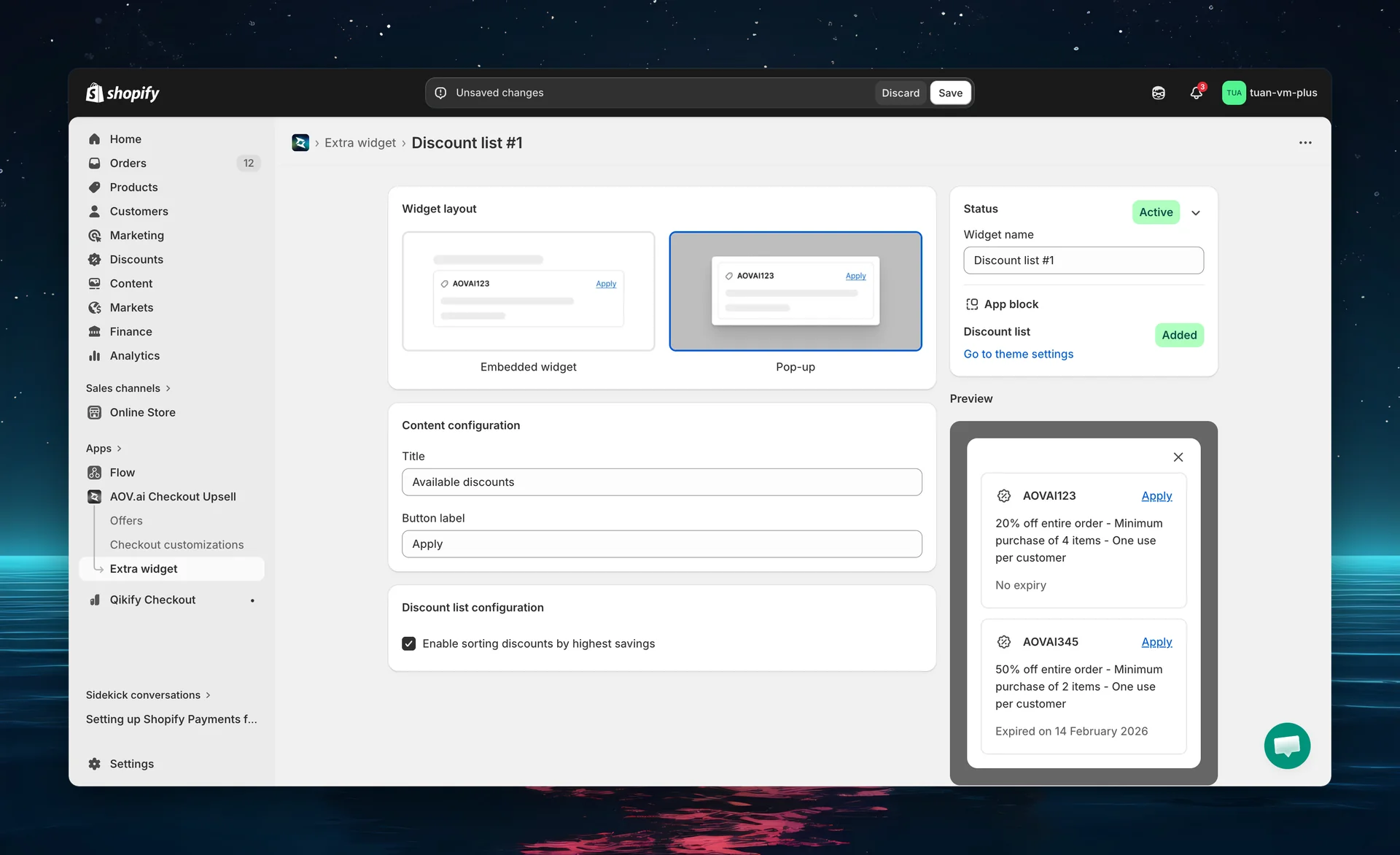
| Field | Description |
|---|---|
| Status | Toggle between Active (green) and Expired. Only active widgets show at checkout. |
| Widget name | Required. Internal name for your reference — not shown to buyers. |
| App block | Shows "Added" (green) if the Discount List block is in your checkout theme. Click "Go to theme settings" to add it. |
| Preview | Live preview — updates in real time as you change settings. |
Step 3: Choose a layout
Under Widget layout, click one of the two preview cards to select how the discount list appears at checkout.
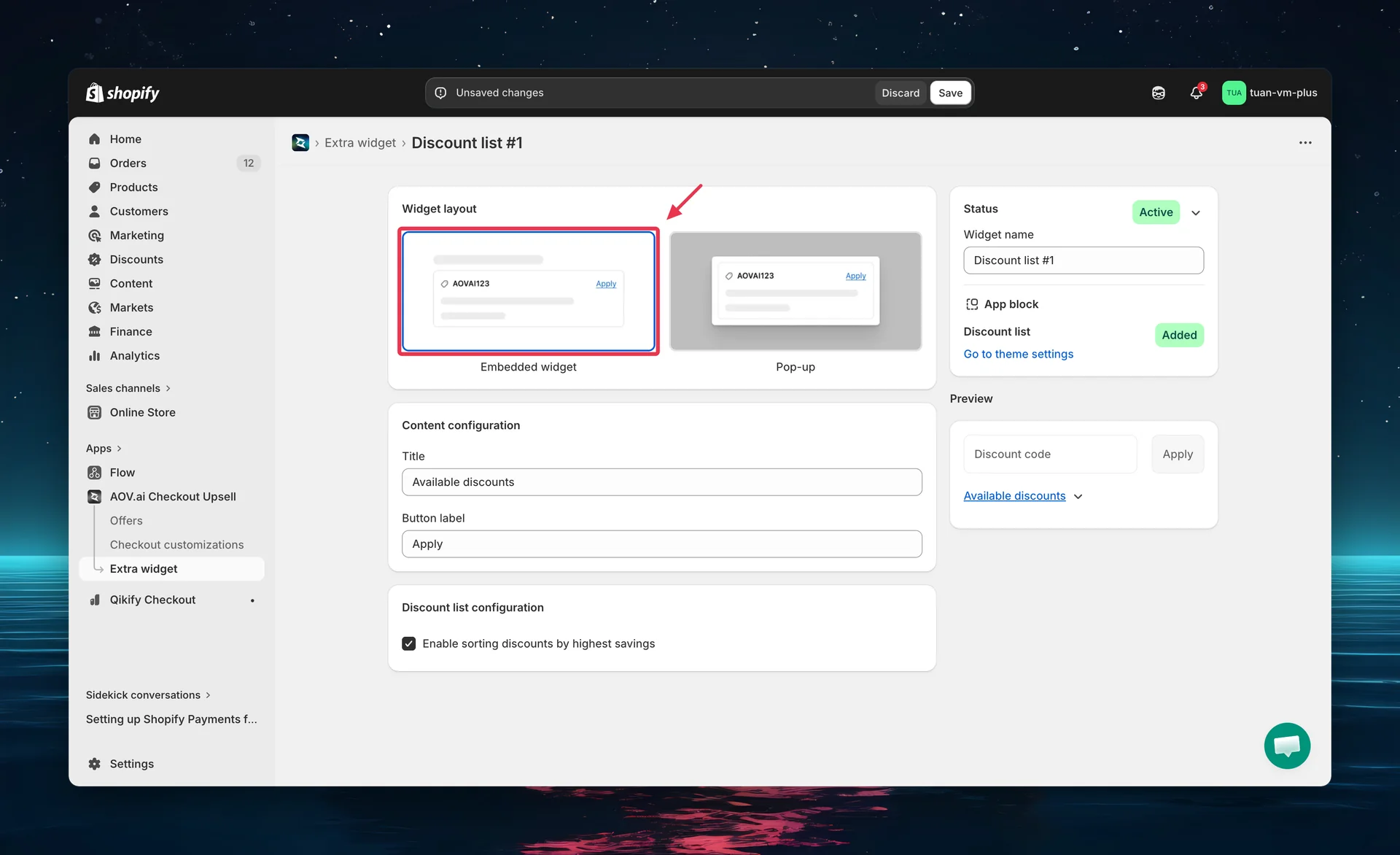
Embedded widget (default)
A collapsible list that appears inline below the discount code input. Buyers click the title to expand and see available discounts.
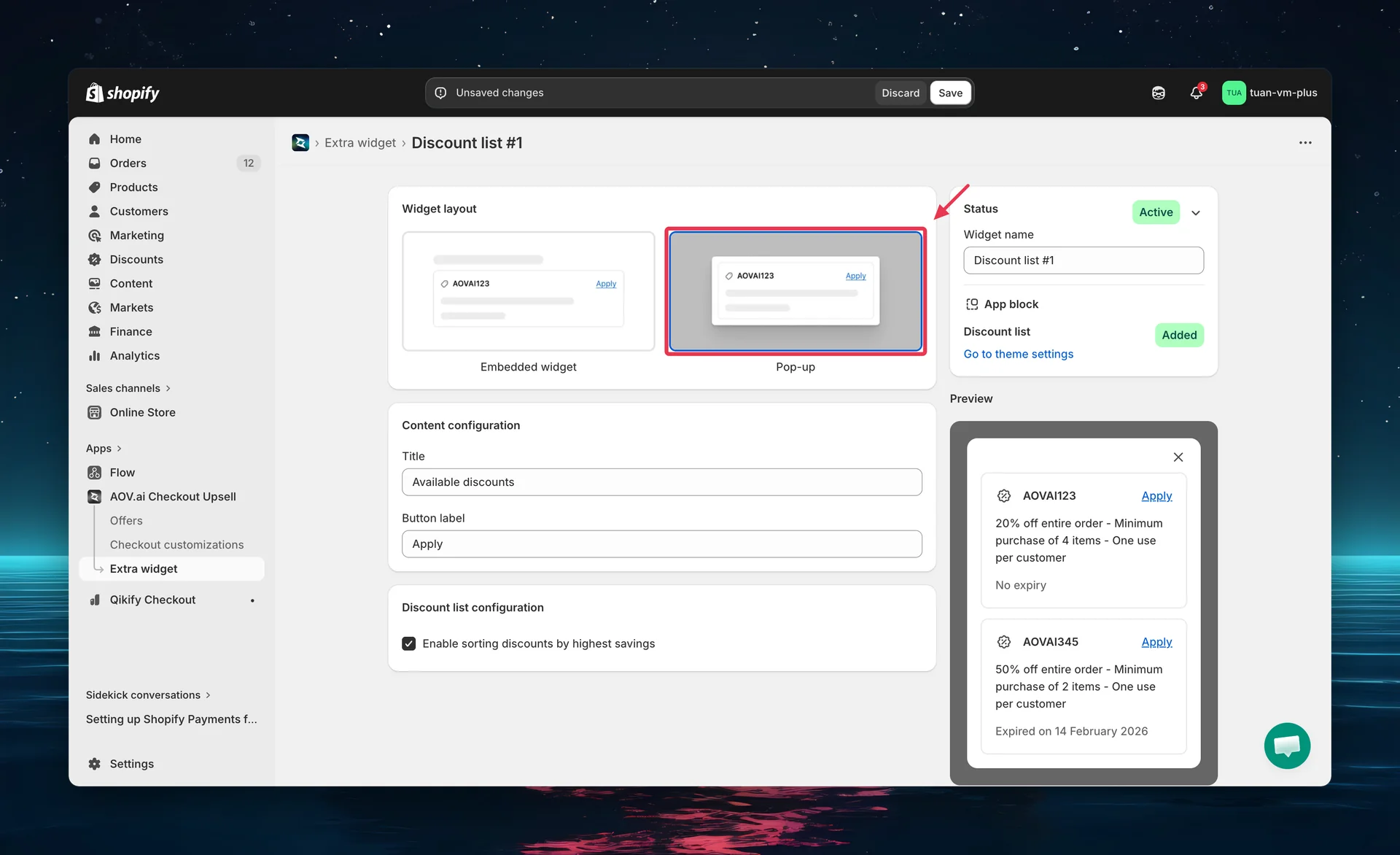
Pop-up
A link text that opens a modal overlay. Buyers click the link to see all available discounts in a centered dialog.
Step 4: Configure content
Under Content configuration, set the text buyers see at checkout.
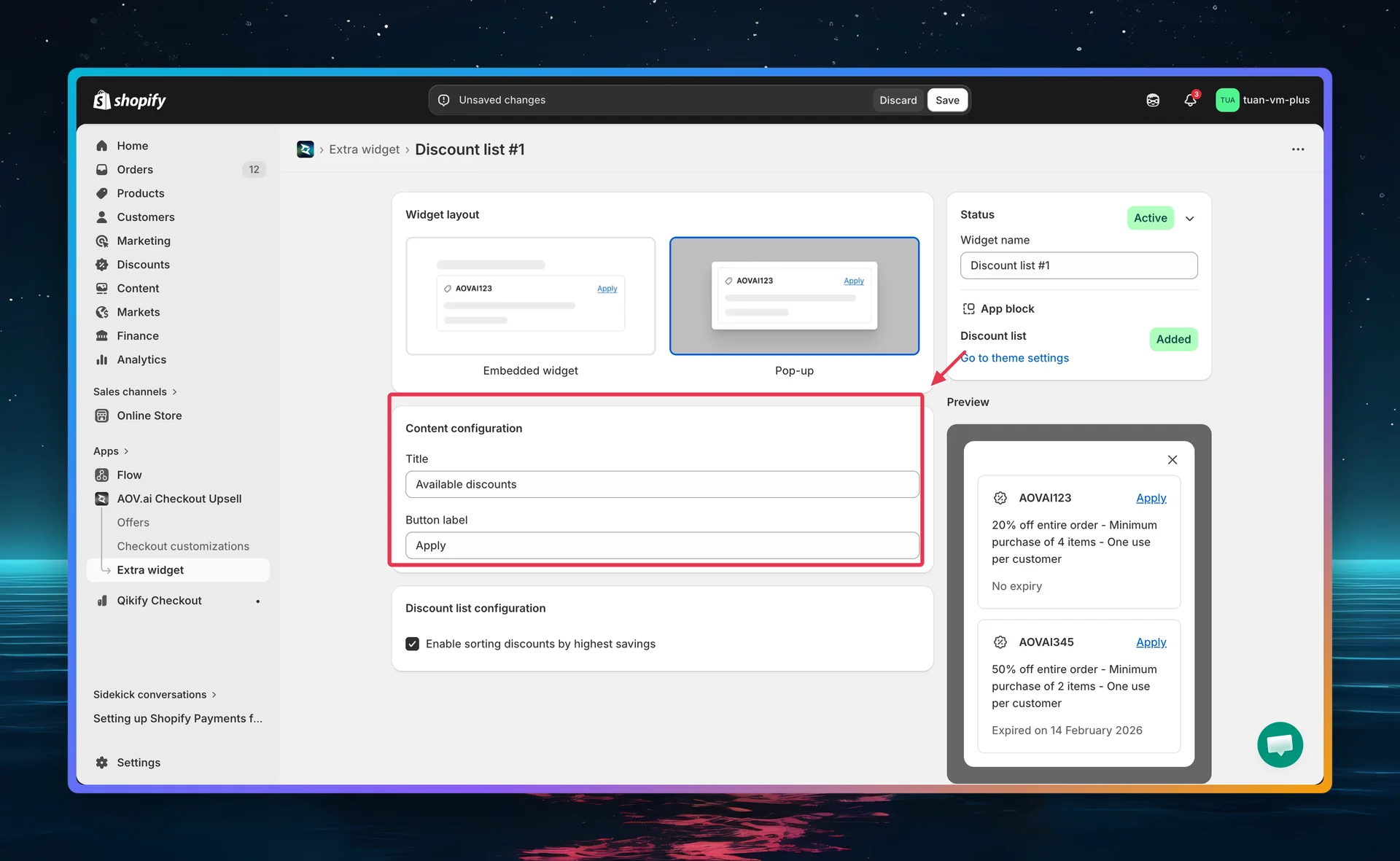
| Setting | Default | Description |
|---|---|---|
| Title | "Available discounts" | The clickable text label. For embedded: the collapsible header. For pop-up: the link text. |
| Button label | "Apply" | Text on the apply button next to each discount code. |
Both fields are required.
Step 5: Configure discount sorting
Under Discount list configuration, choose whether to sort discounts by savings.
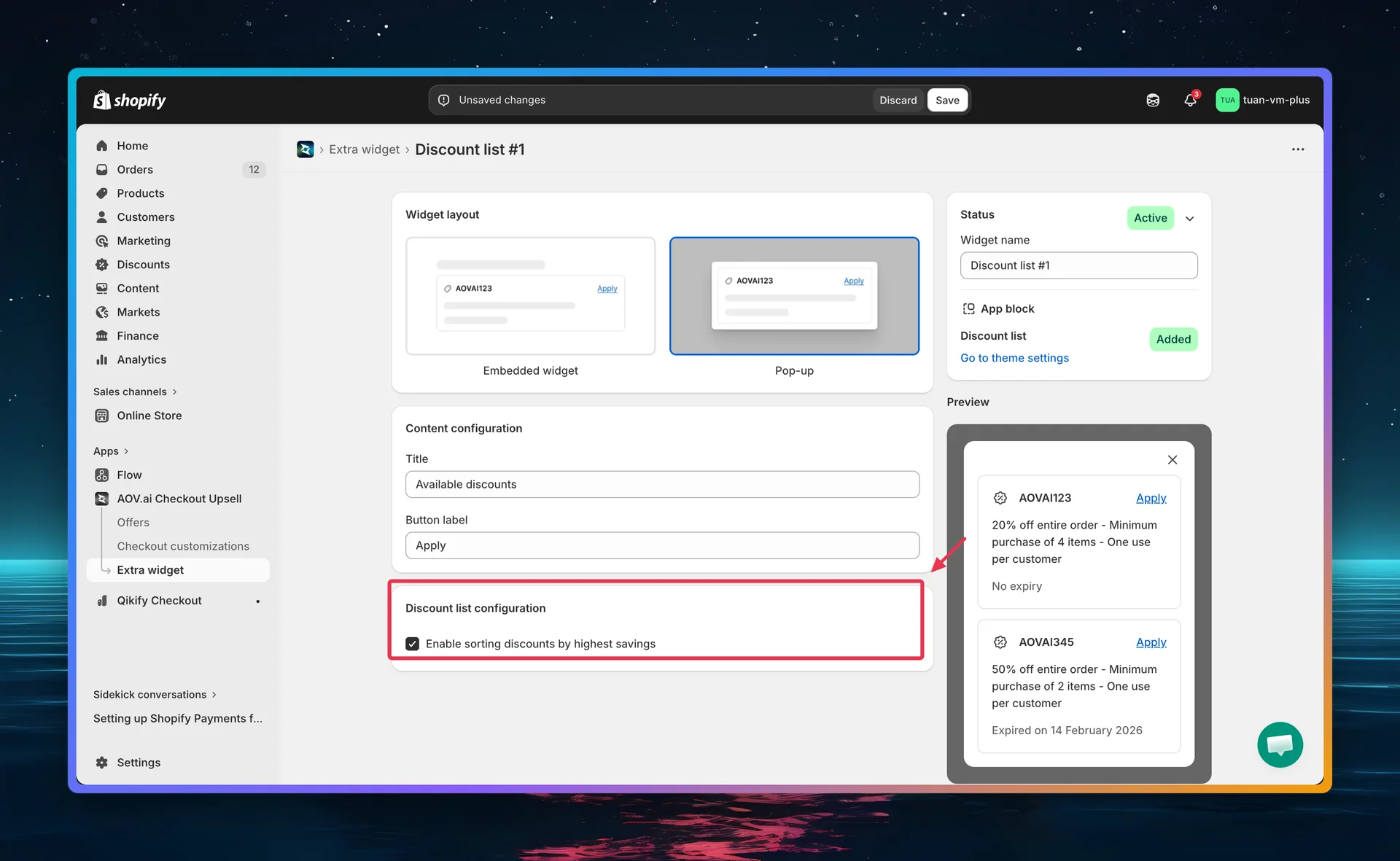
| Setting | Default | Description |
|---|---|---|
| Enable sorting discounts by highest savings | Off | When on, discounts are sorted by estimated savings (highest first). When off, discounts appear in default order. |
How savings are calculated: The widget estimates savings based on the buyer's current cart — percentage discounts calculate against eligible items, fixed amount discounts compare against the subtotal. The highest-value discount appears first.
Step 6: Save
Click Save in the top bar. The widget is live when:
- Status is Active
- The Discount List app block is Added to your checkout theme
Add the block to your checkout theme
If the sidebar shows "Not added" for the app block:
- Click "Go to theme settings"
- In the Shopify Theme Editor, select Checkout page
- Click Add block → find AOV.AI — Discount List
- Drag the block to your preferred position (default: under the order summary)
- Click Save
The block placement is flexible — you can position it anywhere in your checkout layout.
Which discounts are shown
The widget automatically fetches your active Shopify discount codes and validates each one against the buyer's cart. A discount is shown only if it passes all of these checks:
| # | Check | What it means |
|---|---|---|
| 1 | Supported type | Only Basic and Buy X Get Y discount codes are supported |
| 2 | Not expired | The discount's end date hasn't passed |
| 3 | Usage limit | The discount hasn't reached its maximum number of uses |
| 4 | Not already applied | The buyer hasn't already applied this code |
| 5 | Minimum requirement | The cart meets the minimum subtotal or quantity |
| 6 | Customer eligible | The buyer belongs to the required customer segment (if any) |
| 7 | Applicable to cart | The discount applies to products/collections in the cart |
| 8 | Can combine | The discount doesn't conflict with already-applied discounts |
- Maximum 5 discounts are shown at a time
- If no discounts are valid, the widget hides completely — no empty state is shown
- The widget re-validates whenever the cart changes (items added/removed, codes applied)
Not supported: Automatic discounts (discounts without a code), free shipping discount codes, and "Amount off products" discount codes with specific product/collection targeting that doesn't match the cart.
Buyer experience at checkout
Embedded widget layout
The discount list appears inline below the discount code input:
- Buyer sees a clickable title (e.g., "Available discounts")
- Clicking expands the list to show discount cards
- Each card shows:
- Discount icon + code (bold)
- Apply button on the right
- Summary — description of the discount (e.g., "20% off entire order - Minimum purchase of 4 items")
- Expiry date — in subdued text (e.g., "Expires on Feb 14, 2026" or "No expiration date")
- Clicking Apply adds the code to the order (button shows a spinner while applying)
- The list collapses when clicked again
Pop-up layout
- Buyer sees a clickable link (e.g., "Available discounts")
- Clicking opens a modal overlay with discount cards
- Same card format as embedded (code, apply button, summary, expiry)
- Clicking Apply adds the code and automatically closes the modal
- Close button (X) in the top corner
Validation
| Rule | Error message |
|---|---|
| Widget name is empty | "Widget name is required" |
| Title is empty | "Title is required" |
| Button label is empty | "Button label is required" |
Tips
- Keep titles short — "Available discounts" or "Your discounts" works well. Buyers need to understand what the link does at a glance.
- Sort by savings if you have multiple active discounts — buyers will see the best deal first, improving perceived value.
- Review your active discounts — the widget shows ALL valid discount codes. If you have internal or affiliate codes that shouldn't be public, deactivate them in Shopify or set customer eligibility restrictions.
- Test at checkout — create a test order to see how your discounts appear. The admin preview shows sample data, but the checkout shows real discounts.