Multi-language Support
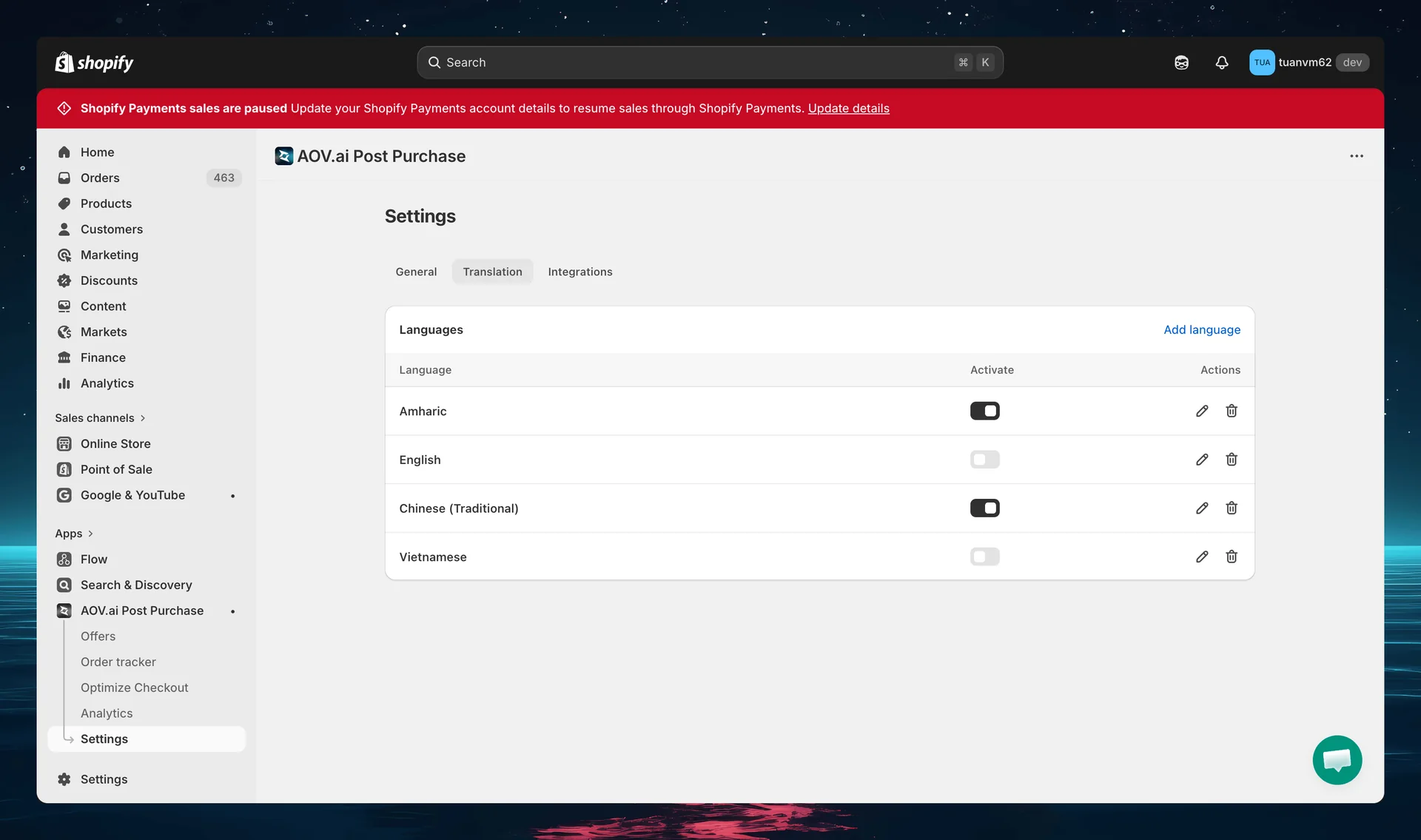
Translate your upsell offers into multiple languages to match your store's published languages. Buyers see the translated offer based on their shipping country.
How it works
The app determines which languages to support based on the Markets you have set up in Shopify Admin → Markets. Each Market defines the countries and languages your store serves — the app reads this configuration automatically and makes those languages available for translation.
- The app reads the languages from your active Shopify Markets
- You activate and translate offer content for each language
- The translated offer is shown to buyers whose shipping country matches that language
- If no translation exists, the default language is shown
Heads up
Only buyers whose shipping country matches a language will see the upsell offer pages in that language. Translation targeting is based on shipping country, not the buyer's browser language.
What can be translated
Offer-level content
| Element | Description |
|---|---|
| Offer title (header) | The main headline of your offer |
| Countdown timer text | The urgency message above the timer |
| Free shipping text | Free shipping badge label |
| Coupon title | Main coupon text (TKU coupon offers) |
| Coupon subtitle | Secondary coupon text |
Widget-level content
| Element | Description |
|---|---|
| Variant picker (Label) | Label for variant selection dropdown |
| Quantity selector (Label) | Label for quantity input |
| Discounted price label | Compare/discount text under Price & Discount |
| Note (Content) | Additional info/note content |
| Accept button text | CTA button text |
| Decline button text | Skip/decline button text |
| Per-product decline button | Individual product decline text |
Price breakdown labels
| Element | Default text |
|---|---|
| Subtotal text | Subtotal |
| Discount text | Discount |
| Shipping text | Shipping |
| Applied discount text | Applied discount |
| Free text | Free |
| Taxes text | Tax |
| Total text | Total |
| Show / Hide price breakdown text | Show / Hide |
Testimonial widget
| Element | Description |
|---|---|
| View more text | "View more" link text |
| View less text | "View less" link text |
Subscription labels (if using selling plans)
| Element | Description |
|---|---|
| Accept terms text | Subscription terms acceptance |
| Recurring subtotal text | Recurring payment label |
| Selling plan help text | Help text for subscription options |
| One-time purchase label | One-time purchase option label |
| Subscription label | Subscription option label |
Claim Confirmation labels
| Element | Default text |
|---|---|
| Confirmation message | "You've accepted the deal!" |
| Description | "Your order has been updated – see below" |
| Original order text | "Original order" |
| Subtotal, Shipping, Tax labels | Standard labels |
| Item text | "item(s)" |
| Show/Hide text | "Show" / "Hide" |
Setting up translations
Step 1: Ensure languages are published in Shopify
Go to Shopify Admin → Markets and confirm that the Markets covering your target countries are active. The languages associated with those Markets will automatically appear in the app's Translation settings.
Step 2: Open translation settings
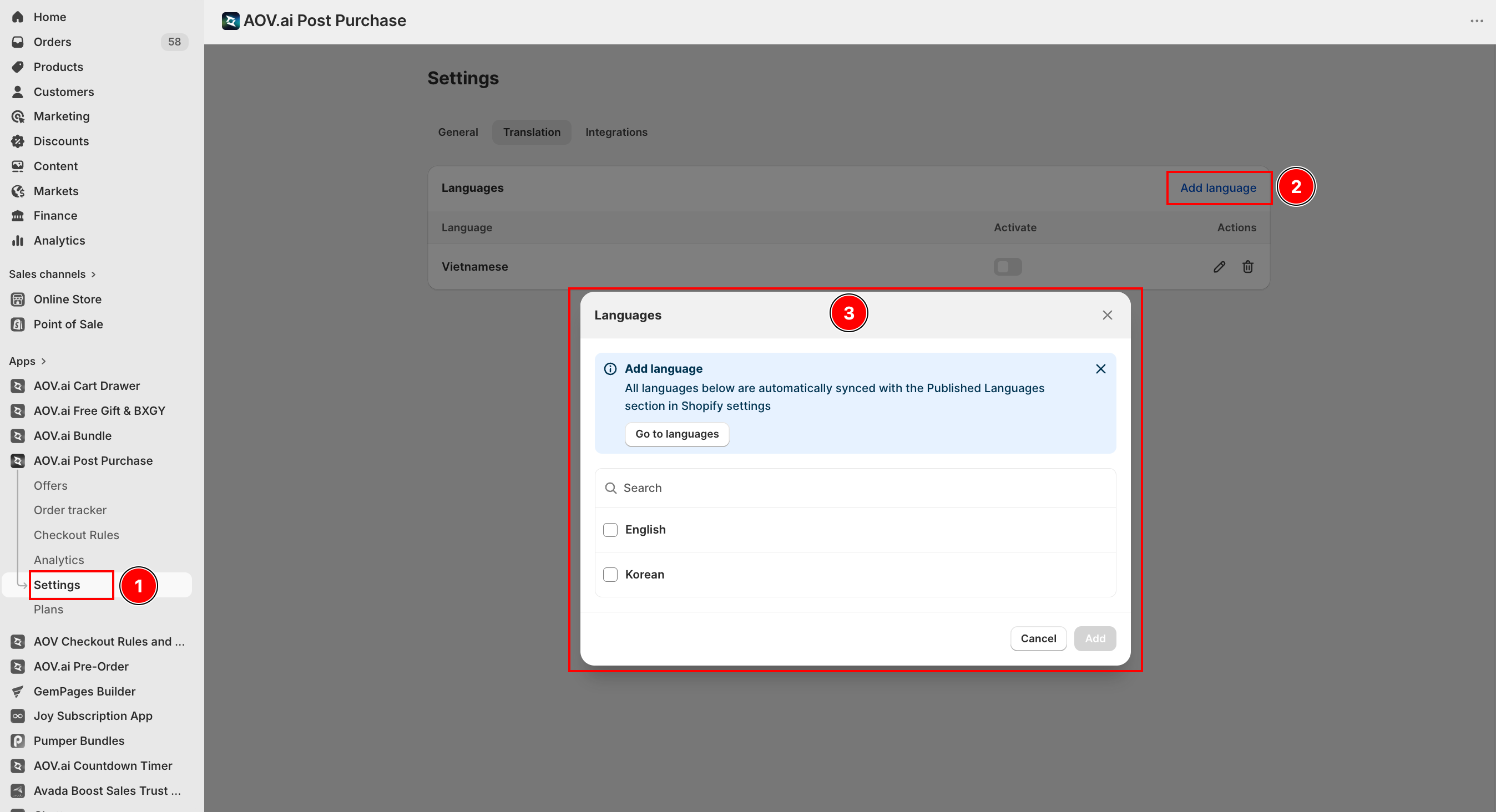
In the app, go to Settings and open the Translation tab. You'll see your store's published languages.
Step 3: Open a language
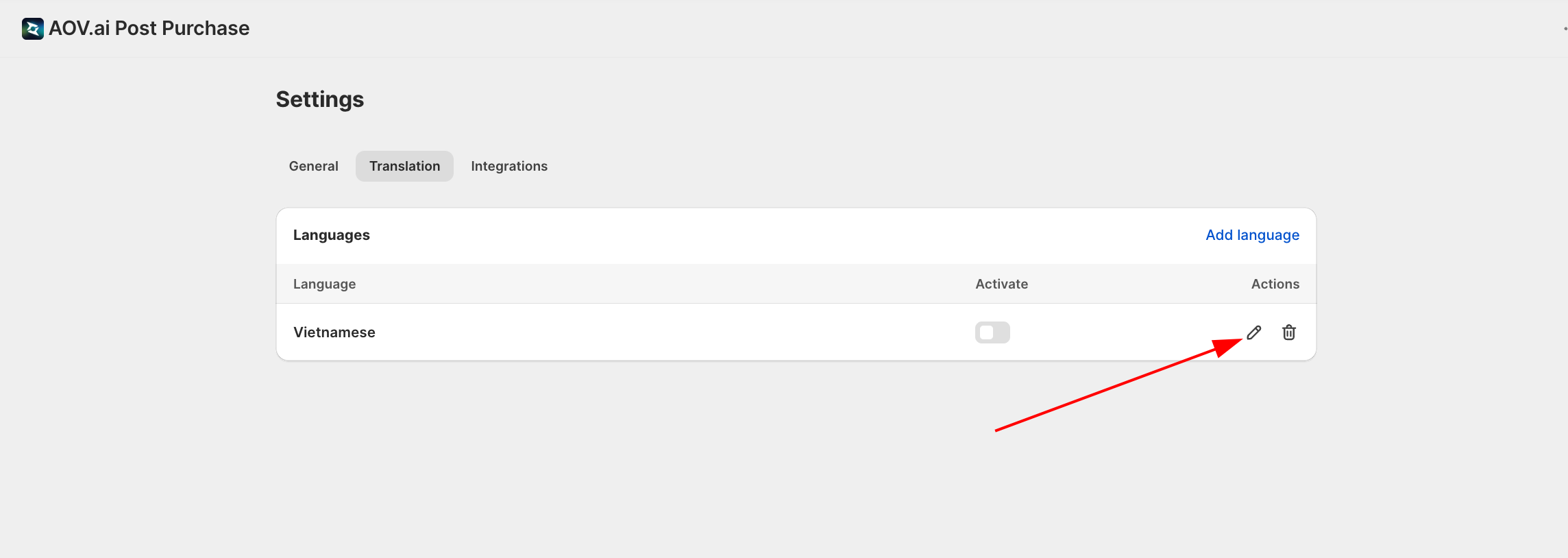
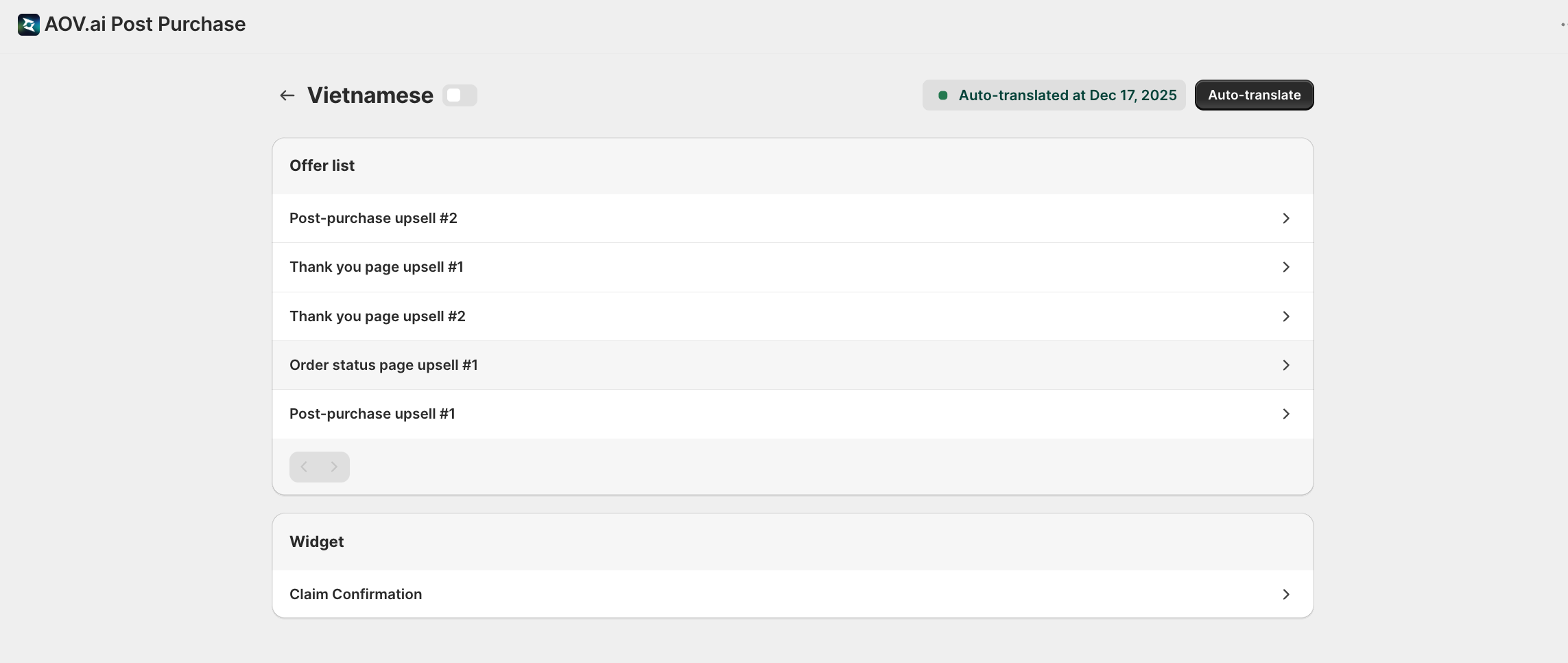
Select a language to open its translation page. At the top you can toggle the language active. The page lists an Offer list (each of your offers) and a Widget section (currently Claim Confirmation).
Step 4: Translate content
Select an offer or the Claim Confirmation widget to open the translation editor. The editor shows each item's Default text next to the translation field for the chosen language. For offers you can also switch the Template and, if an A/B test is running, the Base version or A/B option being translated.
Step 5: Save
Save your translations using the save bar at the top of the page.
AI-powered translation
On paid plans, Auto-translate is available. It uses ChatGPT to translate your offer content into the selected language in the background.
To use Auto-translate:
- Open a language page (Settings > Translation > select a language)
- Click Auto-translate at the top of the page
- Confirm in the dialog. Translation runs in the background and usually takes 1 to 2 minutes, so you can leave the page and come back
- Review the generated translations
- Adjust any translations as needed and save
Note: AI translation provides a starting point. We recommend reviewing translations for accuracy, especially for marketing copy and brand-specific terminology. On the free plan this feature is locked.
Tips
- Always review AI translations for brand voice consistency
- Test translated offers by placing a test order with a shipping address in the target country
- Remember to translate both offer-level AND widget-level content for a fully localized experience
- Claim Confirmation text should also be translated if you use the Claim Confirmation feature