Campaign List
View, filter, and manage your pre-order campaigns
Overview
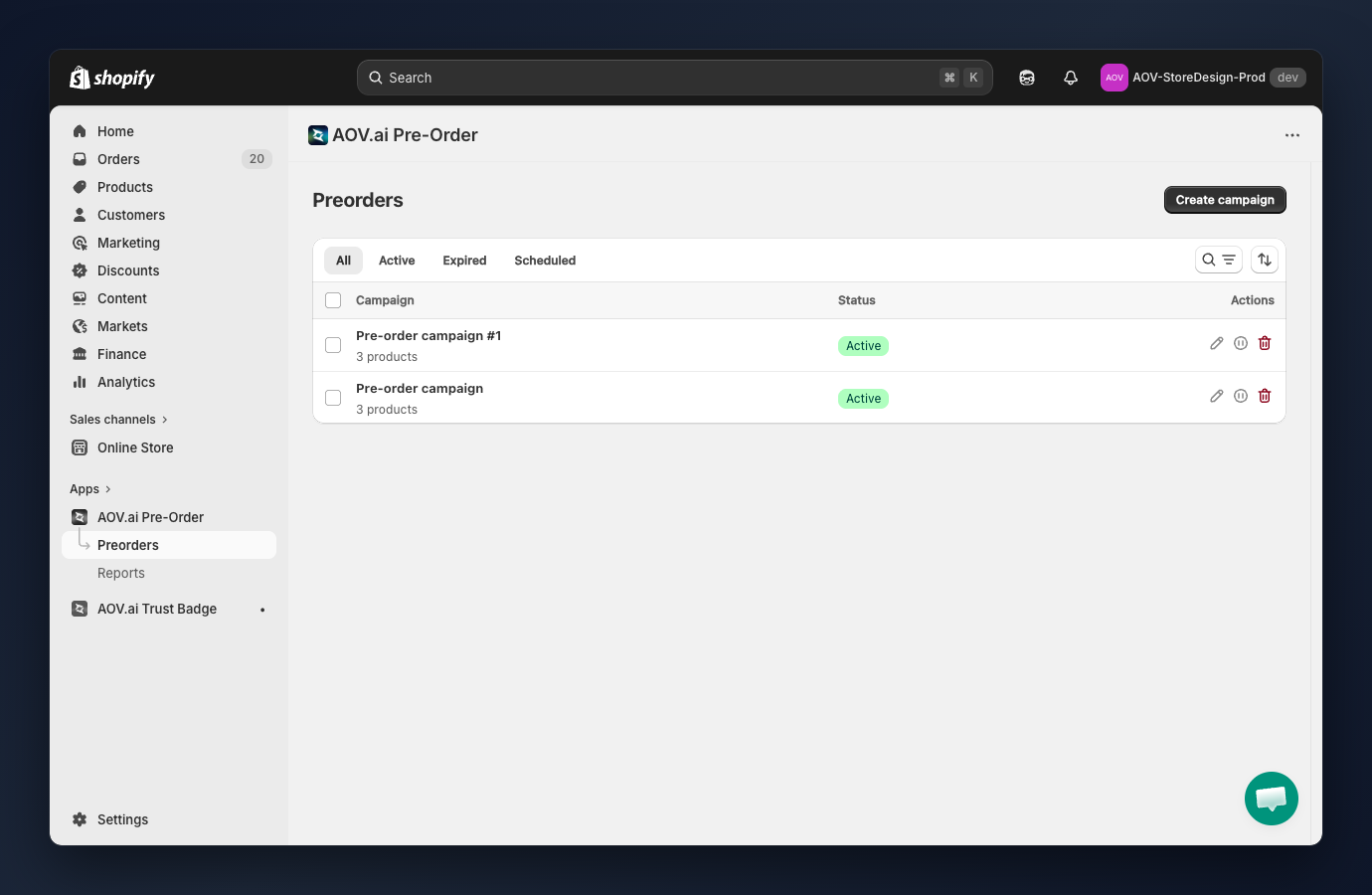
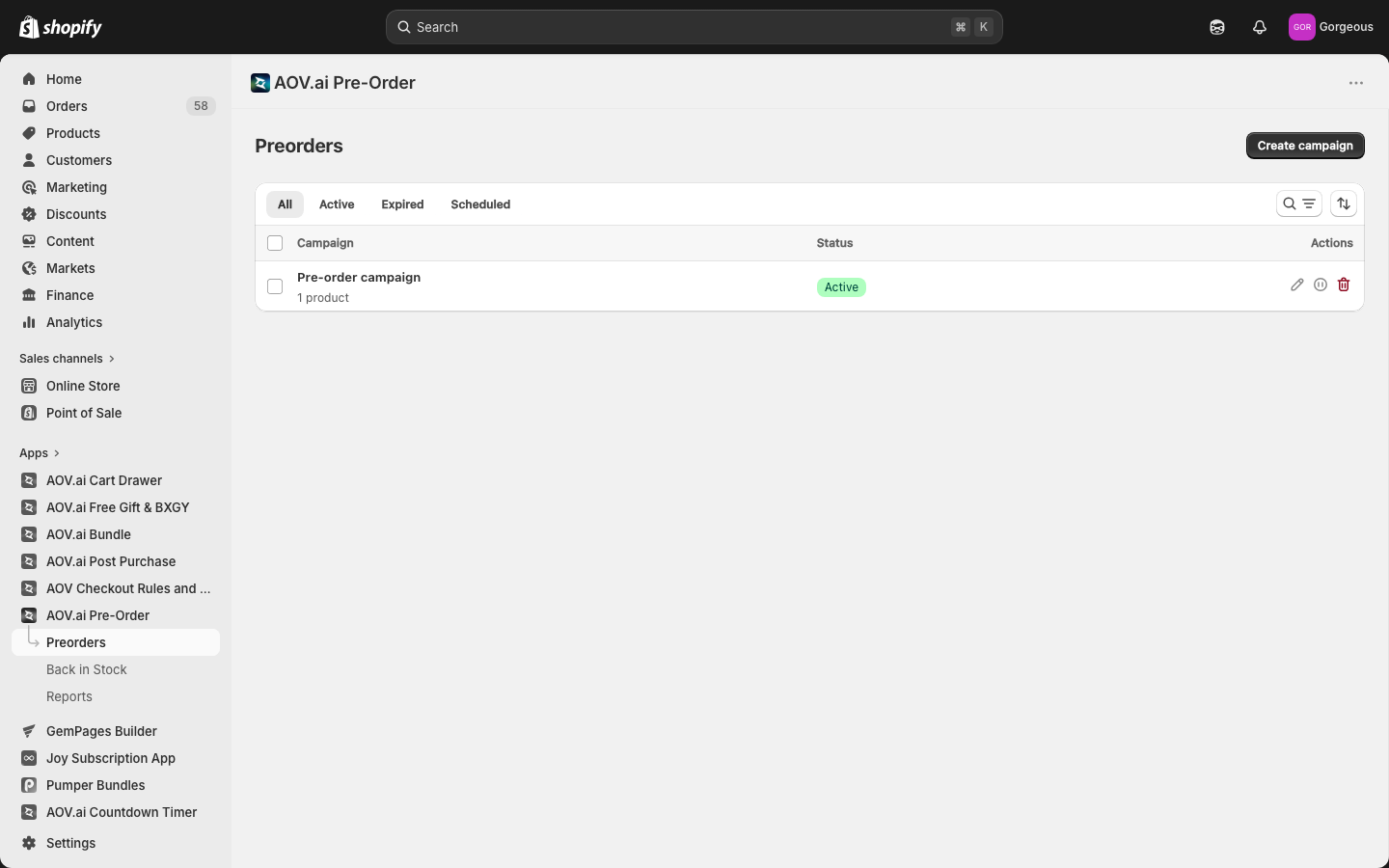
Navigate to AOV.ai Pre-Order > Preorders to access the campaign list. This page shows all your pre-order campaigns with their status and quick actions.
How to use
Create a new campaign
Click the Create campaign button (top right) to open the campaign wizard:
- Campaign Settings (opens in a new tab): name, product selection mode, pre-order trigger, continue selling, delivery date
- Payment Settings (opens in a new tab): full or partial payment, inventory deduction, order tags
- Display Settings (opens in a new tab): button, badge, messages
Filter campaigns by status
Use the tab bar to filter:
- All: every campaign regardless of status.
- Active: currently running campaigns.
- Expired: campaigns past their end date or that hit their campaign limit.
- Scheduled: future campaigns not yet active.
Search and sort campaigns
- Click the search icon in the filter bar to search campaigns by name (debounced).
- Click the sort icon to reorder by:
- Created (newest) (default)
- Created (oldest)
- Name (A-Z)
- Name (Z-A)
Edit a campaign
Click the Edit (pencil) icon on any campaign row, or click the campaign name, to open the campaign wizard and edit its settings.
Pause or resume a campaign
- On an Active campaign, click the Pause icon to temporarily deactivate it. The pre-order button stops appearing on the storefront.
- On an Expired campaign, click the Activate (play) icon to reactivate it.
- Scheduled campaigns do not show a pause action (they're not running yet).
Delete a campaign
Click the Delete (trash) icon to permanently remove a campaign. A confirmation modal appears with the message "Are you sure you want to delete the selected campaigns? This action cannot be undone." before deletion is final.
Tip: You can also select multiple campaigns using the checkboxes on the left, then use bulk actions (Activate, Pause, Delete) from the toolbar that appears above the table.
Pagination
The list shows 10 campaigns per page. When you have more, use the Previous / Next controls at the bottom of the table to move between pages. The current filter, search query, and tab are preserved as you paginate.