Theme Color Sync
Theme Color Sync lets you match the Pre-Order button and badge colors to the color scheme of your Shopify theme with a single click. Instead of copying hex codes by hand, you click Sync theme color in the campaign wizard preview and the colors cycle through the schemes defined in your theme.
Theme Color Sync is enabled per-store by the AOV.ai support team. If you do not see the Sync theme color action in your campaign wizard preview, contact us via the in-app chat with a quick description of your theme so we can review and enable it for you.
Where it appears
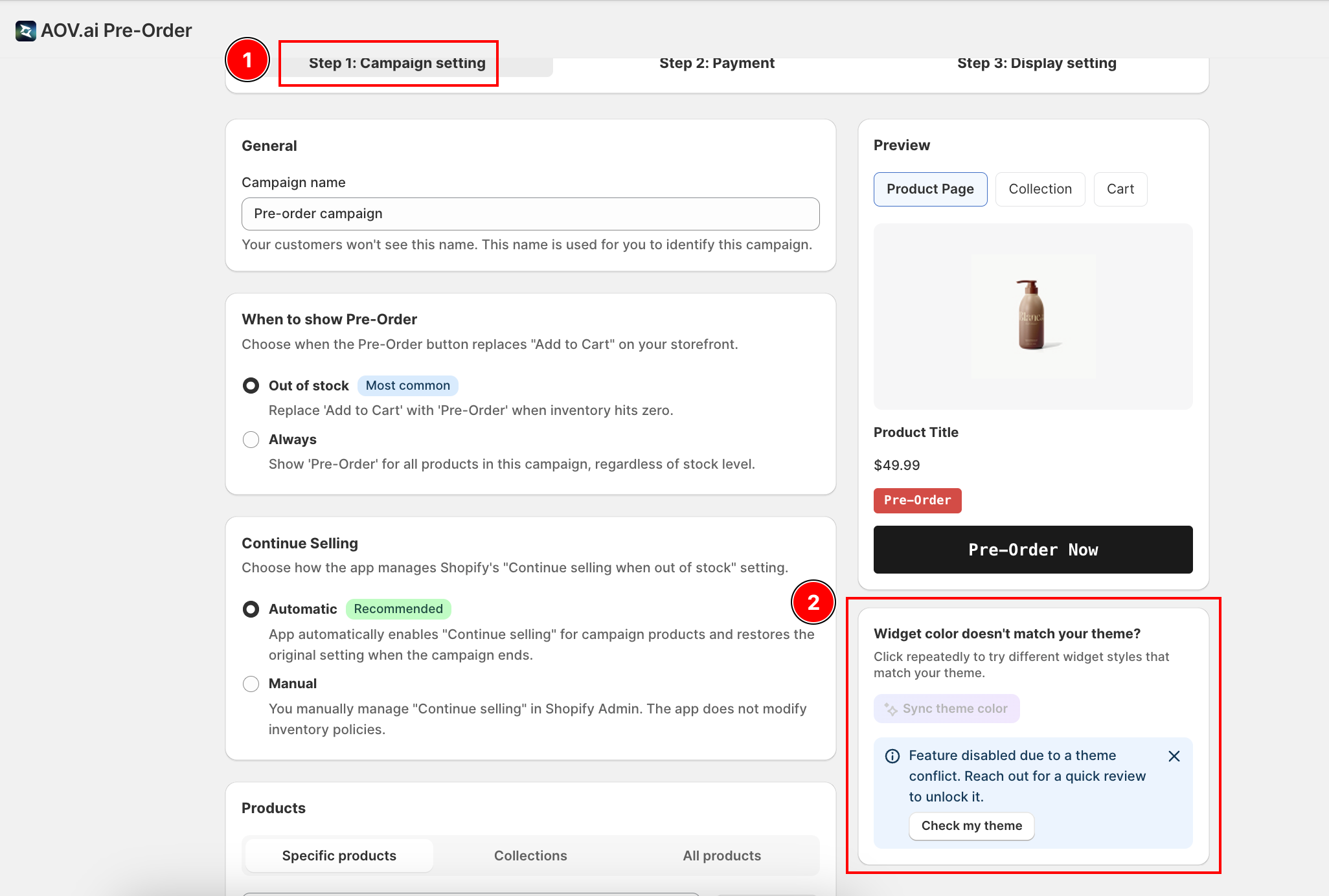
When you open the campaign wizard (AOV.ai Pre-Order > Preorders > Create campaign, or click Edit on an existing campaign), the right-hand Preview column always shows a card titled "Widget color doesn't match your theme?" underneath the storefront preview.
The card looks like this:
- A heading: "Widget color doesn't match your theme?"
- A subheading: "Click repeatedly to try different widget styles that match your theme."
- A primary button labeled Sync theme color with a magic-wand icon
How to use it
- Open the campaign wizard from the campaign list.
- Look at the Preview column on the right. Under the storefront preview, find the Sync theme color card.
- Click Sync theme color. The button and badge colors in the preview update immediately to match the first color scheme from your theme.
- Click again to cycle to the next scheme. Each click moves through the list of schemes the theme exposes.
- When the preview looks right, click Save (or Save changes) at the bottom of the page to lock in the colors.
The sync applies to all 4 color fields in the campaign at once:
- Pre-Order button background and text
- Pre-Order badge background and text
You can still tweak any color individually using the color pickers in Display Settings (opens in a new tab) after syncing. If you do, the next Sync theme color click will restart the cycle from the first scheme.
If the button is disabled
If Theme Color Sync has not been enabled on your store, the Sync theme color button appears disabled and a banner appears below it:
Feature disabled due to a theme conflict. Reach out for a quick review to unlock it. [Check my theme]
Clicking Check my theme opens the in-app chat with a pre-filled message: "I want auto-match with brand's theme feature". The CS team reviews your theme and enables Theme Color Sync for your store. The banner dismisses for the current browser session once you click the close button.
Tips
Sync once per campaign, then refine
Click Sync theme color until you land on a scheme close to what you want, then use the color pickers in Display Settings (opens in a new tab) to tweak the exact hex values. The synced colors are a starting point, not a lock.
It only affects this campaign
Theme Color Sync writes to the current campaign's button and badge fields. Other campaigns are untouched. If you maintain multiple campaigns, run sync inside each one.