How Pre-Order Inventory Works
Pre-Order touches Shopify inventory in three ways: when stock is decremented for an order, how the app handles Shopify's "Continue selling when out of stock" policy, and how the campaign tracks total sold against your campaign limit. This page is the deep-dive reference for all three.
If you just want to set things up, start with Campaign Settings (opens in a new tab) and Payment Settings (opens in a new tab) instead.
1. Inventory deduction: at checkout vs at fulfillment
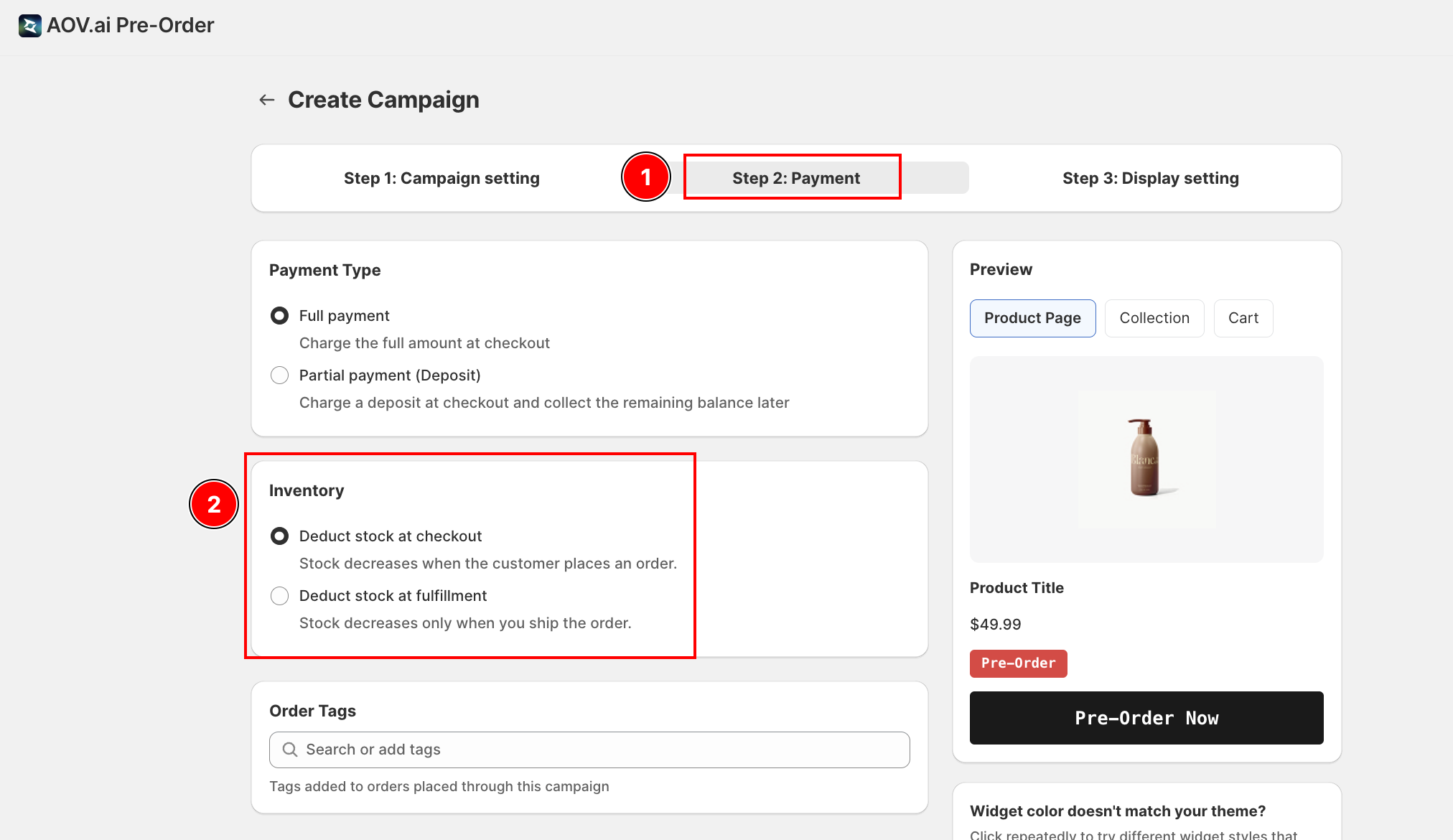
The Inventory card in Step 2 (Payment Settings) controls when Shopify decrements stock for a pre-order. The two options map directly to Shopify's selling-plan inventory reserve setting:
| Setting | Shopify behavior | When to use |
|---|---|---|
| Deduct stock at checkout (default) | Stock decreases the moment the customer places the order. Reserved units are counted as committed. | The simplest model. Use when you want pre-order sales to immediately reduce Available in Shopify Admin. |
| Deduct stock at fulfillment | Stock stays put until you actually ship. The order is recorded but does not affect Available. | Use when your Available number reflects ready-to-ship inventory rather than commitments. Common for drop-ship. |
Under the hood, the app creates a Shopify selling plan for each campaign. The inventory deduction setting maps to Shopify's InventoryReserve field: either ON_SALE (checkout) or ON_FULFILLMENT (shipping).
2. Continue Selling: how the app manages Shopify inventory policy
Step 1 (Campaign Settings) has a separate Continue Selling card that controls how the app handles Shopify's "Continue selling when out of stock" product setting. This is what lets out-of-stock variants stay buyable as pre-orders.
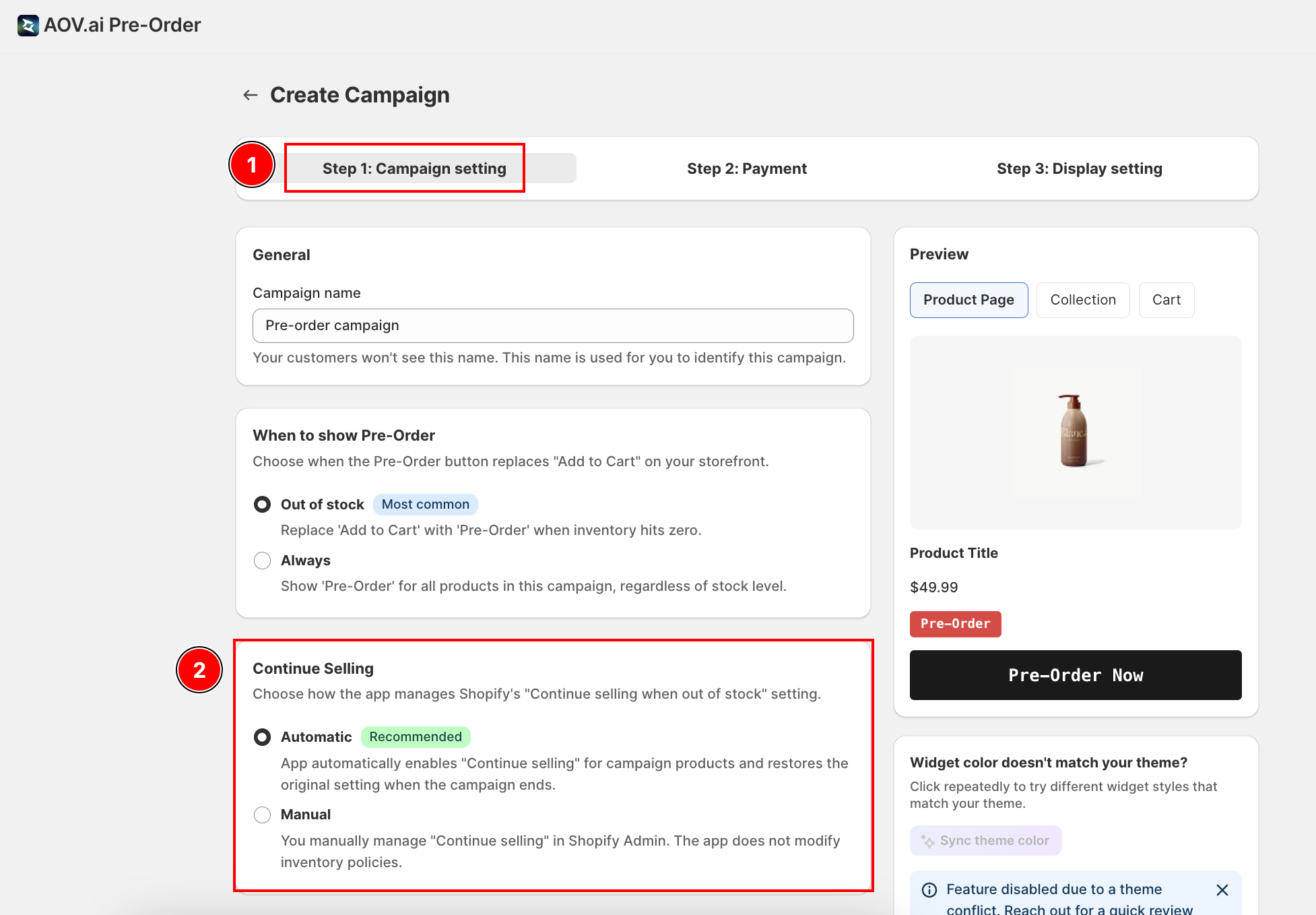
- Automatic (recommended): when the campaign goes active, the app flips Shopify's inventory policy to Continue for every product in the campaign, and stores the original setting in a snapshot. When the campaign ends, the app restores the original policy from that snapshot.
- Manual: the app does not touch inventory policy. You manage "Continue selling when out of stock" yourself in Shopify Admin.
What happens when you change Continue Selling on an active campaign
Unlike the Pre-Order trigger, you can change this setting on an active campaign. A confirmation modal explains what happens next:
- Auto > Manual: the app restores the original inventory policy from the snapshot and deletes the snapshot.
- Manual > Auto: the app captures the current inventory policy into a new snapshot, then flips everything to Continue.
Multi-campaign overlap
If two Automatic campaigns include the same product, the app tracks the overlap. When one campaign ends:
- If the other campaign is still active, the product stays on Continue (the active campaign protects it).
- If no other campaign covers the product, the original policy is restored from the snapshot.
If you pick Manual and your trigger is Out of stock, you must enable "Continue selling when out of stock" in Shopify Admin for every campaign product. Otherwise customers will see your theme's Sold out state instead of the Pre-Order button. A warning banner appears on the campaign editor when this combination is selected.
3. Add to Cart vs Pre-Order: which button shows
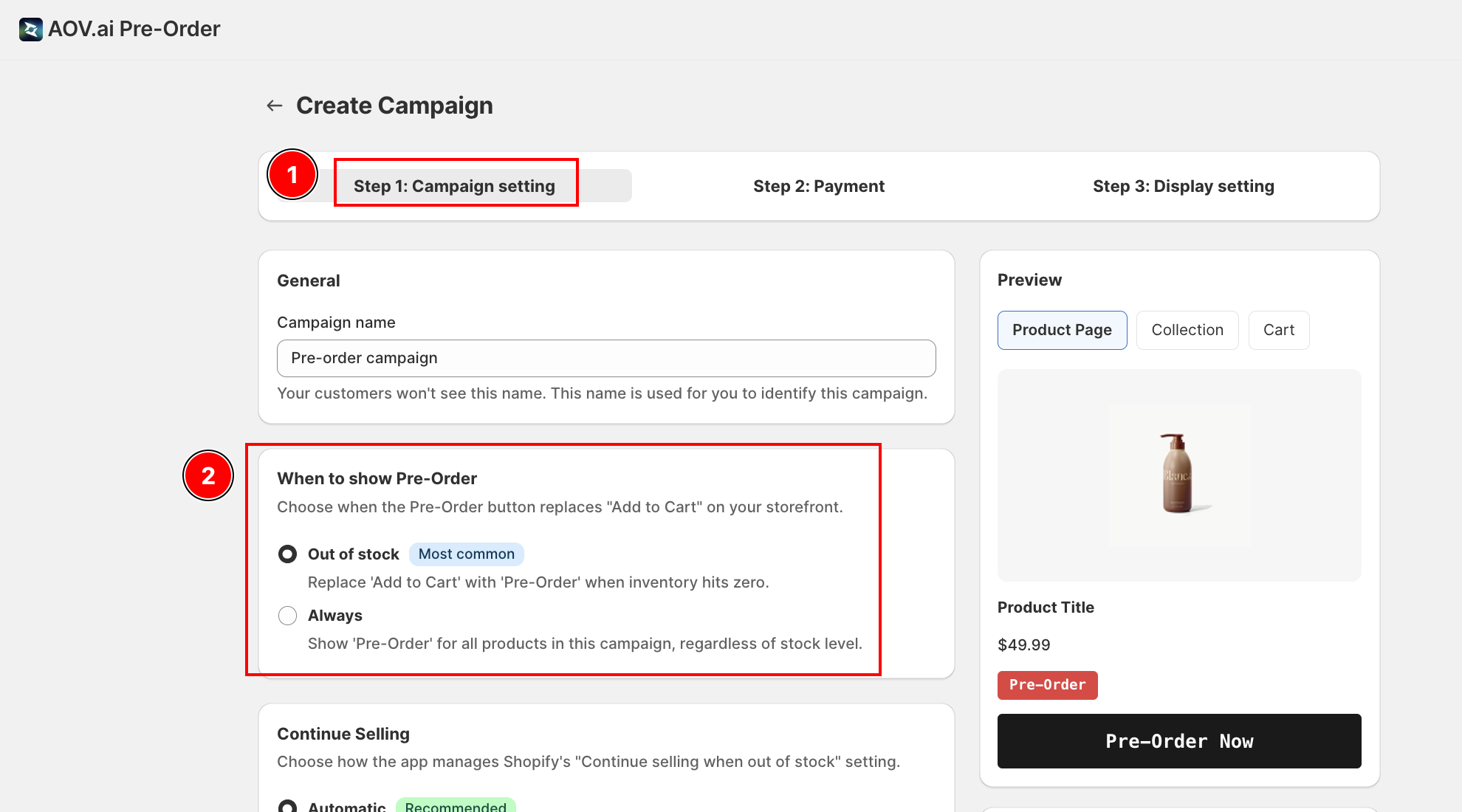
The combination of trigger (Step 1) and product stock determines what the customer sees on the storefront:
| Trigger | Variant has stock | Variant is out of stock |
|---|---|---|
| Out of stock | Add to Cart | Pre-Order (if Continue Selling is on, otherwise theme's Sold Out) |
| Always | Pre-Order | Pre-Order (Continue Selling required) |
The Pre-Order button is wired to the campaign's selling plan, so the order is tagged as a pre-order in Shopify and the app's reports.
4. Campaign total limit: soldCount and auto-expire
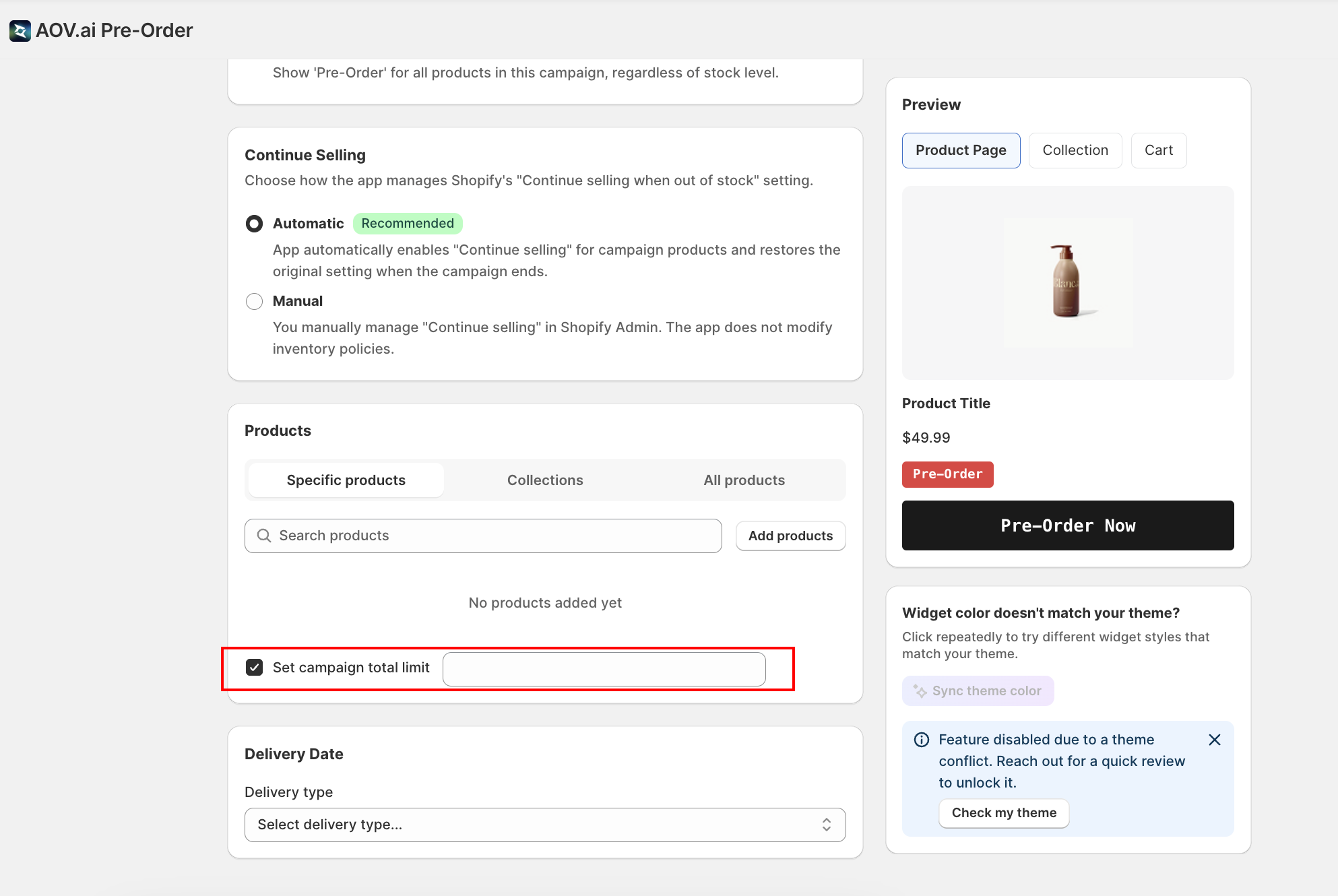
If you ticked Set campaign total limit in Step 1, the app tracks how many pre-orders the campaign has accepted. Each time an order arrives through Shopify's orders/create webhook:
- The app finds every active campaign that matches the line-item products.
- For each matching campaign, it atomically increments a sold count in Firestore by the line-item quantity. The increment uses a Firestore transaction, so simultaneous orders cannot double-count.
- The new sold count is synced to the campaign's Shopify metaobject so the storefront can read it (for displays like "X spots left").
- If the new sold count reaches or exceeds the campaign limit, the app deactivates the campaign automatically. Status flips to Expired and the Pre-Order button stops appearing on the storefront for those products.
Deactivation runs the same cleanup as a manual pause: the Shopify selling plan is deleted, inventory policy is restored from the snapshot (Automatic mode), and product metafields linking to the campaign are unlinked.
Campaigns with no campaign limit (the checkbox is off) are unlimited. The app does not track a sold count and never auto-expires them.
5. What happens at each lifecycle event
| Event | Automatic | Manual |
|---|---|---|
| Campaign goes active | App captures current inventory policy, sets every variant to Continue. | App does not modify inventory. |
| You add a product to an active campaign | App captures that product's policy and flips it to Continue. | App does not modify inventory. |
| You remove a product | App restores the product's original policy from the snapshot (unless another campaign protects it). | App does not modify inventory. |
| Campaign expires (limit hit, manual pause, or end date) | App restores original policies, deletes the selling plan, unlinks metafields. | App deletes the selling plan and unlinks metafields. Inventory unchanged. |
| Campaign is deleted | Same as expire. | Same as expire. |
FAQs
Why is one of my products still showing "Add to Cart" even though the campaign is active?
Most likely the variant is still in stock and the campaign trigger is set to Out of stock. Switch the trigger to Always if you want the Pre-Order button to show regardless of stock. You cannot change the trigger on an active campaign, so duplicate the campaign and pick a different trigger.
What happens to Shopify "Available" when I take pre-orders?
With Deduct at checkout, Available drops as customers place pre-orders. With Deduct at fulfillment, Available only drops when you ship.
The campaign limit was set to 100 and Shopify shows 102 sold. Is that a bug?
No. The campaign deactivates after the limit is reached, but orders already in flight at the moment of deactivation may push the count slightly past the limit. The campaign will not accept new pre-orders once the storefront button disappears.
Will my inventory policy still get restored if I delete the campaign before it expires?
Yes, in Automatic mode. Delete runs the same cleanup as expire: the snapshot is consumed and original policies are restored (or kept on Continue if another campaign still protects the product).
Related guides: