Back-in-Stock Subscribers
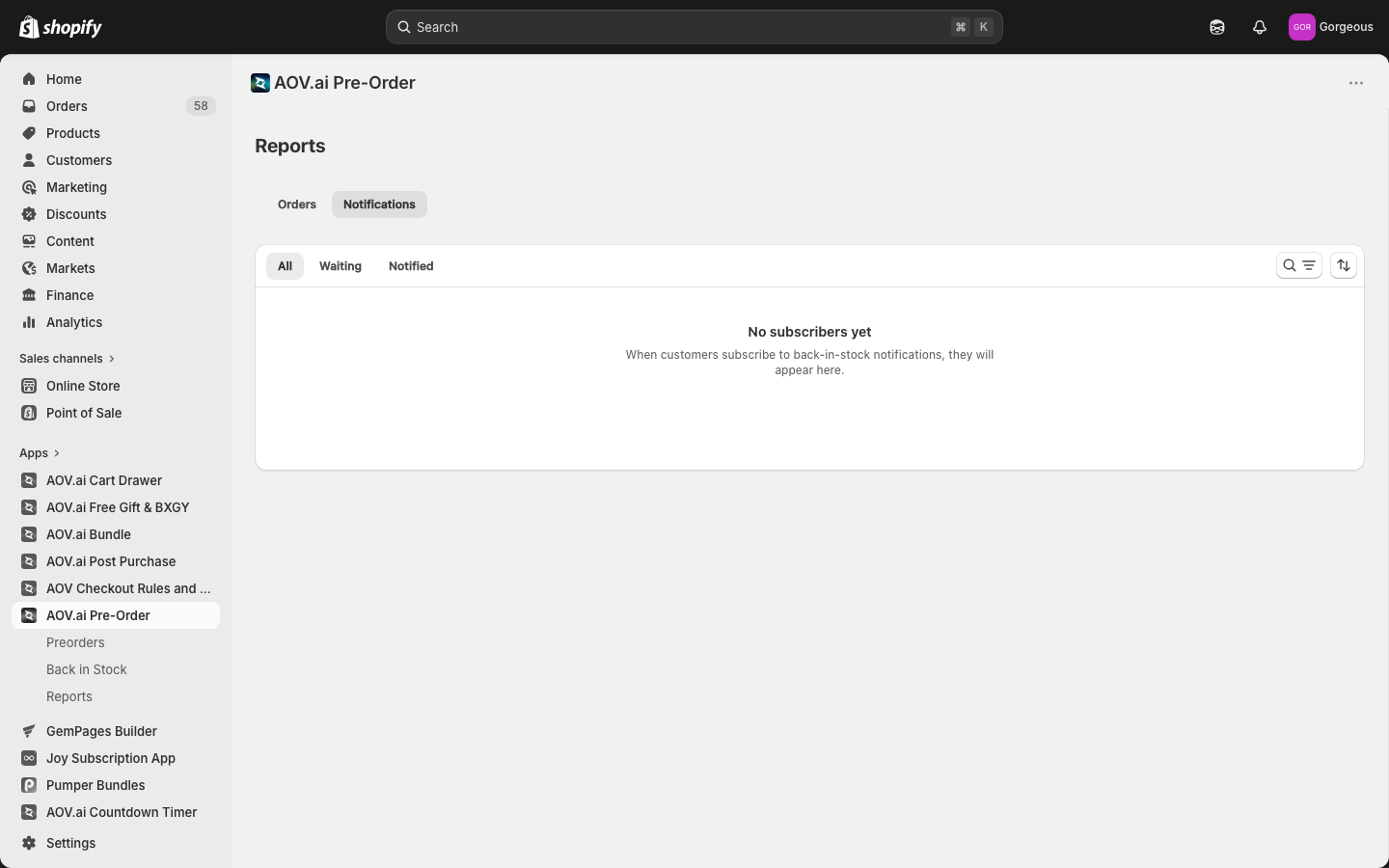
The Notifications report lists every customer who has subscribed to a back-in-stock alert. From here you can review who is waiting, manually trigger sends, and clean up old records.
Navigate to AOV.ai Pre-Order > Reports > Notifications to open the page.
How to use
Filter subscribers by status
Use the tab bar to filter:
- All: every subscriber on file.
- Waiting: subscribers who have not yet received an email.
- Notified: subscribers who already received their restock email.
Search subscribers
Click the search icon and type to filter by either email or product name. The search runs after a short debounce as you type. Help text in the field reads "Search by product or email...".
Sort subscribers
Click the sort icon to reorder by:
- Date subscribed (Newest first) (default)
- Date subscribed (Oldest first)
Read the subscriber row
Each row shows:
- Email: the customer's email address.
- Product: the product name (with variant ID below if subscribed to a specific variant).
- Subscribed: when the customer signed up.
- Notified at: when the restock email was sent. Shows an em-dash for Waiting rows.
- Status: badge showing Waiting (yellow) or Notified (green).
Send notifications now (bulk)
Select subscribers using the row checkboxes, then click Send now in the bulk-action toolbar. A confirmation modal appears: "Send a back-in-stock email to the selected subscribers now? Subscribers will be marked as Notified on success."
After you confirm, a progress banner appears at the top of the page:
Sending notifications X of Y sent · Z failed (with a progress bar)
The banner updates every 2 seconds. When the job finishes, a toast confirms Sent X of Y (with the failed count if any).
Tip: Send now bypasses the automatic threshold. It is the right tool for cases where you want to alert subscribers even though inventory has not officially crossed the threshold yet (e.g. a small batch you want to allocate to the waitlist first).
Delete subscribers (bulk)
Select rows and click Delete in the toolbar. A confirmation modal appears: "Remove the selected subscribers? They will stop receiving back-in-stock notifications."
Delete cleans up the record permanently. Use it for stale waitlists or subscribers who have requested removal.
Pagination
The list shows 20 subscribers per page. Use the Previous / Next controls at the bottom of the table to move between pages.
Tips
Resend to a single customer
Filter by the customer's email in the search field, then select the matching row and click Send now. The email re-sends and the row stays in the Notified tab (already-notified subscribers are not re-marked when re-sent).
Audit your waitlist before a big restock
Switch to the Waiting tab and search for the product name. The result is your active waitlist for that product. If it looks healthy, leave Sending mode on auto for the campaign; if it is bigger than the restock can serve, use Send now on a subset.
FAQs
What happens if the customer's email bounces?
The row stays in Waiting. The job-progress banner reports the failure in the failed count, so you can review it after the send completes.
Can I export subscribers?
A direct CSV export is not yet available on this page. To pull a list, use the bulk actions to triage or contact support.