Manage Back-in-Stock Campaigns
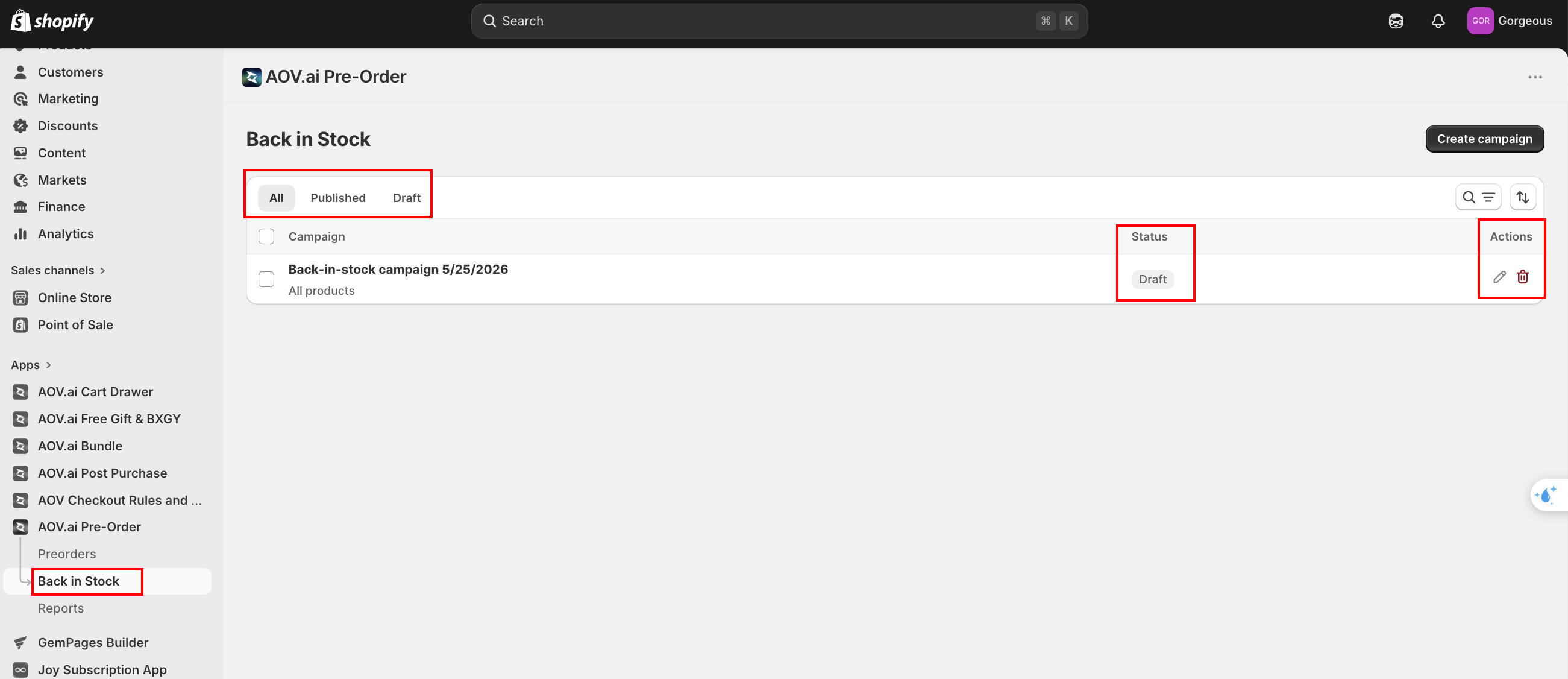
The Back in Stock campaign list is where you view, filter, edit, and bulk-action all of your restock alert campaigns. Navigate to AOV.ai Pre-Order > Back in Stock to open it.
How to use
Create a new campaign
Click the Create campaign button in the top right to open the 4-tab wizard. See How to set up (opens in a new tab) for the full walkthrough.
Filter campaigns by status
Use the tab bar above the table to filter:
- All: every campaign regardless of status.
- Published: campaigns that are currently live on the storefront.
- Draft: campaigns that exist but are not yet running.
Search and sort campaigns
- Click the search icon in the filter bar to type a name (debounced).
- Click the sort icon to reorder by:
- Created (Newest first) (default)
- Created (Oldest first)
- Name (A-Z)
- Name (Z-A)
Read the campaign row
Each row shows:
- Campaign: the campaign title (clickable, opens the editor) and either "All products" or "N products" underneath.
- Status: badge showing Published (green) or Draft.
- Actions: Edit (pencil) and Delete (trash) icons aligned to the right.
Edit a campaign
Click the campaign name or the Edit icon to open the wizard. Use the App Bridge save bar at the top to Save or Discard changes.
Publish or unpublish
- When editing a Draft campaign, the top-right page action is Publish. Click it to take the campaign live.
- When editing a Published campaign, the action becomes Unpublish. Clicking it drops the campaign back to draft and removes the Notify Me button from the storefront.
You can also publish or unpublish in bulk from the campaign list. Select campaigns using the checkboxes, then click Publish or Unpublish in the bulk-action toolbar.
Delete a campaign
Click the Delete icon on a campaign row, or select multiple rows and choose Delete from the bulk-action toolbar. A confirmation modal appears: "Are you sure you want to delete the selected campaigns? Subscribers tied to them will keep their records but will no longer receive notifications."
Deleting a campaign does not delete its subscribers. Existing waiting subscribers remain in the Notifications report but stop receiving automatic emails. To clear them, go to the Subscribers (opens in a new tab) page and delete the rows directly.
Pagination
The list shows 10 campaigns per page. Use the Previous / Next controls at the bottom of the table when you have more.
Tips
Run multiple Back in Stock campaigns at once
You can have several campaigns published at the same time. When a product is covered by both a Specific products campaign and an All products campaign, the specific one takes priority on that product. Use this to override email branding or the popup copy for a featured product line.
Draft campaigns are safe to keep
Drafts do not render on the storefront. Use them to stage new designs or email copy before going live. When you are ready, click Publish in the wizard.