Orders & Reports
View, filter, and manage pre-order reports. Collect remaining balances, reschedule payment dates, and send shipping updates to customers.
Overview
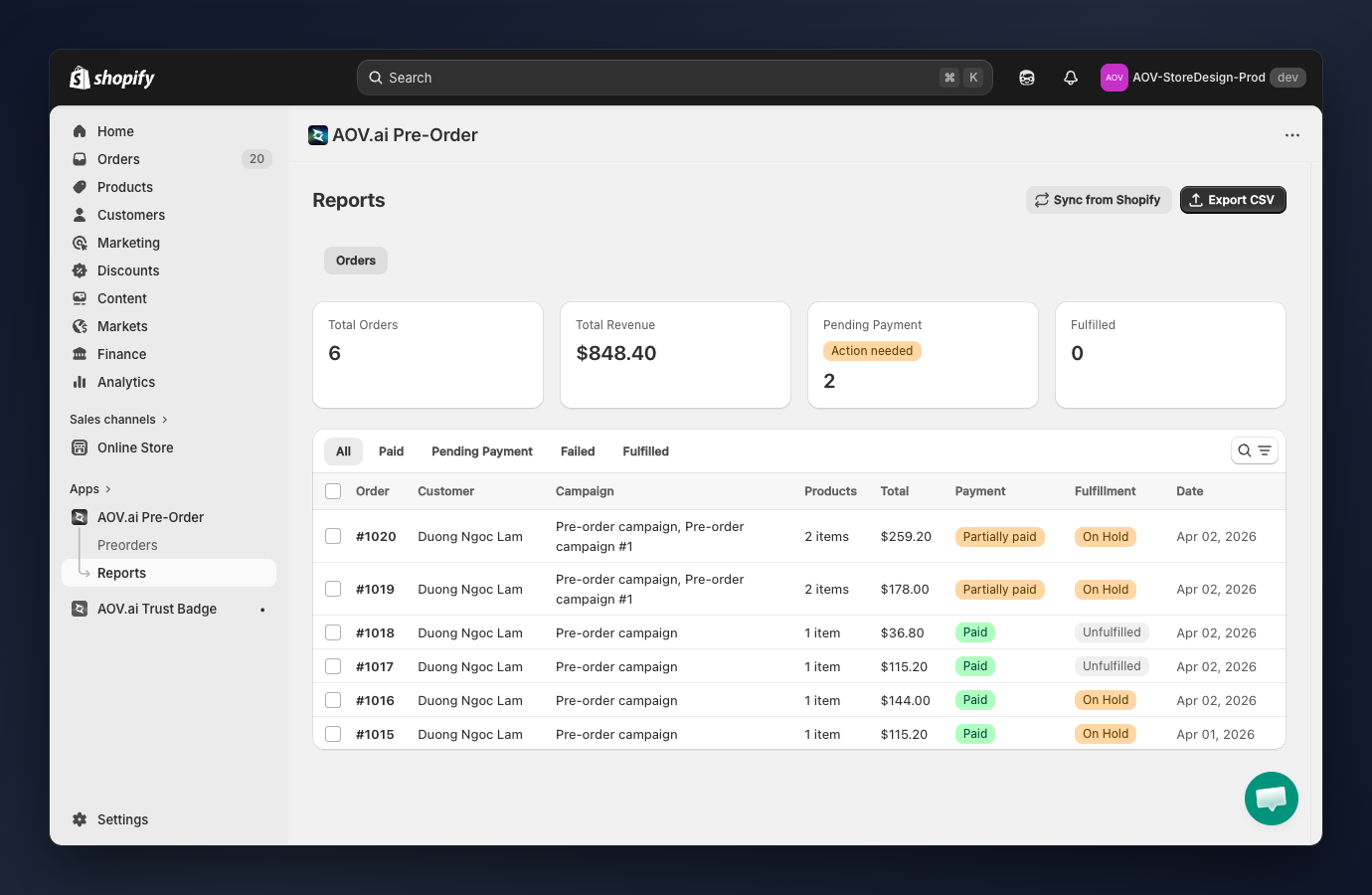
Navigate to AOV.ai Pre-Order > Reports to access the orders management page. The Reports page header includes:
- Export CSV (primary action, top right)
- Sync from Shopify (secondary action)
How to use
Review summary metrics
The four cards at the top show a snapshot of all pre-orders:
- Total Orders: total number of pre-orders received.
- Total Revenue: combined revenue from all pre-orders (formatted in your store currency).
- Pending Payment: number of orders with outstanding balances. Shows a Action needed warning badge when count > 0.
- Fulfilled: orders that have been shipped/delivered.
Each card shows a spinner while data is loading.
Filter orders by status
Use the tab bar to filter:
- All: every pre-order regardless of status.
- Paid: orders where full payment has been received.
- Pending Payment: orders with partial payment, remaining balance still due.
- Failed: orders where payment collection failed.
- Fulfilled: orders that have been shipped/delivered.
The current tab, search query, and page number are kept in the URL so you can bookmark or share filtered views.
Search for specific orders
Click the search icon to find orders by:
- Order number (e.g.
#1020) - Customer name
- Customer email
The search runs after a short debounce as you type.
Read the orders table
Each row shows: Order (links to order detail), Customer, Campaign, Products (item count), Total, Payment (badge), Fulfillment (badge), and Date.
The table loads 10 orders per page. Use the pagination at the bottom to move between pages.
View order details
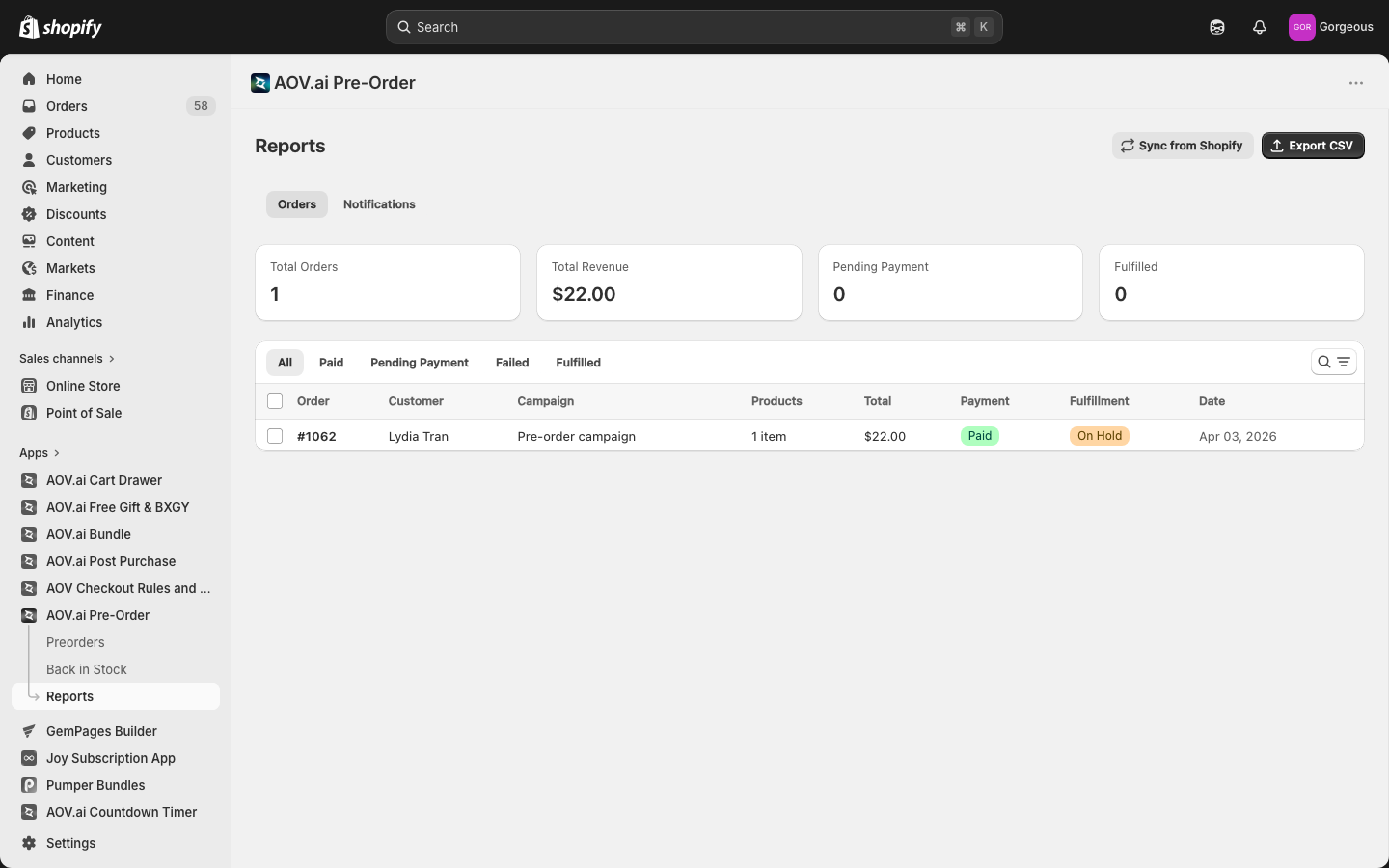
Click any order number to open the detail page. The layout is:
Left column
- Customer info: name, email, billing and shipping addresses.
- Products: line items with product image, variant, quantity, and price.
- Payment timeline: chronological record of payment events (deposit captured, balance collected, refund, invoice sent, etc.).
Right column (sidebar)
- Payment Summary: order total, paid amount, remaining balance, due date (with red highlight when overdue), and the current status badge.
- Campaign: one card per applied campaign, with the campaign name (clickable, opens the campaign in a new tab), status, payment type, and deposit value.
Page header
- The order name is shown alongside the payment status badge.
- View in Shopify (primary action) opens the order in Shopify Admin for fulfillment actions.
- Notify customer > Send shipping update opens the shipping update modal.
- More actions (when the order has a remaining balance) reveals Reschedule payment and Collect payment.
Export orders to CSV
Click Export CSV (top right) to open the export modal. Pick a scope:
- All orders: export all pre-orders (count shown).
- Current page (filtered): export only the orders matching your current tab and search (count shown).
- Selected orders (N): only shown when you've ticked rows in the table.
The CSV file is named pre-orders-YYYY-MM-DD.csv and is encoded as UTF-8 with BOM (Excel compatible).
Tip: Switch to the Pending Payment tab before exporting to get a clean list of orders that still owe a balance.
Sync data from Shopify
Click Sync from Shopify to pull the latest order updates. Use this when:
- Payment status changed in Shopify (e.g. customer paid the remaining balance directly).
- Fulfillment status was updated in Shopify Admin.
- You suspect pre-order data is out of date.
The app automatically syncs orders via Shopify webhooks (orders/create, orders/updated). Manual sync is only needed if you notice stale data.
Payment status reference
| Status | Description |
|---|---|
| Paid | Full payment received |
| Partially paid | Deposit received, remaining balance outstanding (deposit_paid) |
| Processing | Collection is in flight (collection_pending) |
| Failed | Collection failed (collection_failed) |
| Collected | Remaining balance has been collected by the app |
Fulfillment status reference
| Status | Description |
|---|---|
| Unfulfilled | Order not yet shipped |
| On Hold | Waiting for remaining payment or other action |
| Scheduled | Fulfillment scheduled for a future date |
| In Progress | Order is being prepared/shipped |
| Partial | Some items fulfilled, others pending |
| Fulfilled | All items shipped/delivered |
Collect Payment
When a campaign uses Partial payment, customers pay a deposit at checkout and the remaining balance is collected later. The Collect payments action lets you trigger payment collection for one or many orders, either on the report list (bulk) or from an individual order's More actions menu (single).
Select orders to collect (bulk)
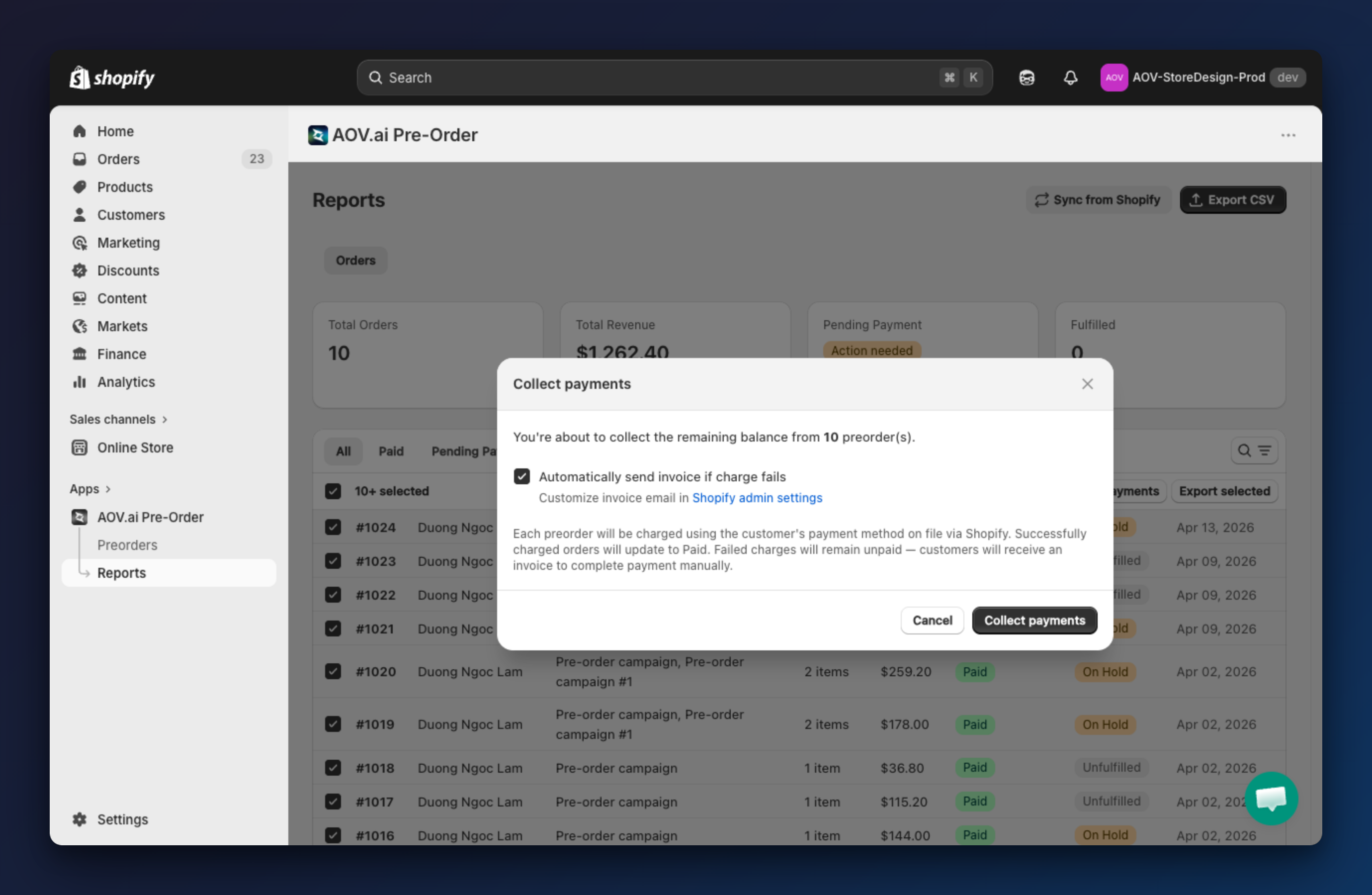
Use the checkboxes on the left to select orders with outstanding balances. The bulk action toolbar then exposes Collect payments, Send shipping update, and Export selected.
Confirm and collect
Clicking Collect payments opens the confirmation modal:
- For a single order, the modal shows the exact remaining amount and the order name.
- For multiple orders, it reads "You're about to collect the remaining balance from N preorder(s).". For more than 50 orders, a caution note appears: "You're about to collect payments for N orders. This may take a few minutes."
- Automatically send invoice if charge fails: enabled by default. When the charge fails, the customer receives an invoice email with a link to pay manually.
- Helper text: "Customize invoice email in Shopify admin settings." (links to Shopify Admin > Settings > Notifications).
Click Collect payments (or Collect payment for a single order) to start processing. Each order is charged using the customer's saved payment method via Shopify.
Orders that are already fully paid (paid or collected) and orders with no remaining balance are automatically skipped.
Review results
After collection completes, a toast shows the results:
- Collected: orders successfully charged.
- Invoices sent: invoices sent for failed charges.
- Failed: orders where collection failed.
- Invoice failed: invoice email could not be sent.
- Skipped: orders already paid or with no remaining balance.
Tip: After bulk collection, check the Failed tab to follow up on orders that couldn't be charged.
Reschedule Payment (Single order)
On a partial-payment order whose balance has not been collected, open the order detail page and choose More actions > Reschedule payment.
- The modal shows the current due date (if set) and a date picker.
- Dates before tomorrow are disabled.
- A help line below the picker reads "The remaining balance of $X will be automatically charged on the new date."
Click Reschedule to save the new date. A toast confirms success.
Send Shipping Update
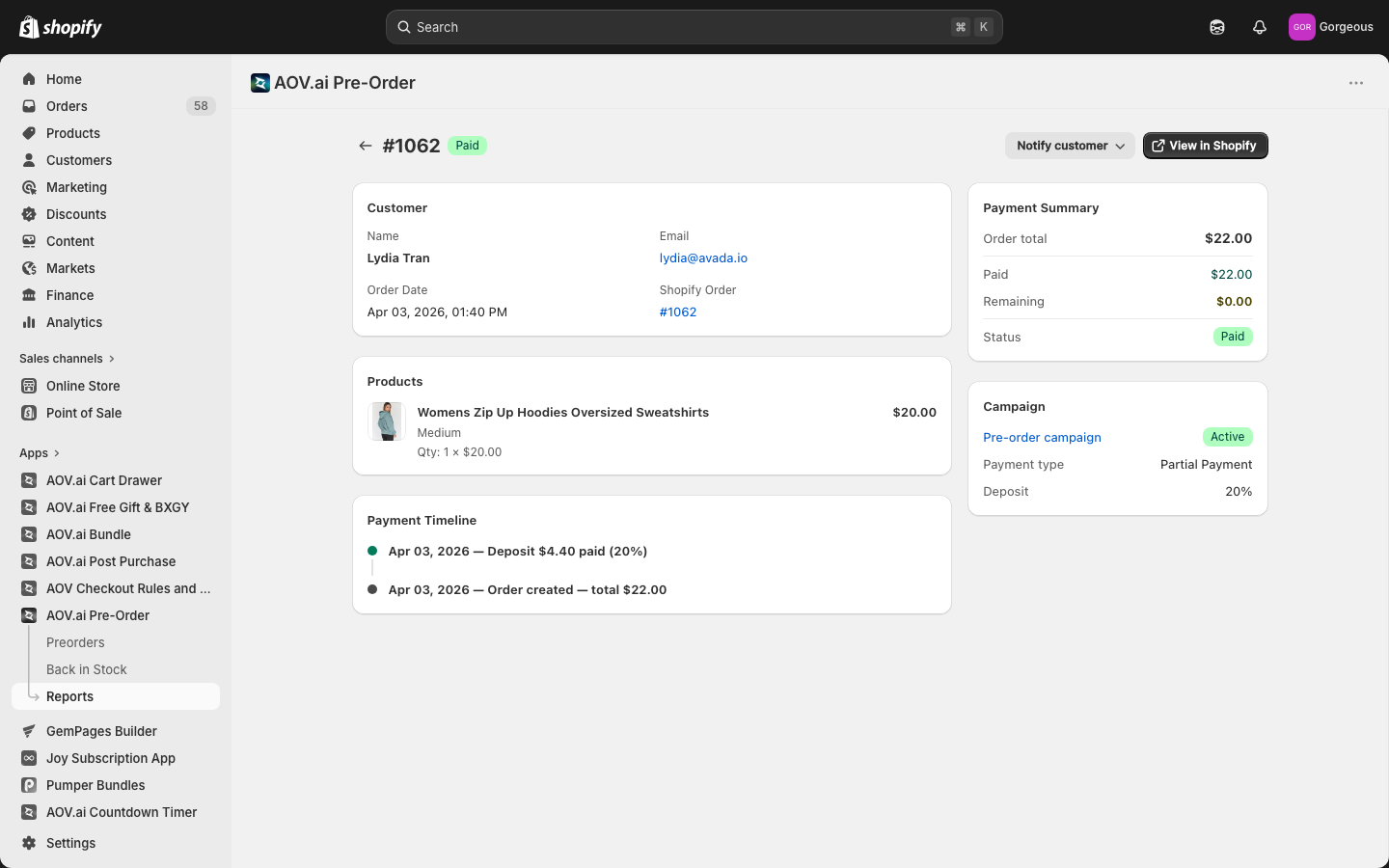
Use Send shipping update to send a one-off email to one or many customers (for example, when a shipment is delayed). It's available as:
- A bulk action on the report list (select orders, then click Send shipping update in the toolbar).
- A single-order action from the order detail page (Notify customer > Send shipping update).
Compose the email
The modal pre-fills a default subject and body:
- Subject:
Shipping update for Order {{order.name}} - Email text:
Thanks for preordering from {{shop.name}}. Due to unforeseen circumstances, your preorder products in order {{order.name}} will be delayed. We will do our best to ship your product as soon as possible.
Both fields support the variables {{order.name}} and {{shop.name}}. Both are required (validation prevents sending blank values).
For bulk sends of more than 50 orders, a caution note appears warning that the send may take a moment.
Send and review
Click Send. After processing, a toast shows the results:
- N email(s) sent successfully
- N order(s) skipped (no customer email)
- N failed