# Checkout Upsell
Show upsell product suggestions at checkout to increase Average Order Value (AOV). Offer targeted product recommendations with discounts directly on the checkout page.
* Add product upsells on the **checkout page**
* Let customers add extra items with one click
* Supports fixed or percentage discounts
* **Only available for Shopify Plus merchants**
### **1. Where to find it in the app**
* Go to **AOV Free Gift app → Campaign list → Create new campaign**
* Select campaign type: **Checkout Upsell**
* Click **Create** under **Checkout upsell**
### **2. How to set up in Admin**
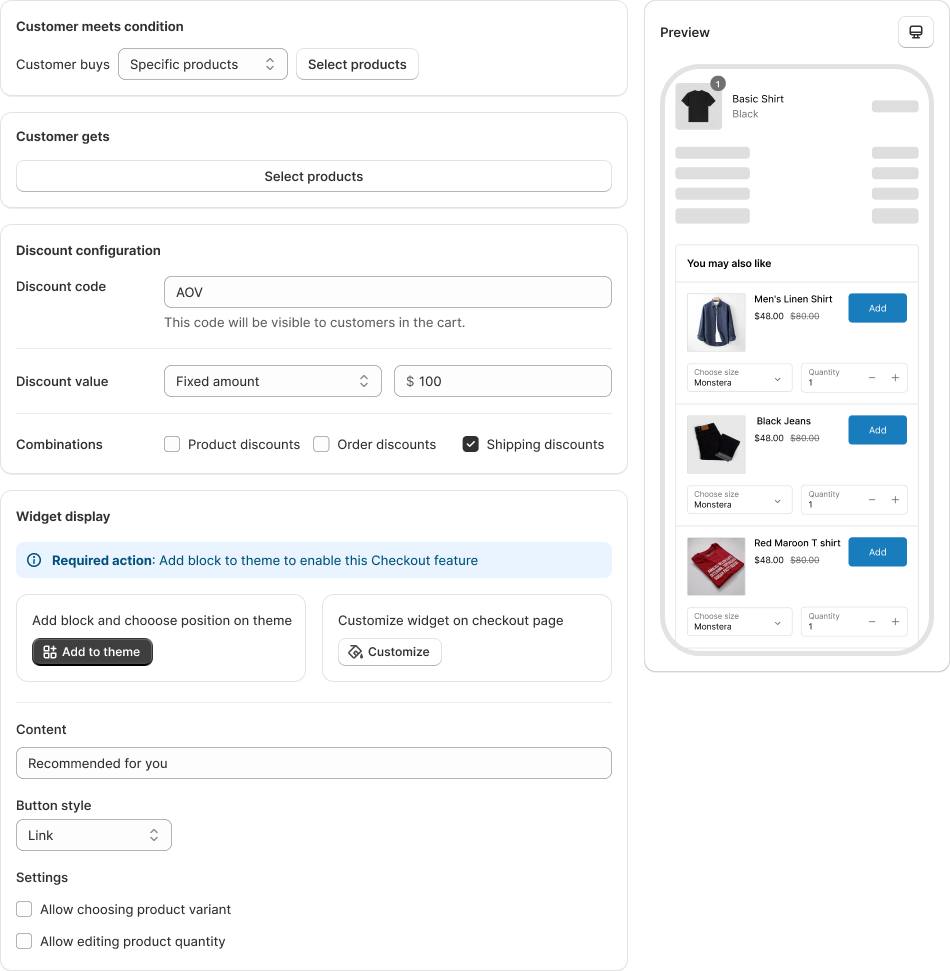
* **Step 1: General settings**
Enter Campaign name (e.g. “T-Shirt Upsell”)\
Name your Discount code (shown in cart)
* **Step 2: Set trigger conditions**
Choose one of:
* All products
* Specific products
* Specific collections
*(Expected result: Upsell block only shows when these triggers are met)*
* **Step 3: Choose upsell product**
Click **Browse** to select 1 product\
Choose discount type:
* Percentage (% off)
* Fixed amount ($ off)\
→ Set discount value\
→ Select discount combination:
* **Step 4: Save and continue**
Click **Save** to confirm
Make sure saving campaign before you go to next step "Add block to theme". Because once you save campaign successfully, the checkout block would appear on Shopify theme settings for you to add
***
### **4. Customize Widget Display**
> Set layout, content, and appearance of the upsell block.
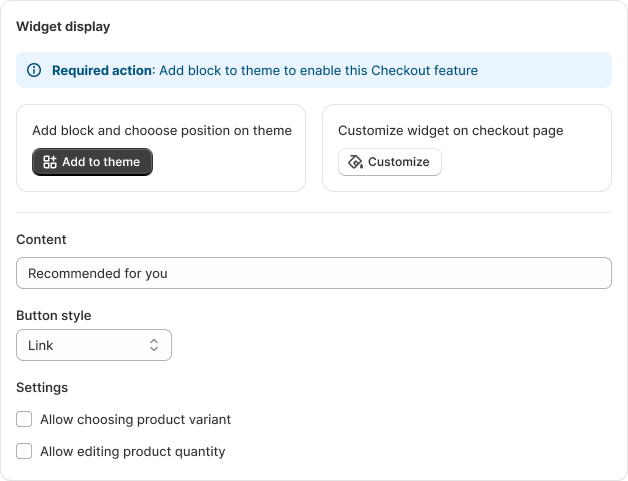
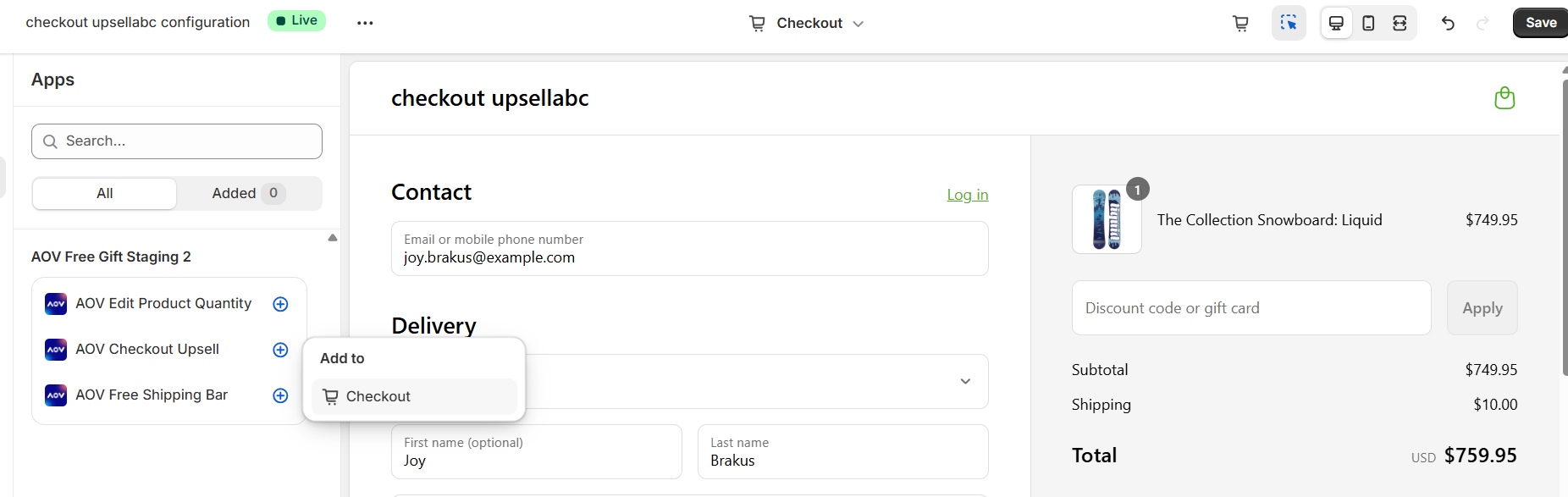
* **Step 1: Add block to checkout page**
Click "**Go to theme"**
Add block: “AOV Checkout Upsell” to your theme and click to Save
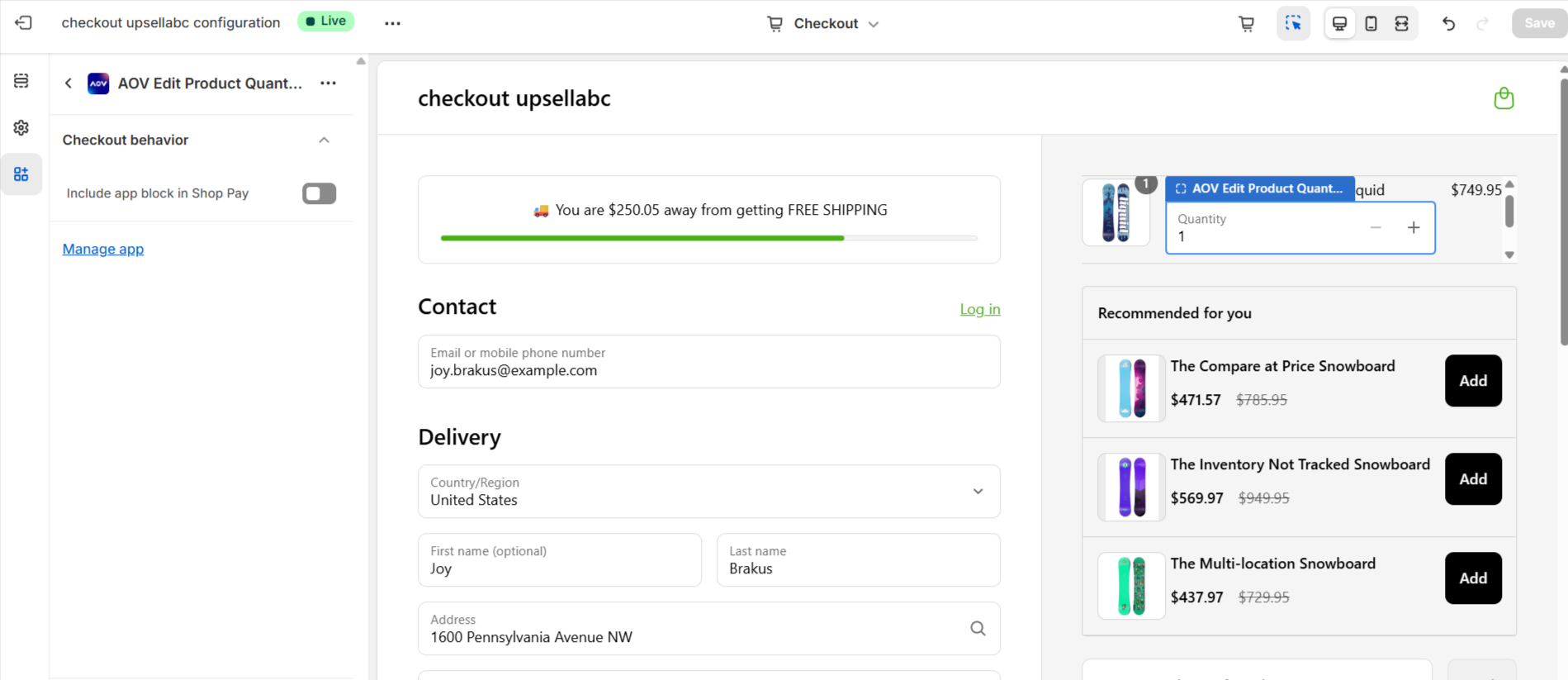
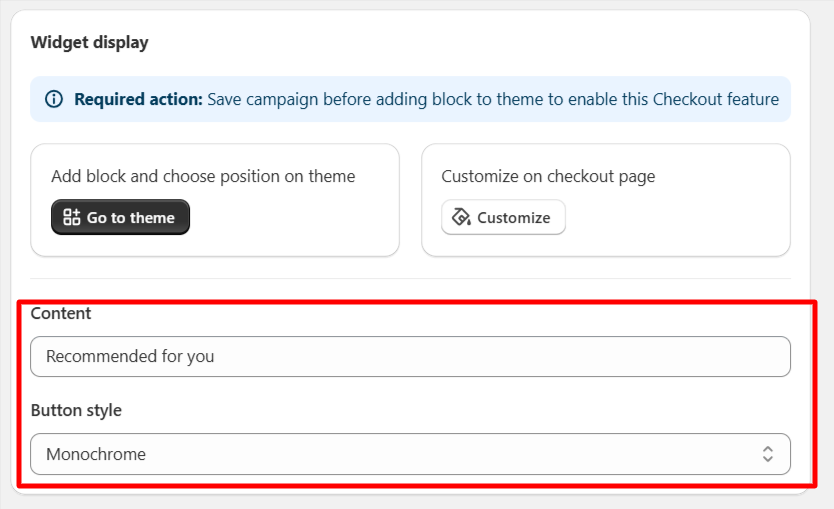
* **Step 2: Widget content and layout**\
→ Customize:
* Upsell message (e.g. “You may also like”)
* Colors (button, text, price)
***
### **5. How it works on Storefront**
> Customer experience on checkout page.
* **Step 1: Customer adds a trigger product**
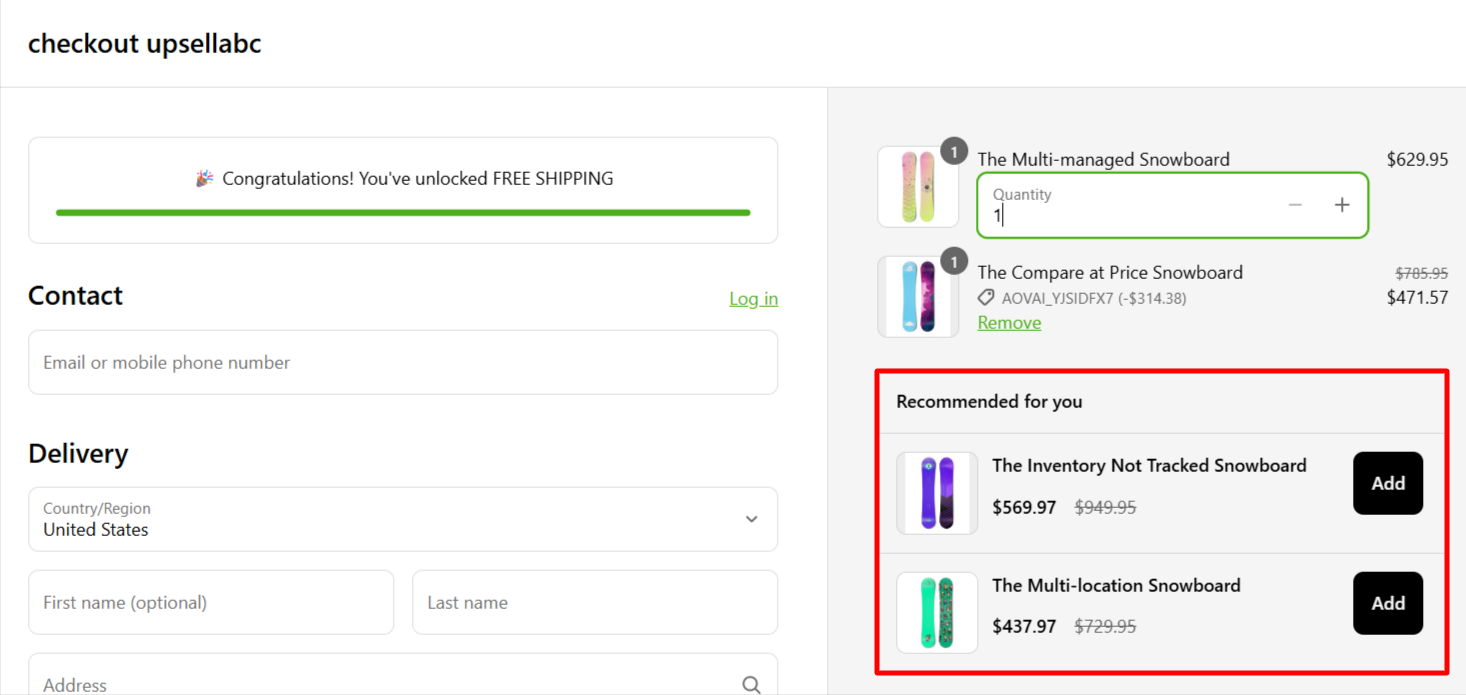
→ Checkout page loads with upsell widget (based on trigger)\
→ Widget shows suggested product with discount
* **Step 2: Customer interacts with widget**\
→ Clicks **Add** to insert upsell item into order summary
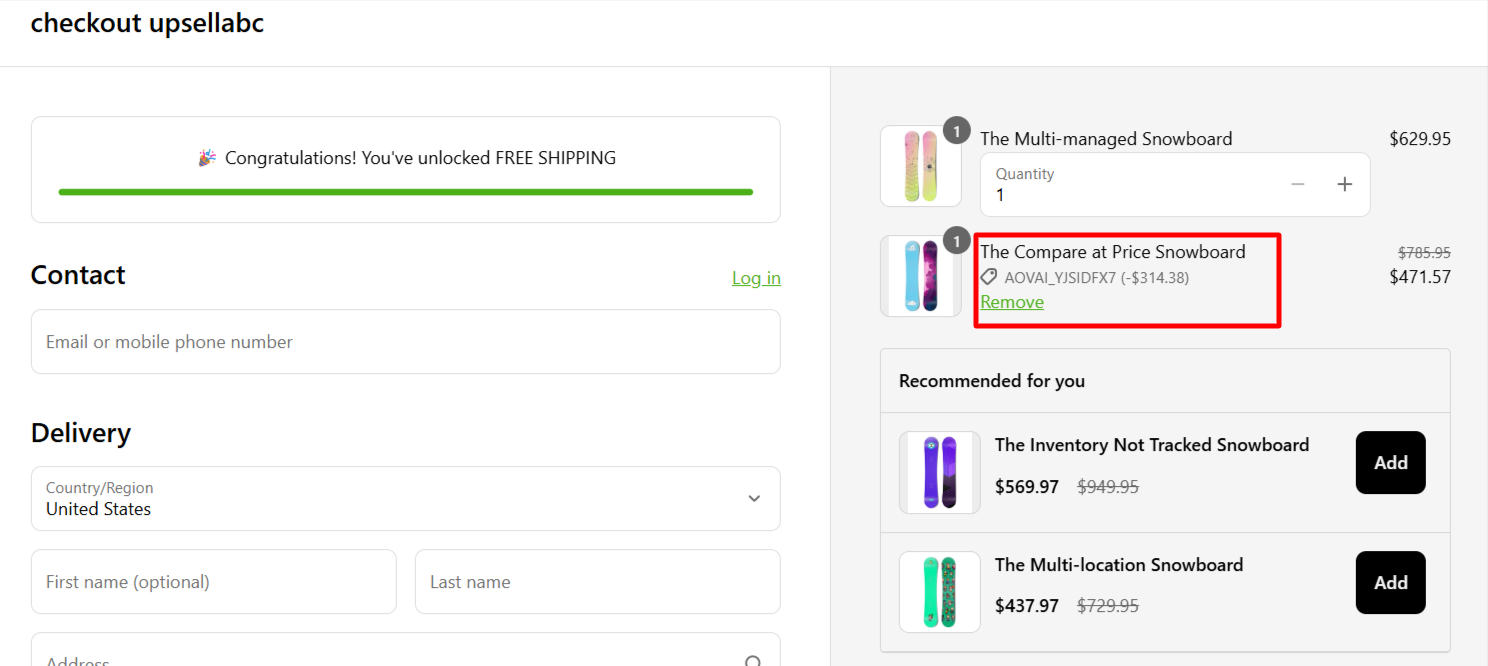
* **Step 3: Product is added with discount**
→ Discount is applied automatically\
→ Upsell product shows in order summary before payment
***
### **6. FAQs & Troubleshooting**
**Q1. The upsell widget is not visible.**
* Make sure you added the “AOV Checkout Upsell” block in your **Checkout theme**
* Confirm the trigger condition is matched by products in cart
**Q2. The discount isn’t applying.**
* Check if the discount type and value are set correctly
* Make sure the upsell product is **published** and in stock
**Q3. Why don't I can see the AOV block to add to Shopify theme settings**
* You must save campaign successfully to see and add AOV block to theme
***
### **7. Need help?**
* **Live chat support**: Inside the app, bottom right corner
* **Email us**: \
Response time: within 24 hours on business days
* **Video demo**:
---
# Agent Instructions: Querying This Documentation
If you need additional information that is not directly available in this page, you can query the documentation dynamically by asking a question.
Perform an HTTP GET request on the current page URL with the `ask` query parameter:
```
GET https://help.aov.ai/promotion-campaign/checkout-upsell.md?ask=
```
The question should be specific, self-contained, and written in natural language.
The response will contain a direct answer to the question and relevant excerpts and sources from the documentation.
Use this mechanism when the answer is not explicitly present in the current page, you need clarification or additional context, or you want to retrieve related documentation sections.
.png?alt=media&token=5aeb86af-8b8a-40e5-b769-5b9f4a5ac1a3)