# Tiered Reward Box
{% hint style="success" %}
Tiered Reward Box can be applied for 3 campaign types: Gift With Cart Value, Gift With Collection Value and Gift With Quantity Purchase.
{% endhint %}
### What is Tiered Reward Box?
The Tiered Reward Box is a widget that appears as a floating element on your store, providing a visually appealing way to highlight ongoing promotions. Specifically, it focuses on tiered gift campaigns—promotions where customers unlock rewards based on their spending levels. The more they spend, the more they receive, creating a compelling incentive for higher cart values.
### Why Tiered Reward Box?
Boosts Sales
By encouraging customers to spend more to reach the next reward tier, the Tiered Reward Box naturally increases your average order value.
Enhances Customer Engagemen
The interactive nature of the widget keeps customers engaged throughout their shopping journey, making their experience more enjoyable and rewarding.
Increases Conversion Rates
With clear, compelling offers presented right at the point of decision, the Tiered Reward Box helps turn browsers into buyers.
Supports Marketing Campaigns
Whether it’s a seasonal promotion or a limited-time offer, the Tiered Reward Box is a powerful way to highlight and support your marketing efforts.
### How to Use Tiered Reward Box
#### Step 1: Access Tiered Reward Box
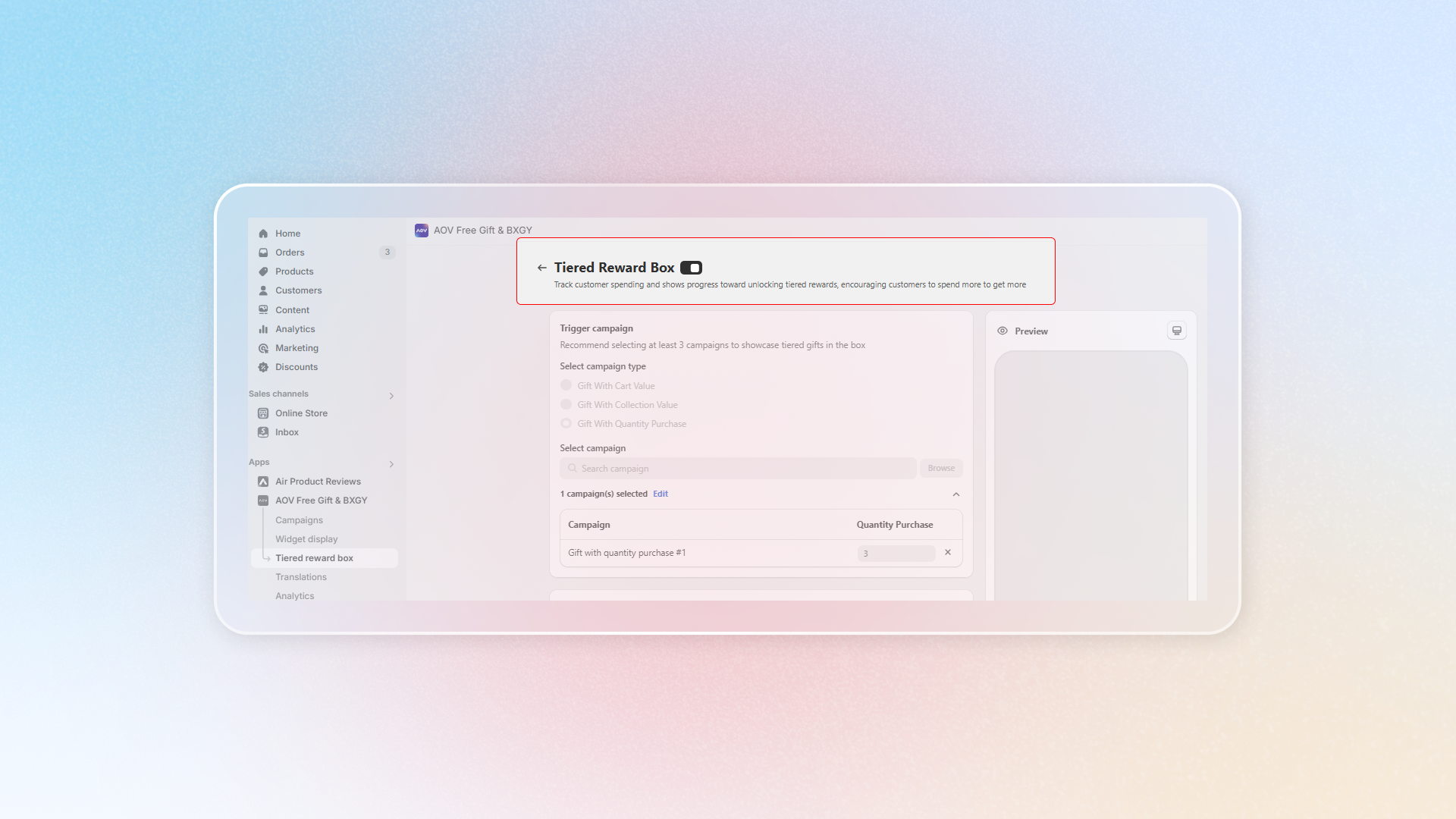
Navigate **Tiered Reward Box** section in the app's dashboard.
Toggle the **"Tiered Reward Box"** button on to enable the widget.
#### Step 2: Configure Trigger Campaign
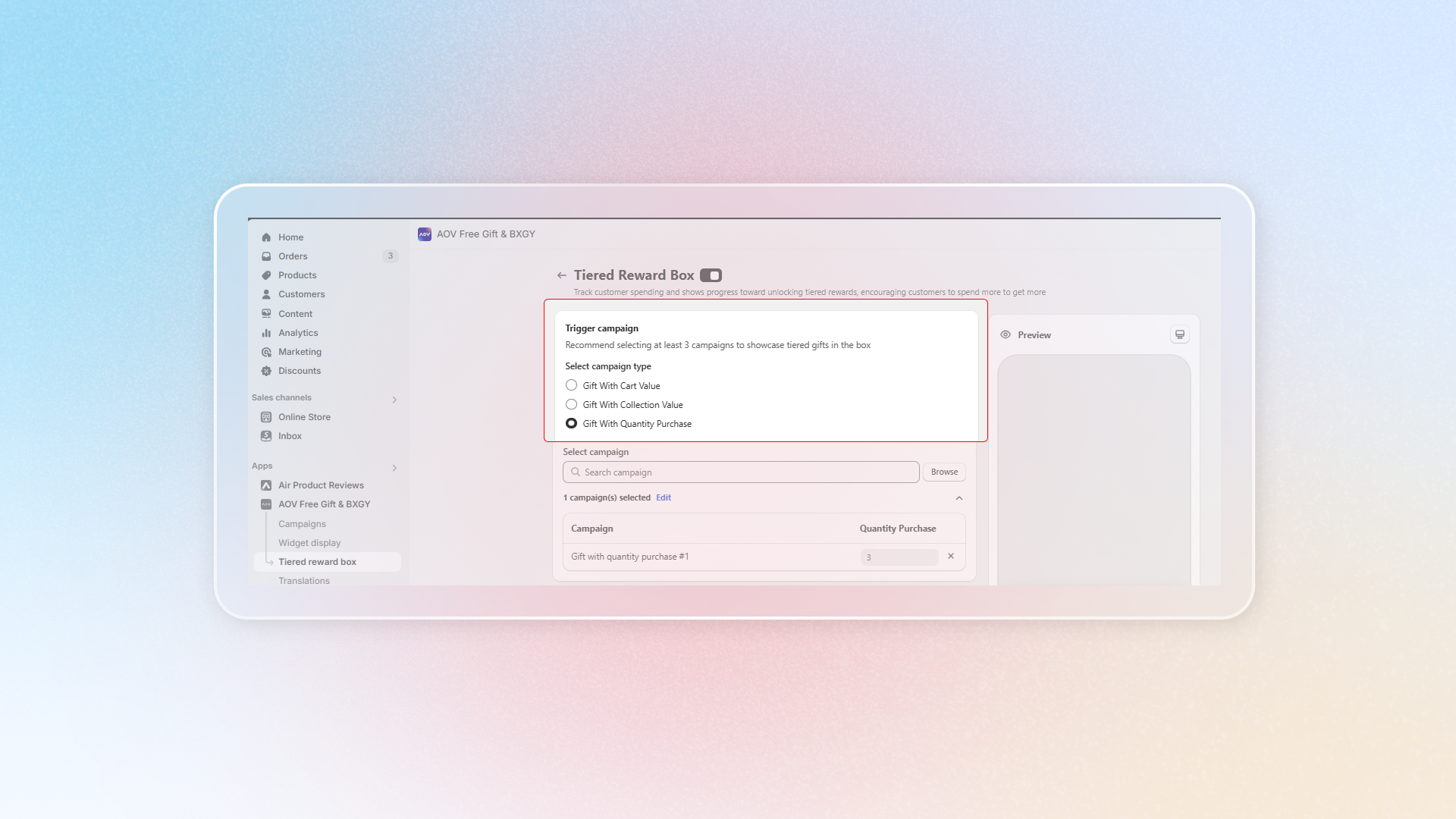
The Tiered Reward box is applied for 1 among 3 available campaign types, which are **Gift with Cart Value, Gift with Collection Value and Gift with Quantity Purchase.**
**Select campaign type**
Choose which campaign type among the three above-mentioned options that the gift will be triggered to create your tier reward structure.
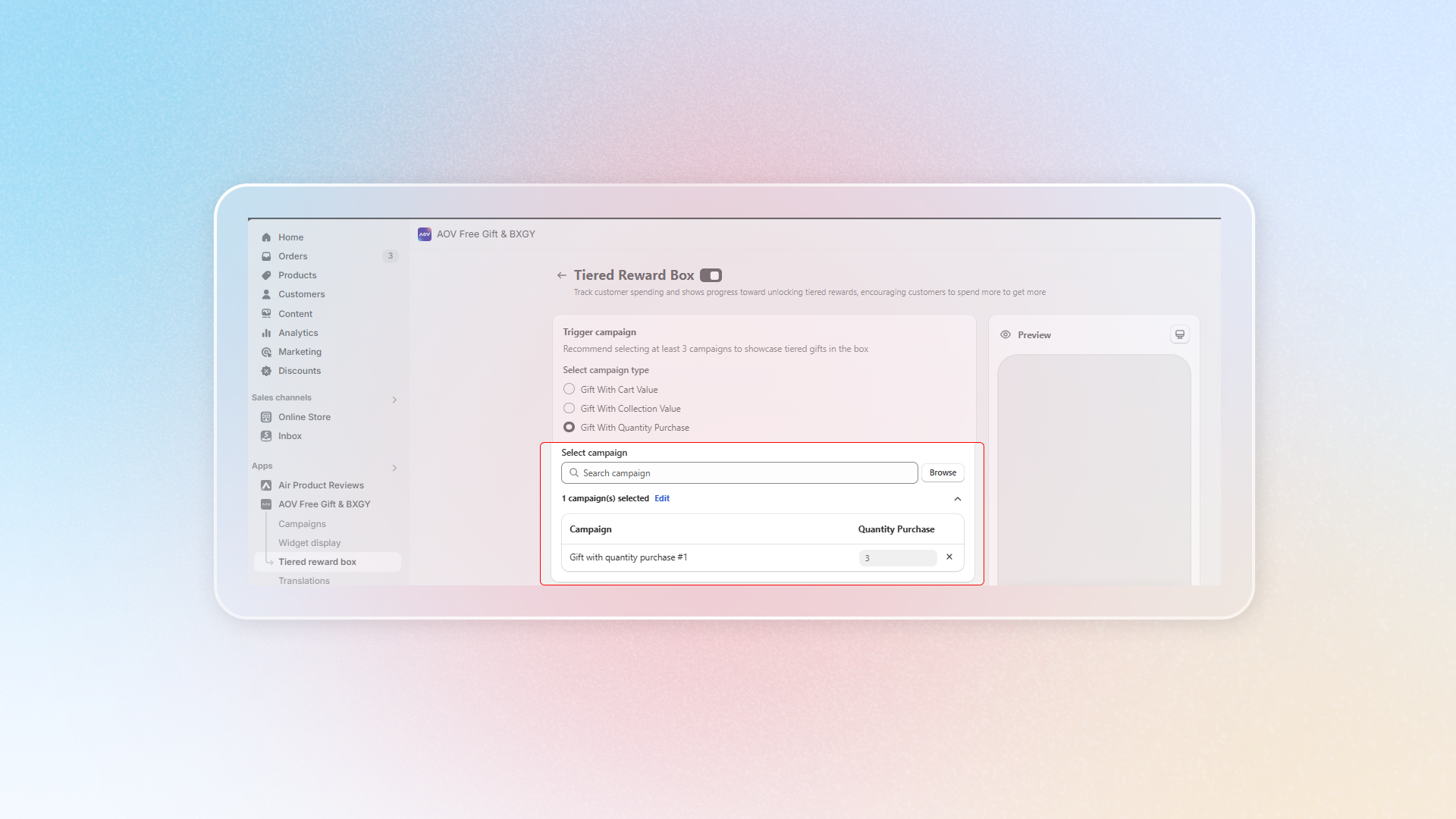
**Select campaign**
Among campaign(s) which you have set up in that selected type, choose the one(s) that you want to apply in the tier reward box.
{% hint style="success" %}
It's recommended to select at least 3 campaigns to create various spending threshold to keep customers engaged.
{% endhint %}
#### Step 3: Customize the Setting
**Gift box content**
Set up messages appearing on the box to ensure effective communication with your customers.
* **Header**: Add an engaging header, e.g., "Free Gift Milestone."
* **Description**: Provide a brief message to inform customers of the rewards they can unlock by reaching each milestone.
* **Promotion Message**: Use dynamic tags to show progress (e.g., “Spend {{trigger\_amount}} to get {{gift\_number}} free gift(s)”).
* **Progress Message**: Customize text to display remaining amount for the next reward (e.g., “Spend {{progress\_amount}} more to get {{gift\_number}} free gift(s)”).
* **Gift box icon**
Select an **icon** that resonates with your brand. This will display in the reward box and enhance the visual appeal.
{% embed url="" %}
#### Step 4: Set up Gift box behavior
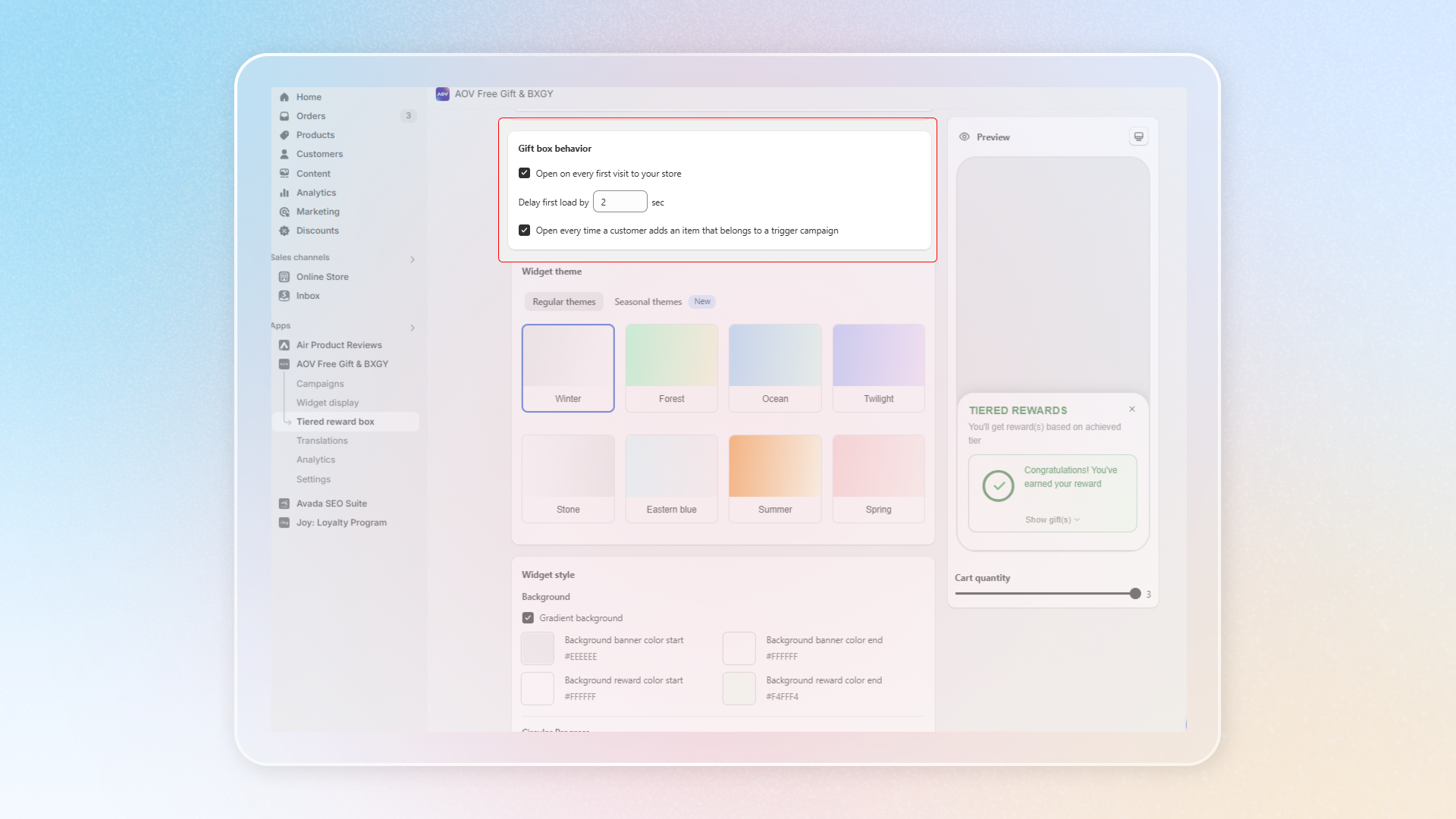
Decide when the gift box should appear to your customers.
If you want the Tiered Reward Box to open as soon as customers land on your store, tick the box.
If you want to control how long the Tiered Reward Box takes to load, set the number of second by filling in the box.
Finally, if you want to prompt the box whenever a qualifying item is added, enable “Open every time a customer adds an item”.
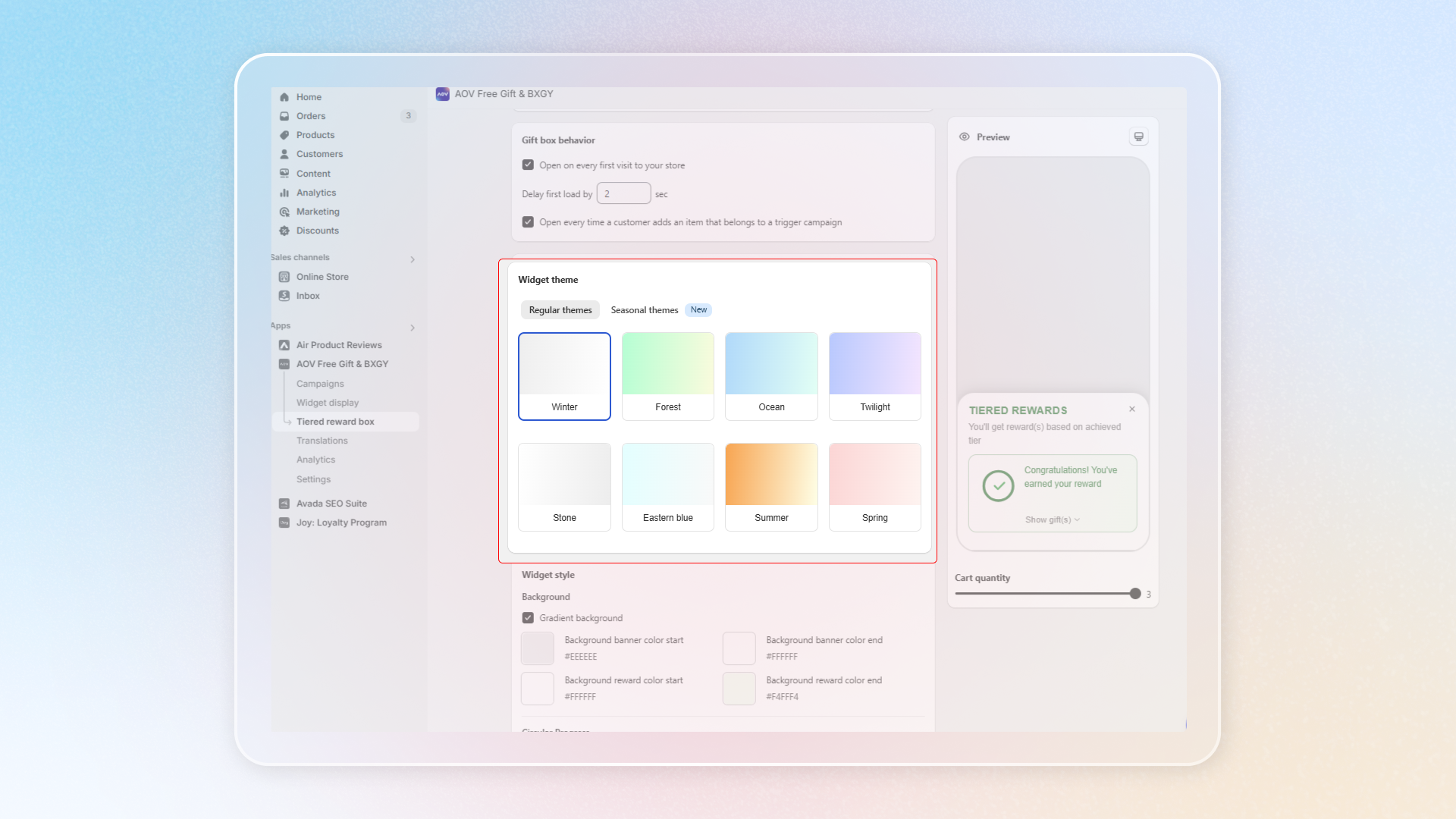
#### Step 5: Customize Widget theme
#### In the **Widget Theme** section, you can select between regular themes (like *Winter* and *Stone*) or seasonal themes (such as *Halloween*) for your own purposes.
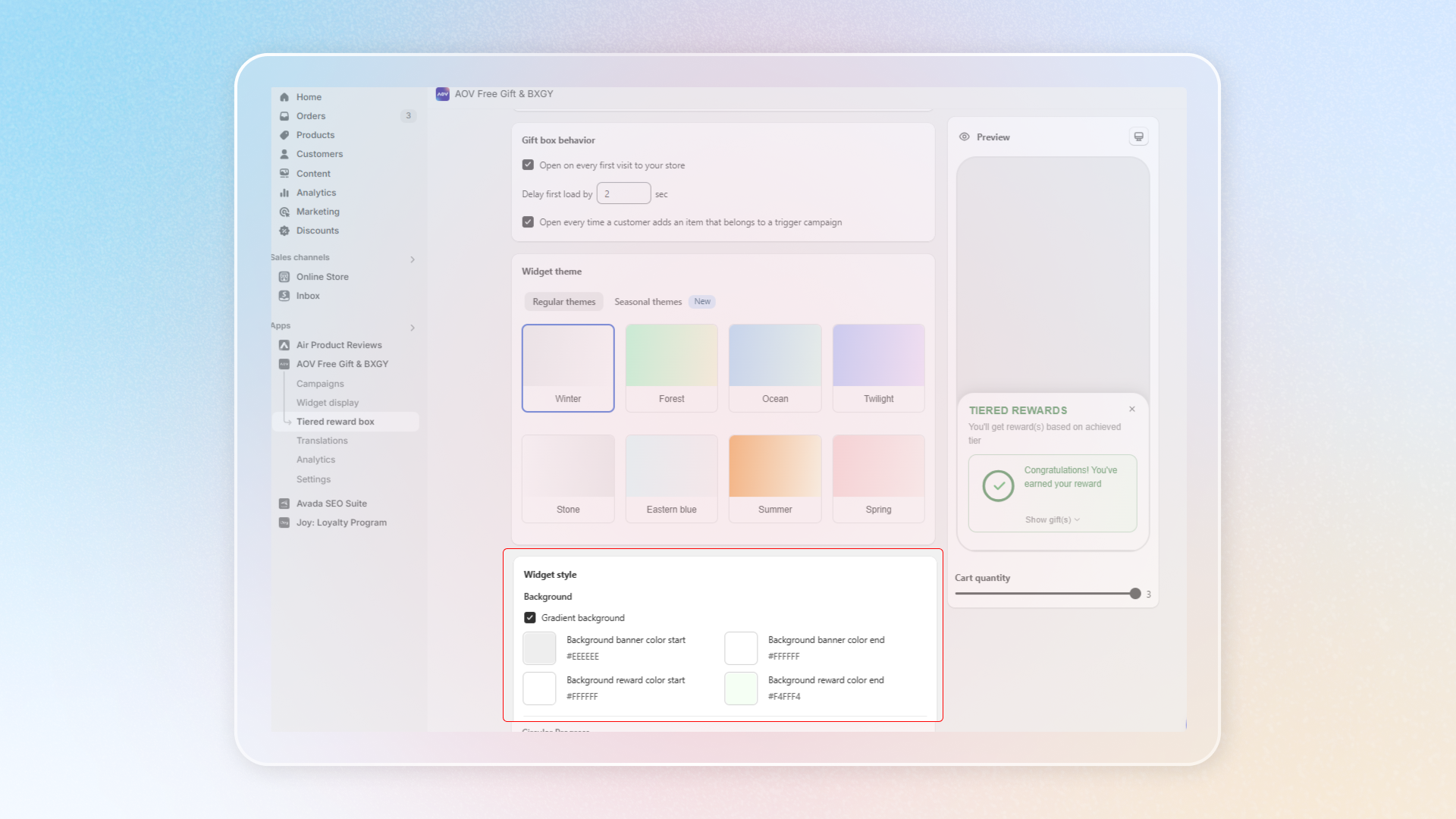
#### Step 6: Set up Widget style
**Set up Tiered Reward Box Background**
Choose whether you want the gradient banner background or not by ticking in the box.
Adjust the background color to harmonize with your brand’s color palette.
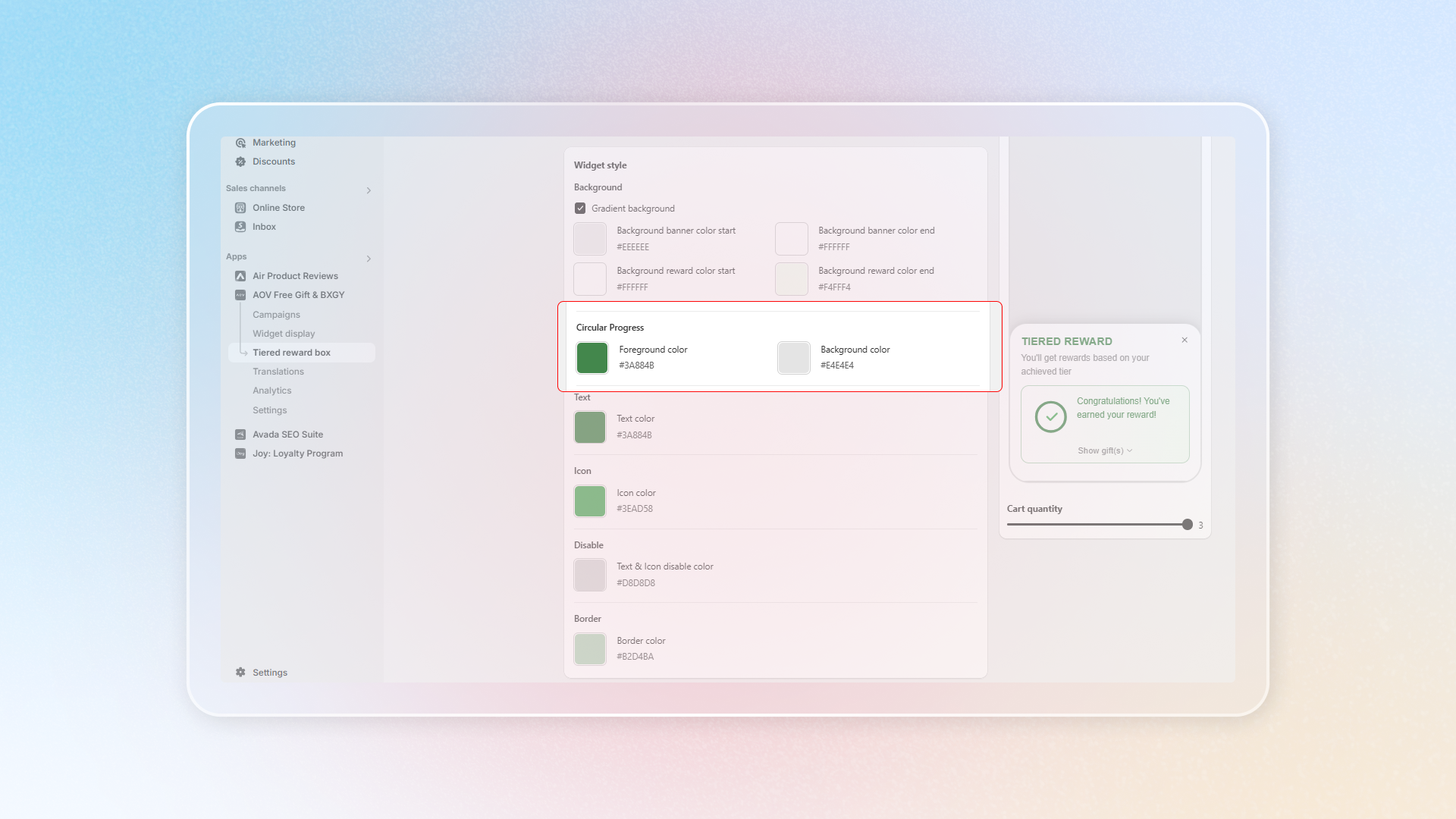
**Set up Circular Progress**
The Circular Progress indicator is a great way to motivate customers by showing how close they are to reaching the next reward tier. To customize it:
**Foreground Color**: Choose a color for the portion of the circle that represents the progress made toward a milestone.
**Background Color**: Select a color for the remainder of the circle that represents the remaining amount needed to reach the milestone
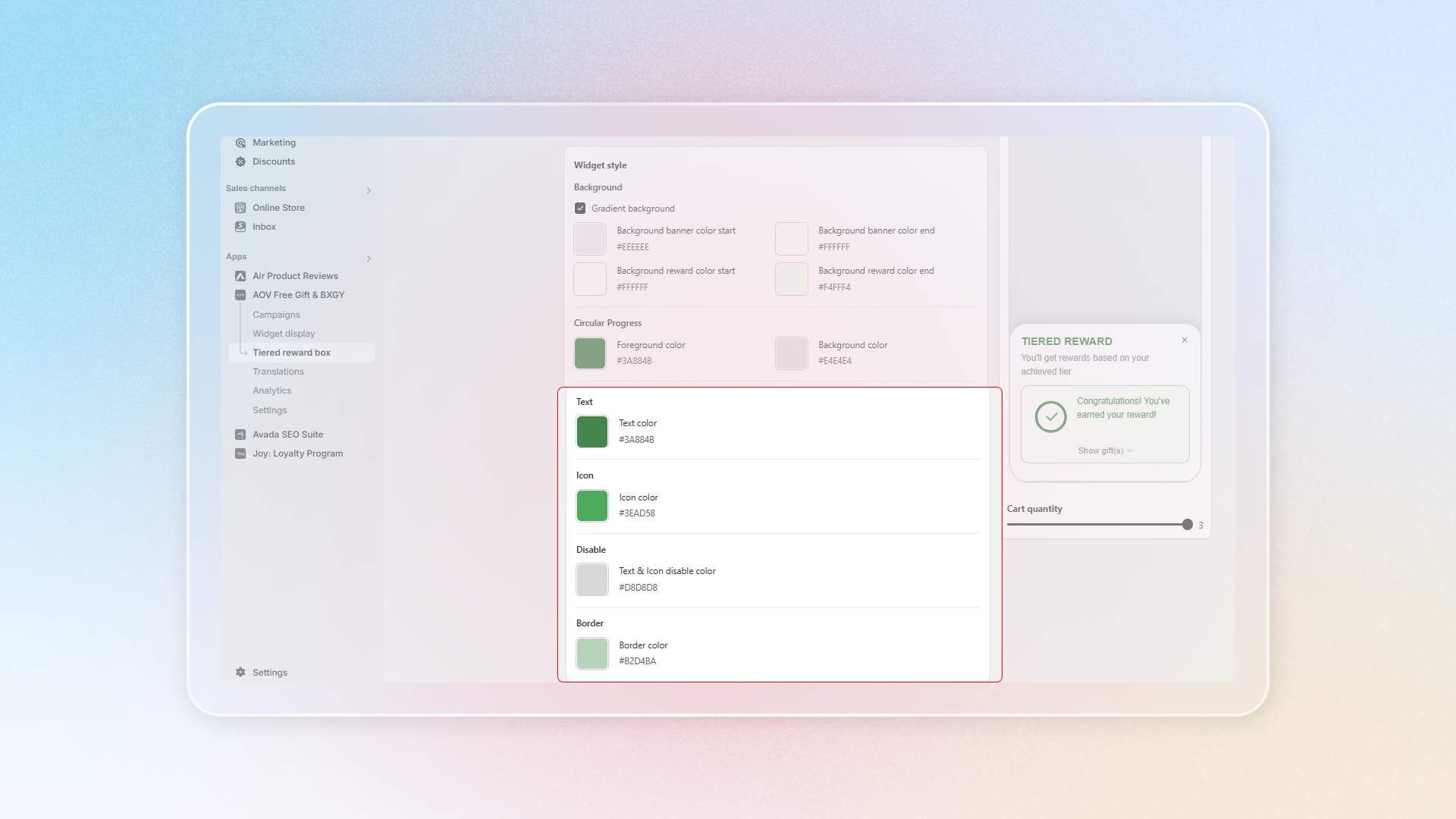
**Set up Text Color, Icon, Disable Color, Border Color**
Change the colors you wish to match the overall campaign.
#### Step 6: Finalize the Setting
Preview the Tiered Reward Box by seeing how it will appear to customers on the right sight of the settings.
After verifying that everything works as expected, click **Save**.
Once you’re satisfied with the setup, go live and watch your average order value rise as customers eagerly work toward earning free gifts!
---
# Agent Instructions: Querying This Documentation
If you need additional information that is not directly available in this page, you can query the documentation dynamically by asking a question.
Perform an HTTP GET request on the current page URL with the `ask` query parameter:
```
GET https://help.aov.ai/promote-your-campaign/tiered-reward-box.md?ask=
```
The question should be specific, self-contained, and written in natural language.
The response will contain a direct answer to the question and relevant excerpts and sources from the documentation.
Use this mechanism when the answer is not explicitly present in the current page, you need clarification or additional context, or you want to retrieve related documentation sections.