# Promotion Card
{% hint style="success" %}
Promotion Card is applied for Buy X Get Y campaign only.
{% endhint %}
### What is Promotion Card?
The Promotion Card is a customizable auto-slide card for Buy X Get Y Campaign only. It displays specific promotional offer (the Y) with product purchase (the X). The card will appear on the product page to catch customers' attention as they browse.
### Why to use Promotion Card?
Drives Awareness of Active Promotions
The Promotion Card serves as highly visible announcements for current deals, as it is put in the product page, ensuring customers don't miss out on offers as they browse.
Encourages Immediate Action
With eye catching design and clear CTAs, Promotion Cards create a sense of urgency, especially when paired with limited time offers or countdowns. This urgency motivates customers to act quickly, which can improve conversion rates and reduce cart abandonment.
Aligns Promotions with Brand Identity
Promotion Card of AOV Free Gift offers you with tailored messaging and design, so you can showcase offers in a way that resonates with their brand’s voice, ensuring a cohesive look and feel.
### How to set up Promotion Card to your store?
#### Step 1: Access the Promotion Card
Navigate **Widget Display > Promotion Card**. Choose Setup to start customizing the card.
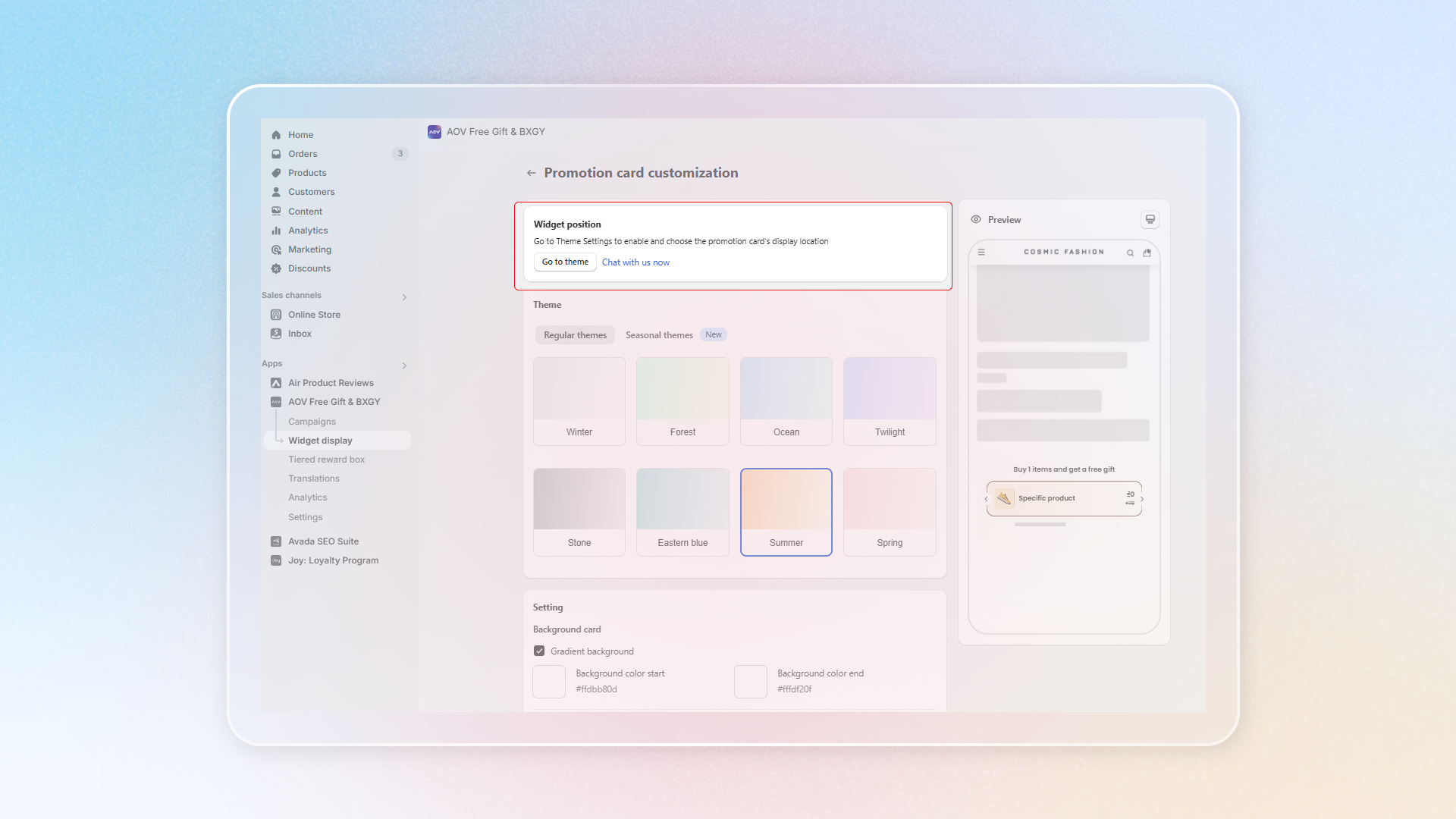
#### Step 2: Choose a Widget Position
Click **Go to Theme** to open theme settings and select where you want the promotion card to appear on your storefront.
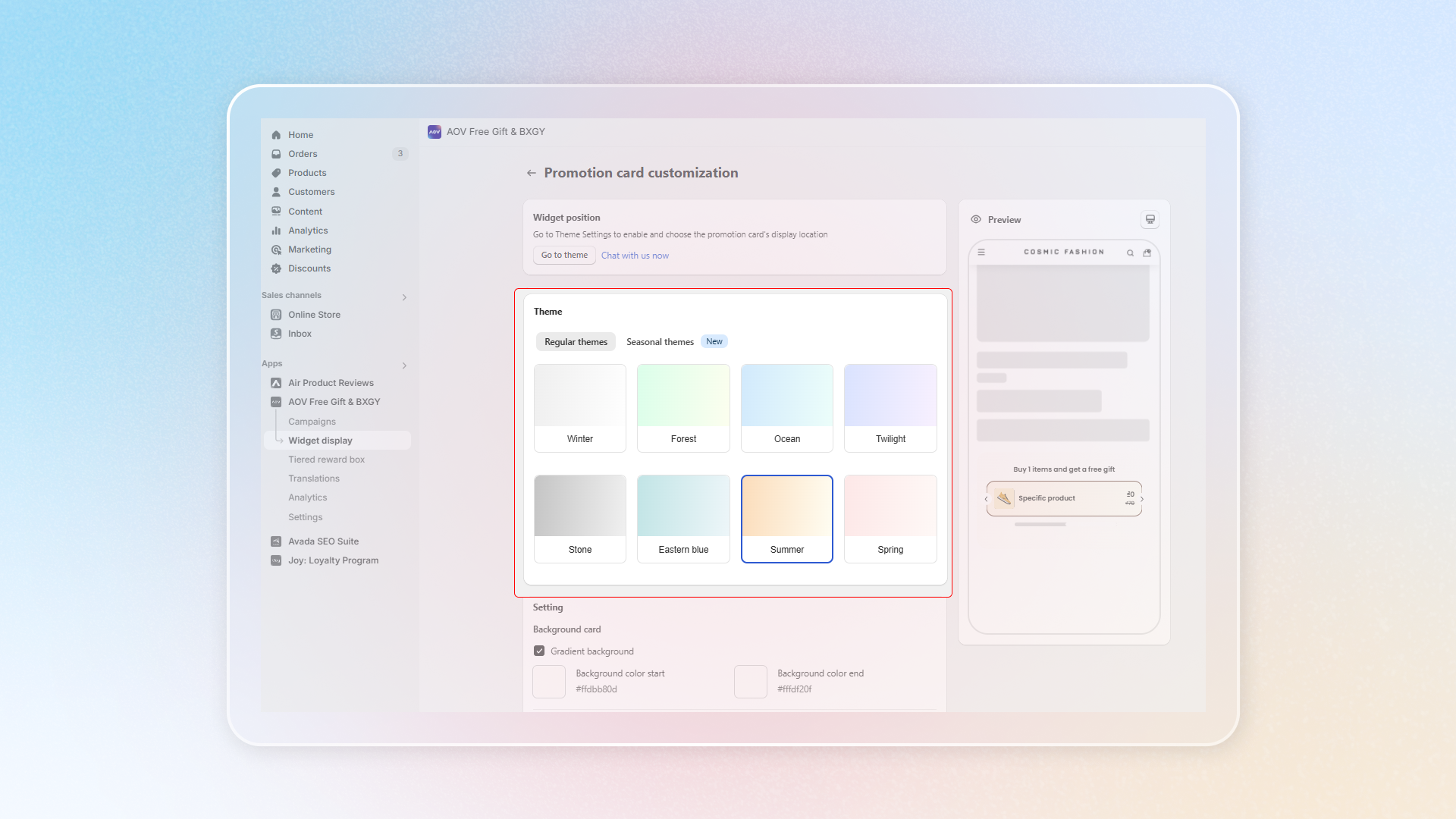
#### Step 3: Select a Theme for Your Promotion Card
The app provides multiple themes, including regular and seasonal options, allowing you to match the promotion card's style to your store’s aesthetic or the current season.
Choose from **Regular Themes** like Winter, Forest, Ocean, and more, or select **Seasonal Themes** to fit special occasions.
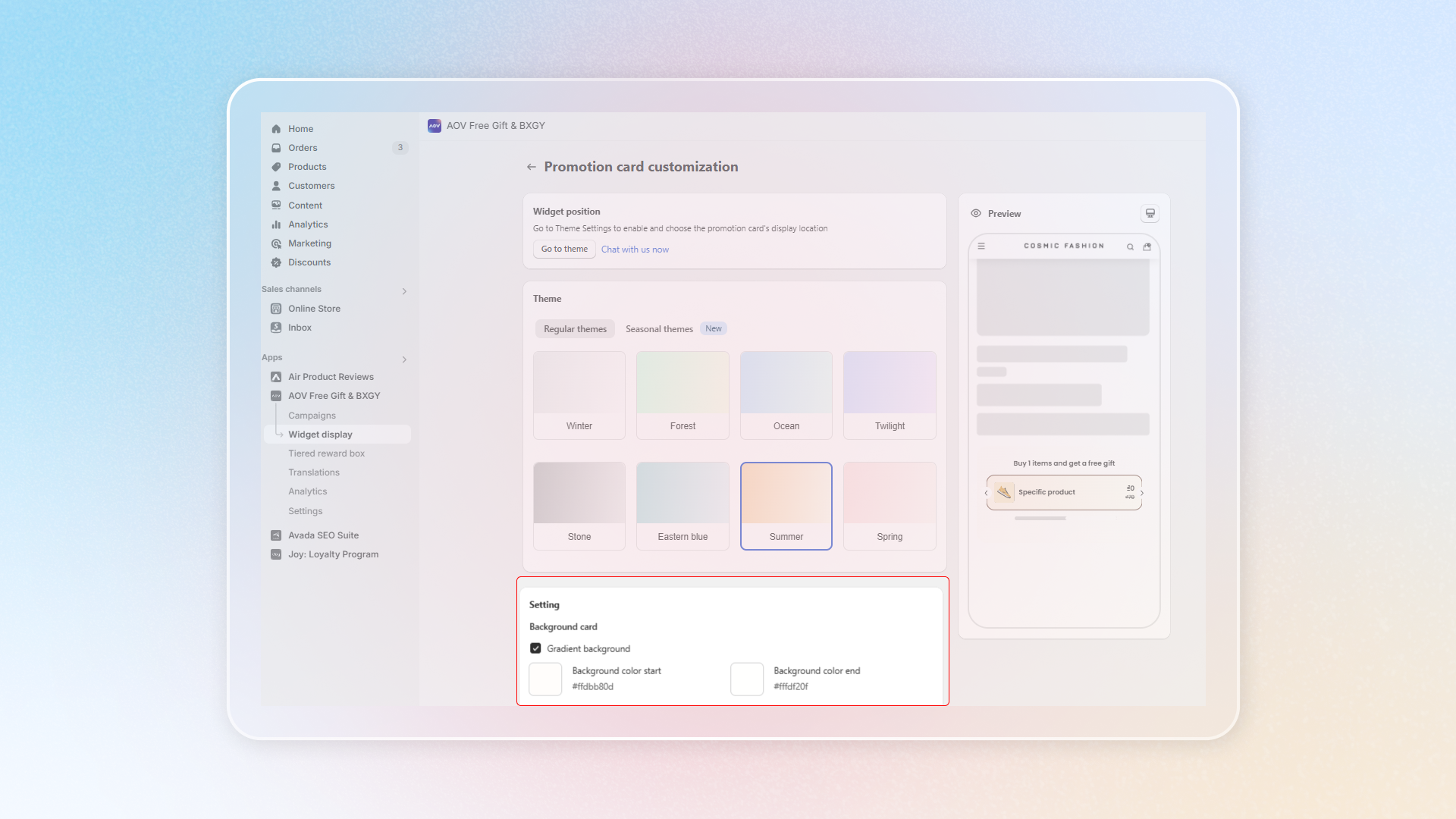
#### Step 4: Customize the Setting
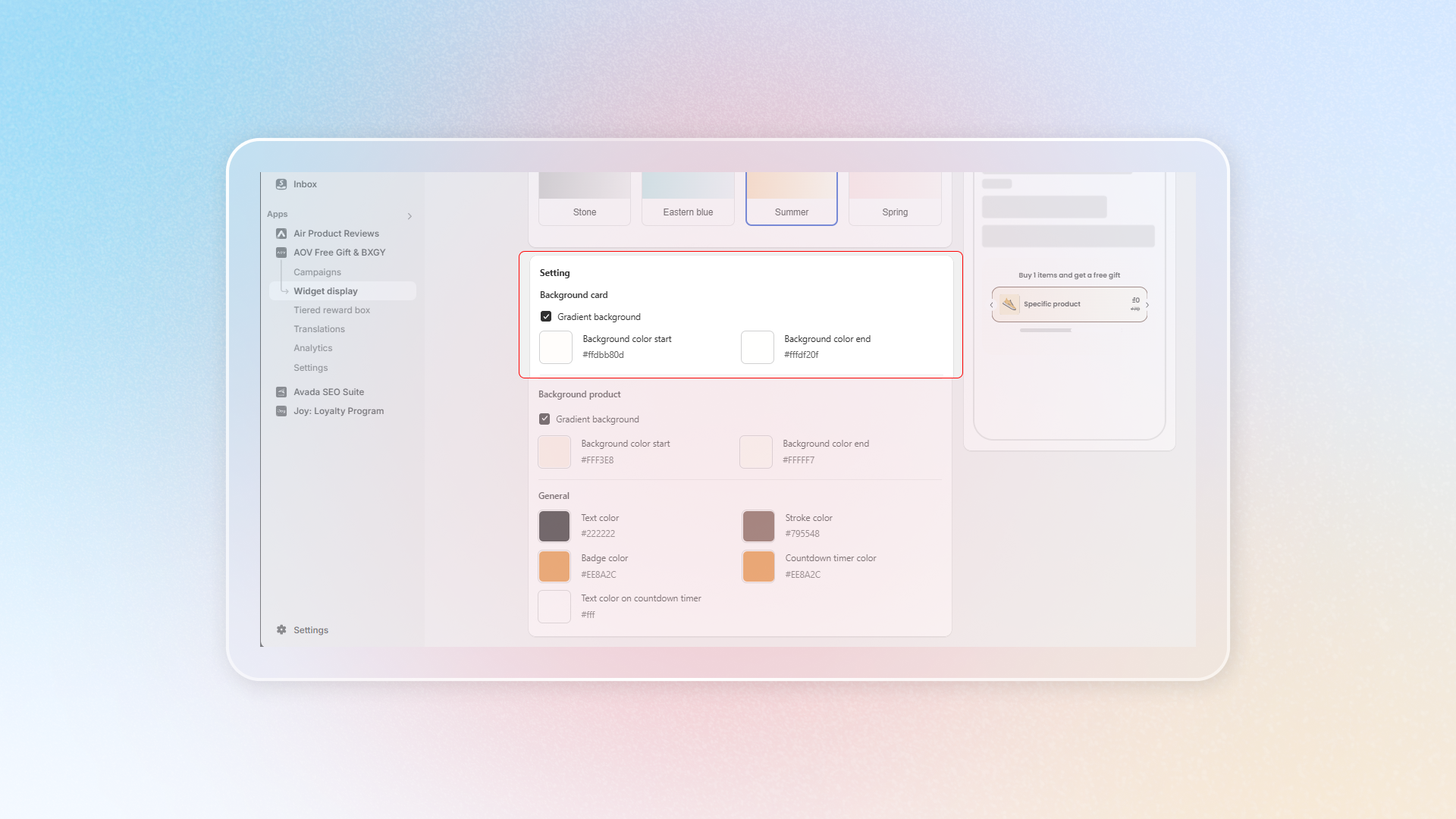
Under **Settings**, you can adjust the card’s background and colors to align with your store's branding.
**Customize Background Card:**
Select **Gradient Background** if you want a gradient effect.
If not, choose a **Background Color** by entering a HEX code or selecting a color from the palette.
**Customize Background Product:**
Choose **Gradient Background** if you want a gradient for the product background within the card.
If not, just set the **Background Color** for the product display area.
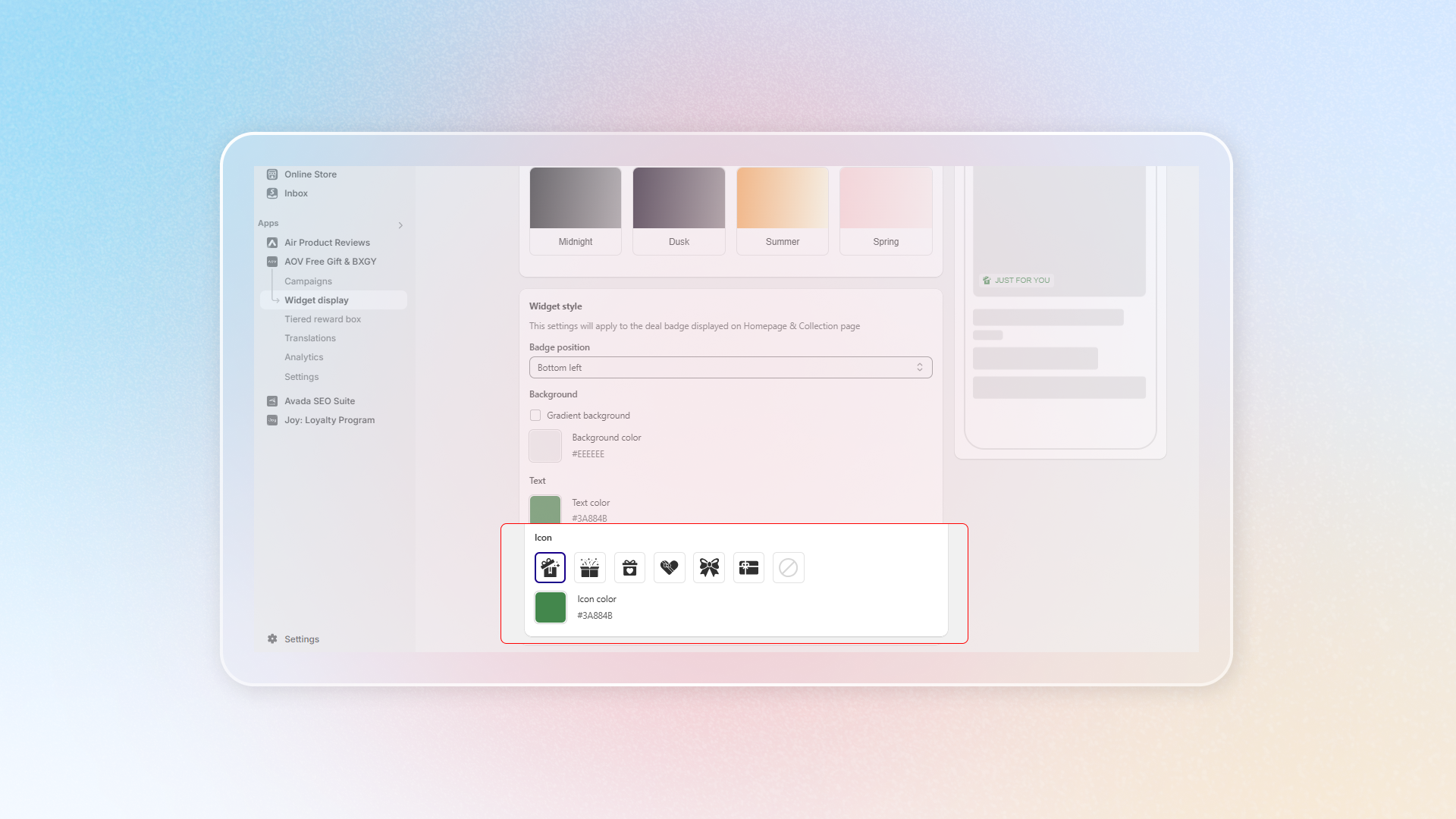
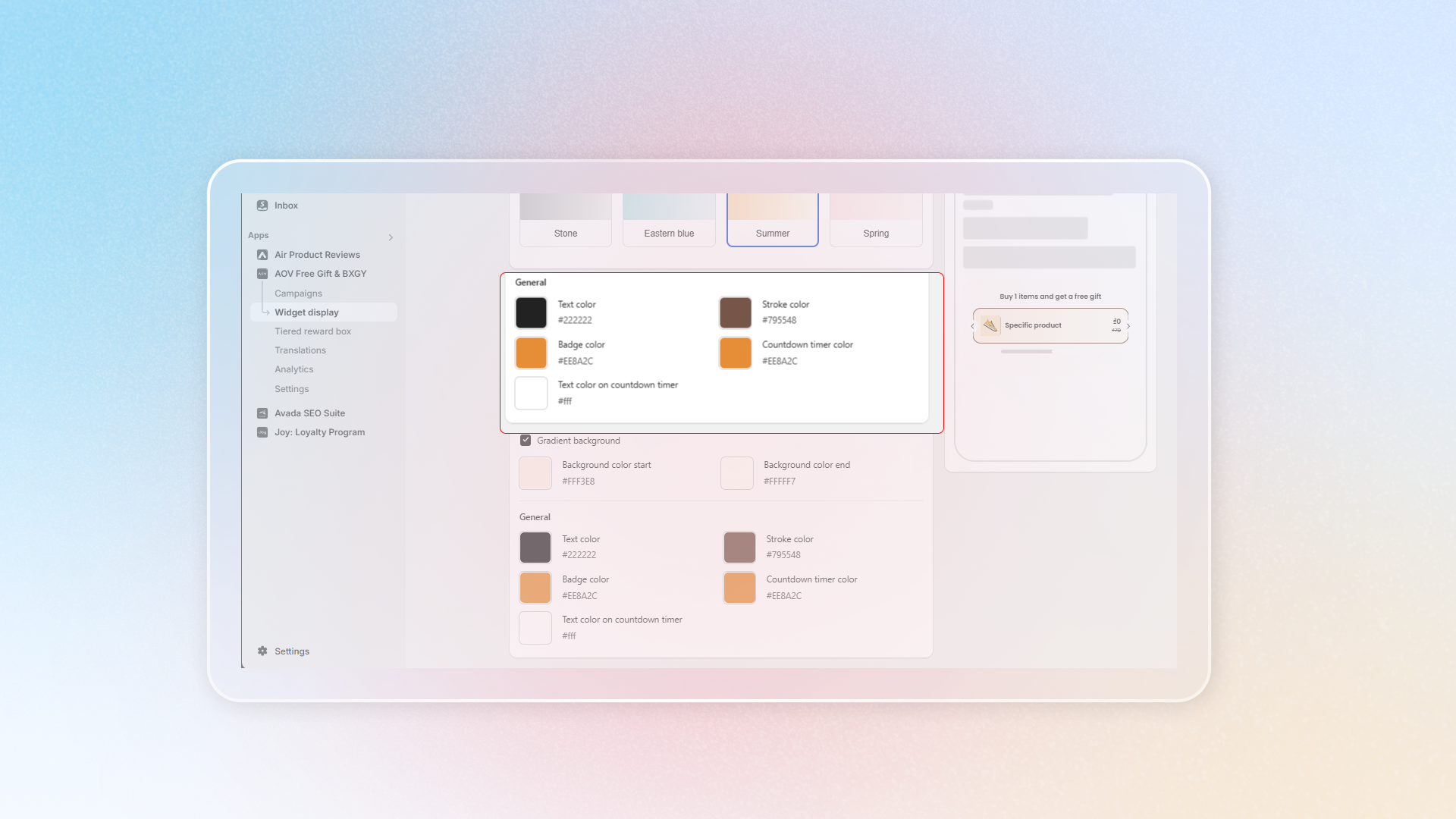
**General Color Settings:**
Set **Text Color** for readability against your chosen background.
Choose **Stroke Color** to outline elements within the card.
Define **Badge Color** to highlight offers.
Adjust the **Countdown Timer Color** if you’re running time-sensitive promotions.
For the timer text, select **Text Color on Countdown Timer** to ensure it stands out.
#### Final Step: Preview and Save the Setting
Check the **Preview** section on the right side to see how the card looks in real time.
Adjust any settings if necessary to ensure the card appears professional and aligns with your brand's visual style.
Click **Save** to apply the settings.
The Promotion Card feature in the AOV Free Gift app is a powerful tool for increasing Average Order Value (AOV) through visually engaging and strategically positioned promotions. Start optimizing your Promotion Card today and watch your AOV grow!
---
# Agent Instructions: Querying This Documentation
If you need additional information that is not directly available in this page, you can query the documentation dynamically by asking a question.
Perform an HTTP GET request on the current page URL with the `ask` query parameter:
```
GET https://help.aov.ai/promote-your-campaign/promotion-card.md?ask=
```
The question should be specific, self-contained, and written in natural language.
The response will contain a direct answer to the question and relevant excerpts and sources from the documentation.
Use this mechanism when the answer is not explicitly present in the current page, you need clarification or additional context, or you want to retrieve related documentation sections.