# Pop-up
{% hint style="info" %}
This feature is available for all types of campaigns.
{% endhint %}
### What is the Pop-up Widget?
The Pop-up Widget in the AOV Free Gift app displays promotional messages on your store, product, or cart pages. It highlights deals like gifts, discounts, or volume-based offers that shoppers can unlock by meeting specific conditions.
### Why use the Pop-up Widget?
Instantly grabs attention without disrupting browsing
Pop-ups are effective because they grab customers' attention when they are actively browsing or about to complete a purchase. With the Pop-up Widget, you can target customers at the right moment, encouraging them to take advantage of promotions and spend more.
Encourages customers to meet gift/discount conditions
Displaying a limited-time offer or exclusive discount in a Pop-up makes customers more likely to act quickly, adding more to their cart to avoid missing out on the special deal.
Drives higher engagement and conversions
A well-designed pop-up from AOV Free Gift can help reduce cart abandonment by reminding customers of available discounts or promotions before they leave the store.
Easy Setup and Customization
The AOV Free Gift app’s Pop-up Widget is designed to be easy to configure, even for merchants without technical expertise. Merchants can adjust the colors, text, and call-to-action buttons, ensuring the popup matches their brand while delivering a clear and compelling message.
### How to set up the Pop-up Widget?
{% hint style="info" %}
To give merchants **full flexibility and control**, the Pop-up feature is configured in two distinct places, each serving a different purpose:
* **Campaign ( Display setting )**
This section lets you define the message content shown inside the Pop-up for each campaign. It’s campaign-specific because different campaigns may have different offers, tones, or messages.
* **Widget Styling (Gift alerts on qualification)**
This section controls how the Pop-up looks across your storefront, regardless of the campaign. It ensures consistent design and branding across your store.
{% endhint %}
**Step 1: Navigate the Pop-up on the Campaign setting screen**
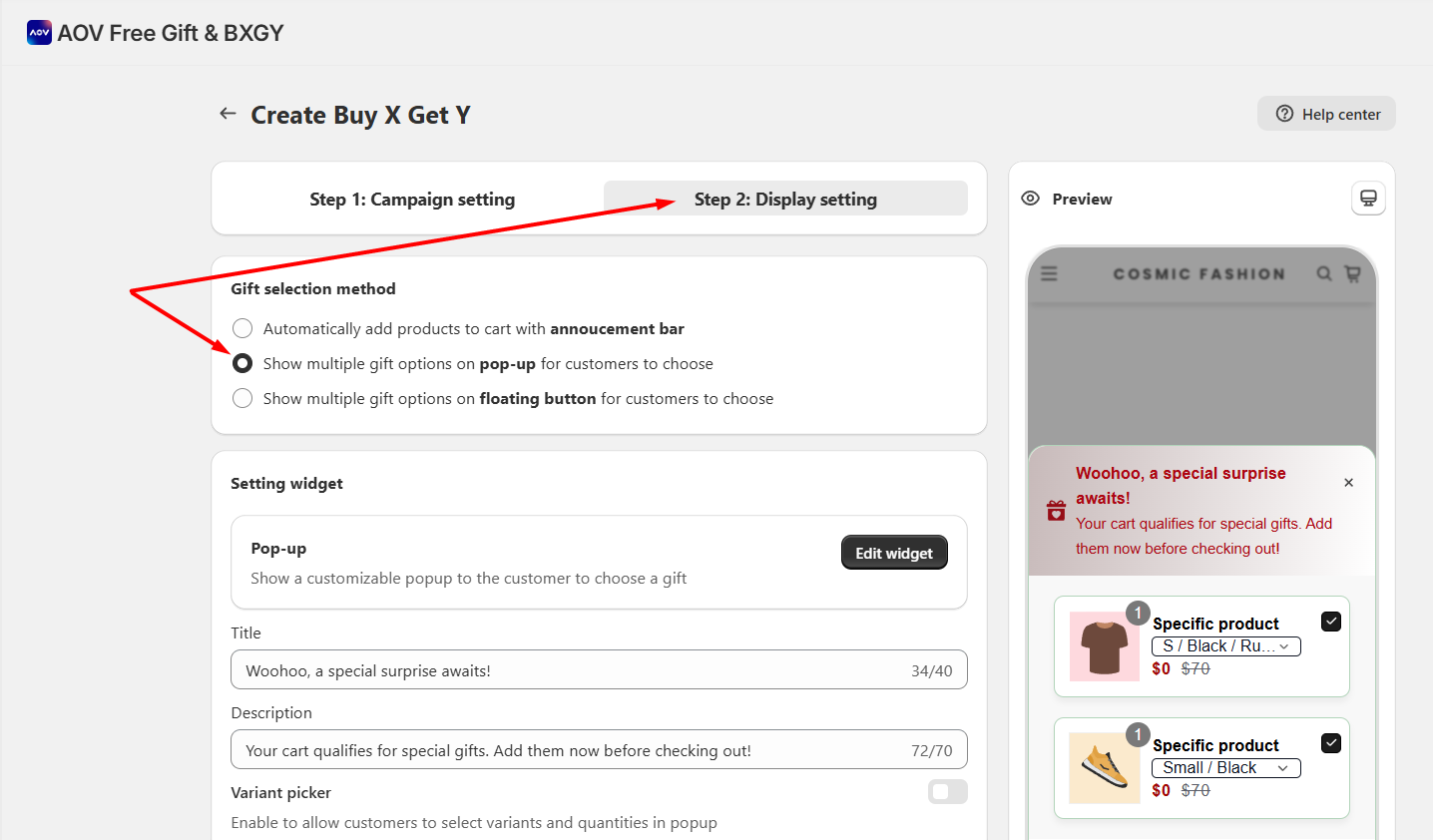
Select the **Display setting** section on the bar, then choose **Pop-up** ( second option). This will activate the pop-up on your storefront instead of the congrats bar or the floating button.
**Step 2: Customize Pop-up Text**
Once selected, configure the following text that will appear on the pop-up.
**Title**
* Sets the header text in the pop-up once it opens. You should highlight the excitement and exclusivity of the offer.
**Description**
* Sets the text that appears below the title in the gift pop-up to explain what users should do.
**Variant Picker (Optional)**
* Toggle it **on** if your gift products include variants and you want to allow customers to select variants and quantities directly from the pop-up.
#### Step 3: Navigate the Pop-up widget
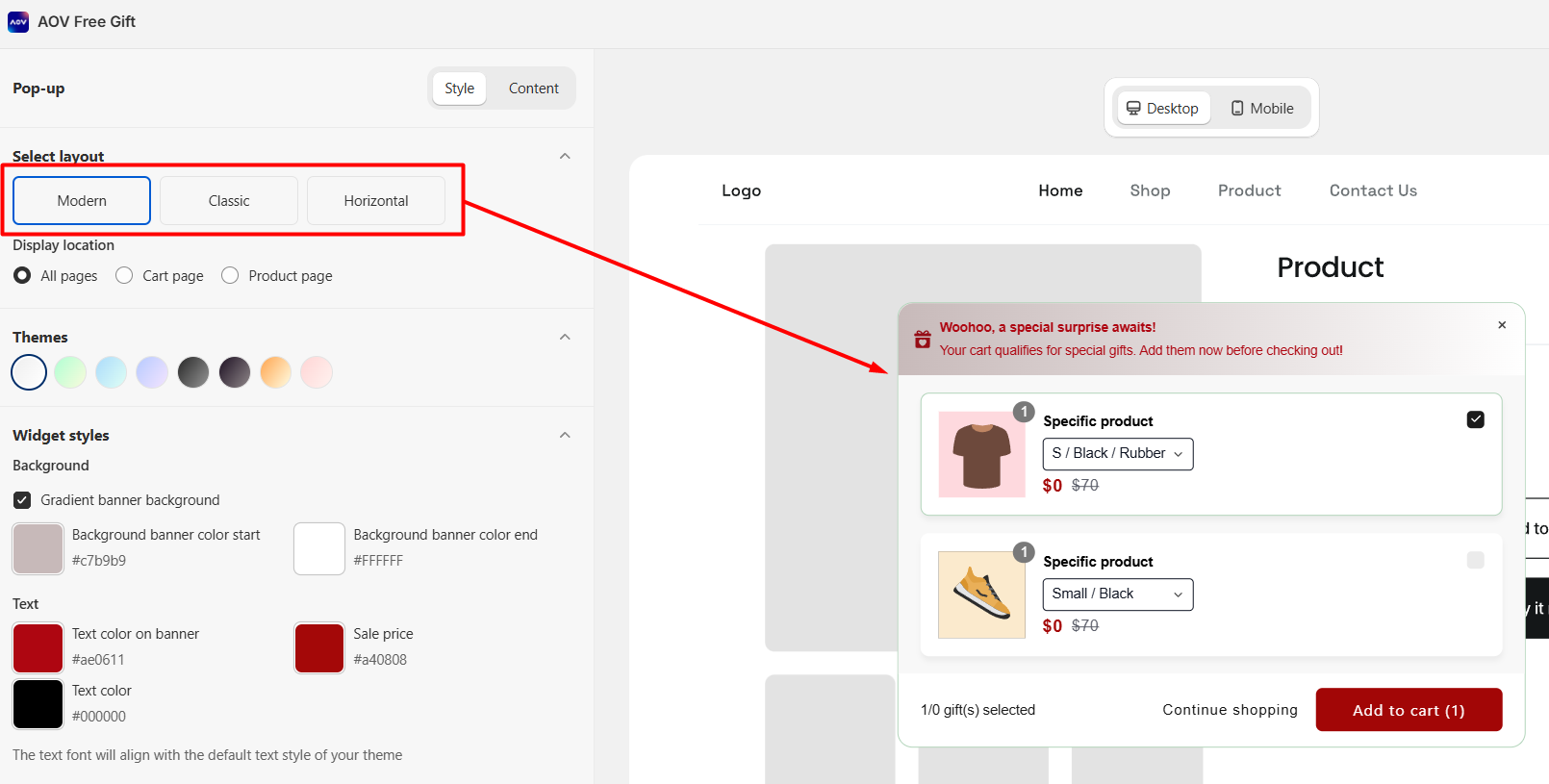
Navigate to **Widget Styling ->** **Pop-up** among the options. Choose **Customize** to start customizing the Pop-up.
*\*From the **Display setting section,** there's a shortcut you can click on the **Edit Widget** button to navigate to the Customize Widget section.*
#### Step 4: Customize Widget Style
**Select layout**\
There are three customizable layouts for the Pop Up:
* **Modern**
* **Classic**
* **Horizontal**
**Display location**
* You can set the pop-up's display on all pages, the cart page, or the product page
**Widget theme**
* You can choose the theme for your pop-up so that you don't have to manually change its style. There are several colors to choose from, and you can try them out until you've found your desired color.
#### Step 5: Customize Widget Style
**Set up Pop-up Background**
* Choose whether you want the gradient banner background or not by ticking the box. Then choose a color that complements your store’s branding.
#### Set the Text Color
* Select a color that ensures the text is easily readable against the background. You can style the color of the text on the banner, normal text, and even the sale price.
**Choose an Icon**
* Select an icon that fits the theme of your promotion and adds visual interest to the Pop-up. Then, change its color as you want.
**Customize 'Add to cart' button**
* Customize the **button color** and **text colors on the button** to align with your store’s branding.
**Customize the Border radius**
* You can control how rounded the corners of your pop-up appear, helping match your store’s design style.
#### Step 6: Customize Widget Content
**Popup text:** You can customize the text on the button according to the messages you want to deliver.
* **'Unlock Your Gift' button**
* **'Continue shopping' button**
* **'Gift(s) selected' text**
#### Step 7: Finalizing the Popup Customization
* Utilize the preview feature on desktop and mobile versions to visualize how your customizations appear in real time
* Test the Pop-up on your storefront to ensure it displays correctly and functions as expected. This is an example of the pop-up displaying on your store:
By customizing the Pop-up, you can create a more engaging and personalized experience for your customers, encouraging them to take advantage of your promotion campaigns and enhancing their overall shopping experience.
---
# Agent Instructions: Querying This Documentation
If you need additional information that is not directly available in this page, you can query the documentation dynamically by asking a question.
Perform an HTTP GET request on the current page URL with the `ask` query parameter:
```
GET https://help.aov.ai/set-up-gift-recieving-method/pop-up.md?ask=
```
The question should be specific, self-contained, and written in natural language.
The response will contain a direct answer to the question and relevant excerpts and sources from the documentation.
Use this mechanism when the answer is not explicitly present in the current page, you need clarification or additional context, or you want to retrieve related documentation sections.