# Promote Order Goal with Announcement Bar
### What is Avada Boost Sales Trust Badges and Announcement Bar?
Avada Boost Sales Trust Badges
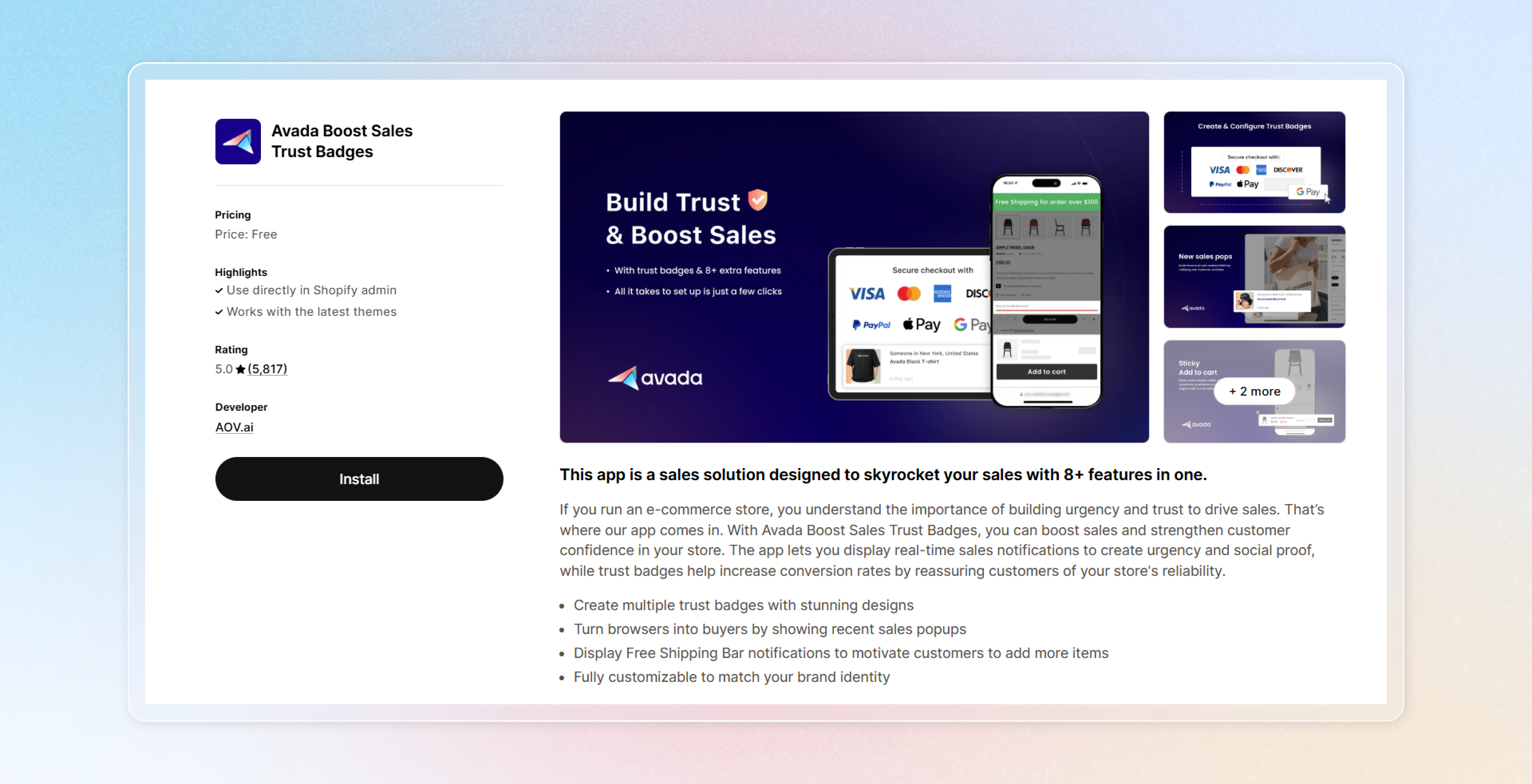
**Avada Boost Sales Trust Badges** is an app to build urgency and trust for your customers, thereby driving more sales. The app lets you display real-time sales notifications to create urgency and social proof, while trust badges help increase conversion rates by reassuring customers of your store's reliability.
**Announcement Bar** is a feature of the app Avada Boost Sales Trust Badges, displaying a prominent notification tool at the top of the storefront. It allows you to communicate key promotional messages, campaigns, or updates to your customers in an eye-catching way.
### Why use Announcement Bar to promote Order Goal campaigns?
Enhance Visibility
The Announcement Bar ensures that your campaign is displayed prominently at storefront, grabbing the attention of visitors immediately and ensuring your customers are aware of the rewards or discounts they can unlock
Ease of Management
Thanks to the seamless integration between AOV Free Gift and Avada Boost Sales Trust Badges, you can simplify the process of managing and customizing your promotions.
Increased Conversions
Strategically placed announcements can nudge customers toward meeting the order goal, driving sales and boosting your average order value (AOV).
### How to set up the Announcement Bar for Order Goal campaigns?
#### Step 1: Prepare your Order Goal campaign
Set up, save and activate Order Goal campaign in the AOV Free Gift app. For more details, refer to this article.
#### Step 2: Install Avada Boost Sales Trust Badges (if not already installed)
Visit Shopify App Store and install the [Avada Boost Sales Trust Badges](https://apps.shopify.com/avada-boost-sales?utm_source=userguide\&utm_medium=menu\&utm_campaign=free+gift_userguide\&utm_term=Boost+sell).
#### **Step 3: Access the Announcement Bar**
In the app **Avada Boost Sales Trust Badges,** navigate **Extra features** in the left side menu > Choose **Announcement bar.**
Toggle the button to activate the feature > Click the button **Customize** to start setting up.
{% embed url="" %}
#### Step 4: Link the **Announcement Bar** to the **Order Goal campaign**
{% stepper %}
{% step %}
Connect to Order goal campaigns
In the Announcement Bar settings, enable the option to **Connect to 'Order Goal' campaigns in AOV Free Gift** by checking the relevant box.
{% endstep %}
{% step %}
Choose Order goal campaign(s)
Click **Add 'Order Goal' Campaign**, and a list of your active campaigns from AOV Free Gift will appear.
Select a desired Order goal campaign and confirm your choice.
{% endstep %}
{% step %}
Customize Bar's message
Now, the app will automatically provide you Custom message and Order Goal message aligned with your campaign. You can customize them to match your specific intention.
{% endstep %}
{% step %}
Set up Bar action
Then, decide if the bar allows any actions or not.
In the **Bar Action** settings, enable the option to **Click on Bar** by checking the box. Hereby, you can set up various actions based on your bar's purposes:
* Enter a **Clickable Link** to direct customers to a specific page (e.g., checkout, promotions, or a landing page).
* Choose whether to **Open Link in New Tab** for a smoother browsing experience.
* Select the **Click Type**:
* **Insert a Button on the Bar:** Add a call-to-action button with custom text, such as "Check out now!".
* **Make the Bar Clickable:** Allow the entire bar to function as a clickable element.
* Customize the button text to align with your campaign messaging.
{% embed url="" %}
{% endstep %}
{% endstepper %}
#### Step 5 (Optional): **Style the Announcement Bar**
Choose a design preset or customize the appearance of the Announcement Bar to align with your store’s branding.
Choose the place to put the announcement bar.
**Step 6: Activate the Announcement Bar**
**Preview** the Announcement Bar on desktop and mobile to ensure it looks perfect.
Click **Save** to display the Announcement Bar on your storefront.
By following this guide, you can maximize the impact of your Order Goal campaigns and create a seamless promotional experience that drives higher conversions and boosts your store’s average order value.
---
# Agent Instructions: Querying This Documentation
If you need additional information that is not directly available in this page, you can query the documentation dynamically by asking a question.
Perform an HTTP GET request on the current page URL with the `ask` query parameter:
```
GET https://help.aov.ai/promotion-campaign/how-to-set-up-order-goal-campaign/promote-order-goal-with-announcement-bar.md?ask=
```
The question should be specific, self-contained, and written in natural language.
The response will contain a direct answer to the question and relevant excerpts and sources from the documentation.
Use this mechanism when the answer is not explicitly present in the current page, you need clarification or additional context, or you want to retrieve related documentation sections.